
TutorialIn-app guide
Till Jasmine EPOS tutorials
In-app guides for how to use Till Jasmine EPOS.
Tutorials57
All tutorials
Clock Jasmine16

- Clock Jasmine absence approvals: review and verify a decision
- Clock Jasmine absence: book and verify a saved request
- Clock Jasmine approvals: review and verify a time correction
- Clock Jasmine contract templates: create, save and preview
- Clock Jasmine courses: create, save and preview a quiz
- Clock Jasmine history: save manual punches and breaks
- Clock Jasmine holiday pay: save an employee profile
- Clock Jasmine locations: create and verify an inactive zone
- Clock Jasmine rota grace periods: save and verify the policy
- Clock Jasmine rotas: create and verify a draft shift
- Clock Jasmine shift swaps: offer a shift and cancel a request
- Clock Jasmine teams: create a team and manage its roster
- Clock Jasmine: clock in, take a break and clock out
- Clock Jasmine: download and check clock-punch exports
- Getting started with Clock Jasmine: staff onboarding
- My Organisation: save your venue's employee handbook
- View all Clock Jasmine
Clock Jasmine Kiosk3
Jasmine Loyalty7

- Jasmine Loyalty achievements: save and verify bonus points
- Jasmine Loyalty members: enrol, find and verify a member
- Jasmine Loyalty packages: create, save and verify a reward
- Jasmine Loyalty scheme: save and verify rates and terms
- Jasmine Loyalty welcome email: edit, save and verify
- Jasmine Loyalty: getting started with video guides
- Jasmine Loyalty: save venue profiles and prepare events
- View all Jasmine Loyalty
Table Jasmine17

- Change or cancel a reservation in Table Jasmine
- Create a reservation in Table Jasmine
- Set Table Jasmine opening hours
- Set up tables and dining areas in Table Jasmine
- Table Jasmine activity logs: find and review booking events
- Table Jasmine booking closures and venue rules
- Table Jasmine booking widget
- Table Jasmine calendar and reservation statuses
- Table Jasmine confirmation emails: save a preset and subject
- Table Jasmine deposits: record, save and verify a payment
- Table Jasmine events: create and verify a draft
- Table Jasmine floor plan
- Table Jasmine functions and pre-orders
- Table Jasmine guests and messaging
- Table Jasmine menus and offers: create and preview
- Table Jasmine: invite a team member and check their access
- Table Jasmine: update stale reservation statuses
- View all Table Jasmine
Till Jasmine EPOS14

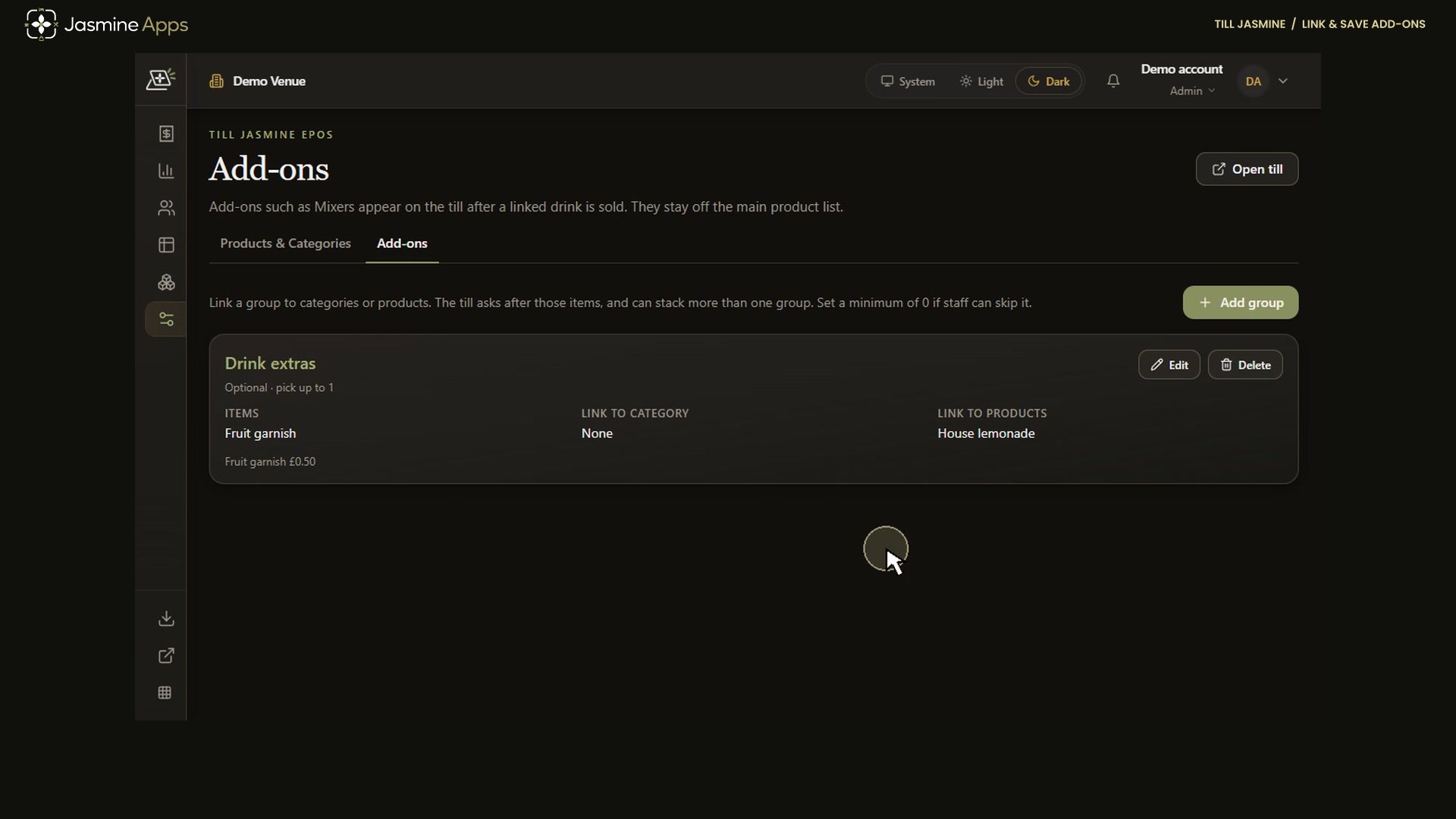
- Till Jasmine add-ons: create a group and verify its items
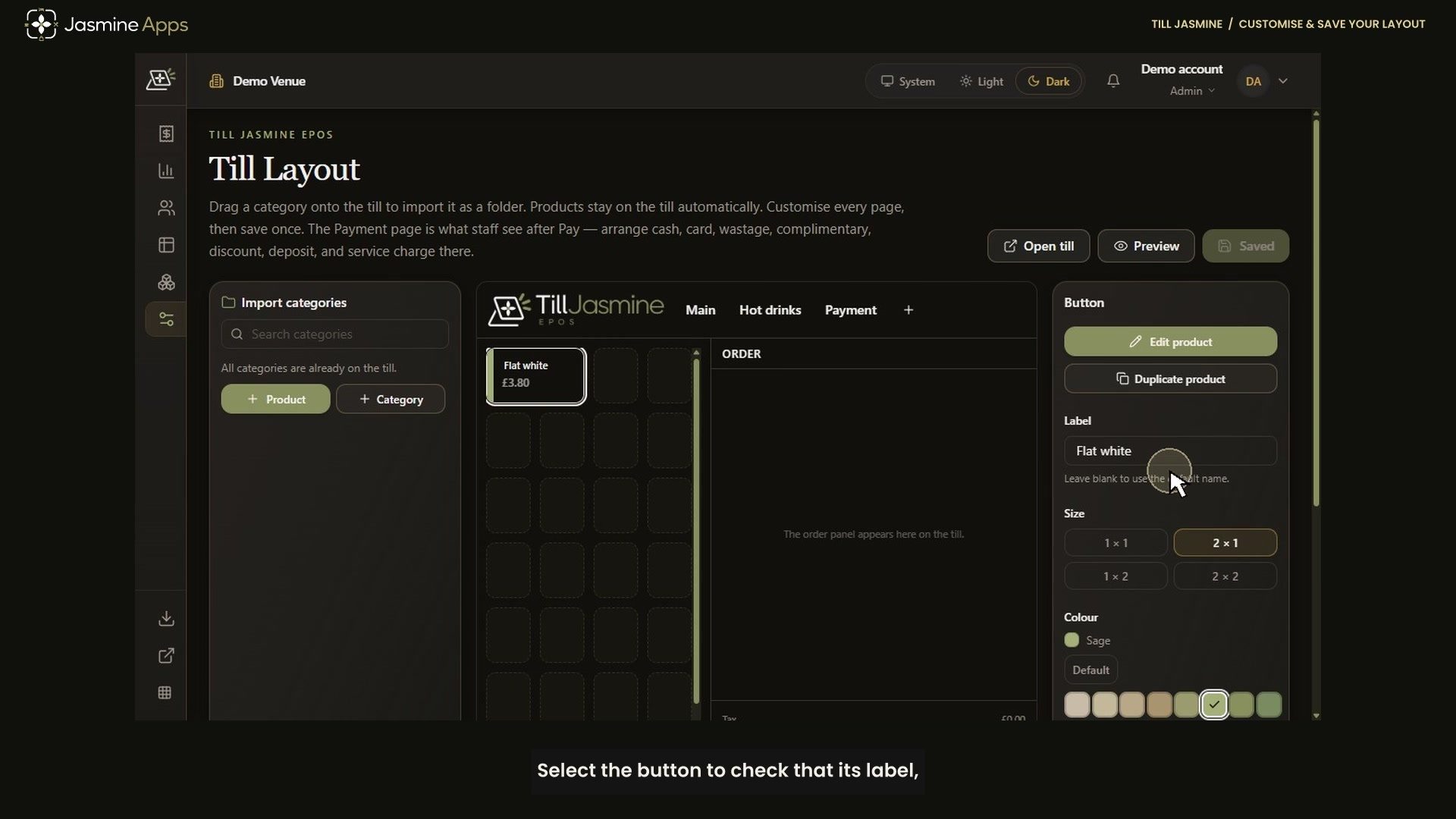
- Till Jasmine layout: customise, save and verify a button
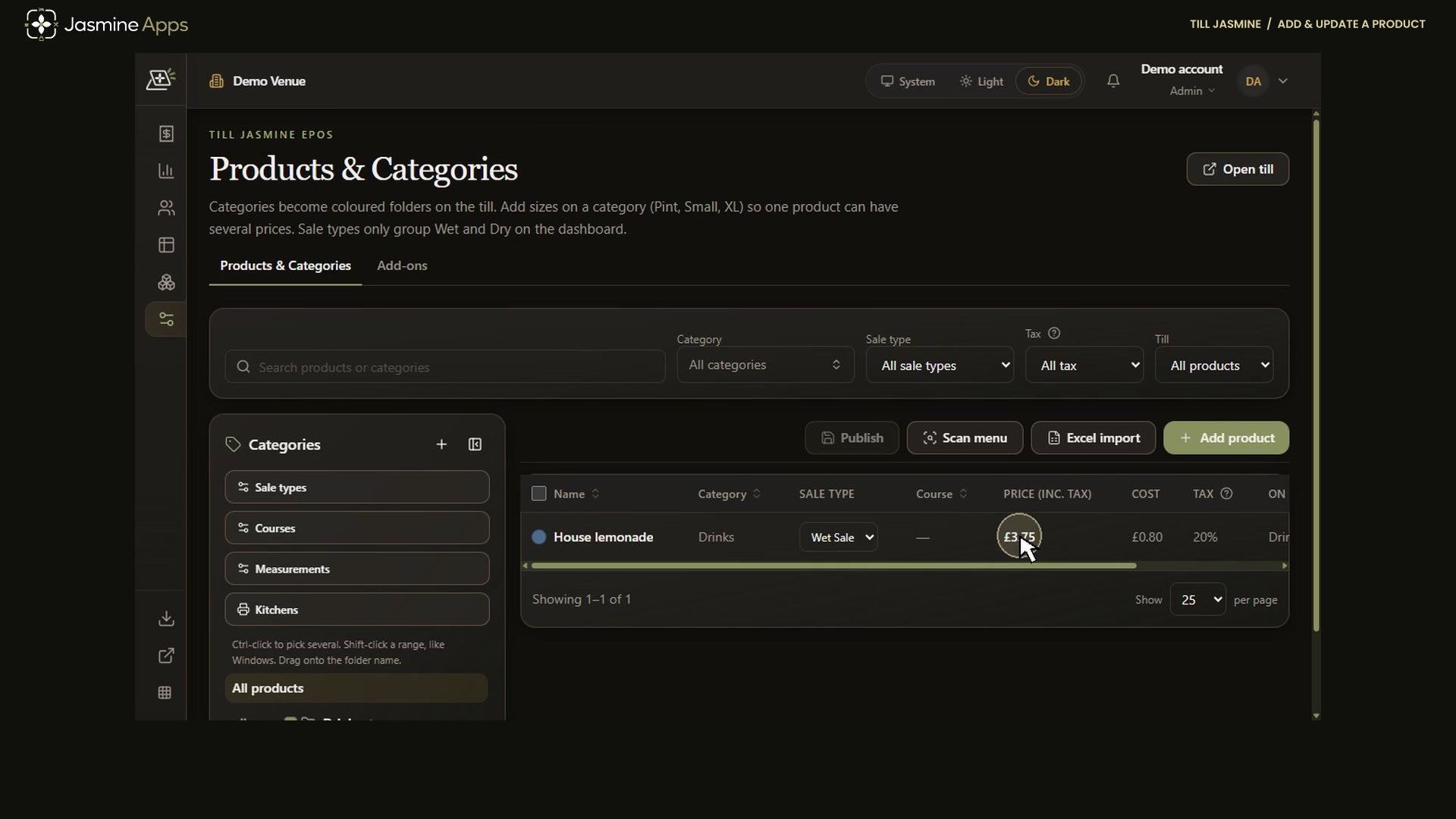
- Till Jasmine products: save an item and publish a price edit
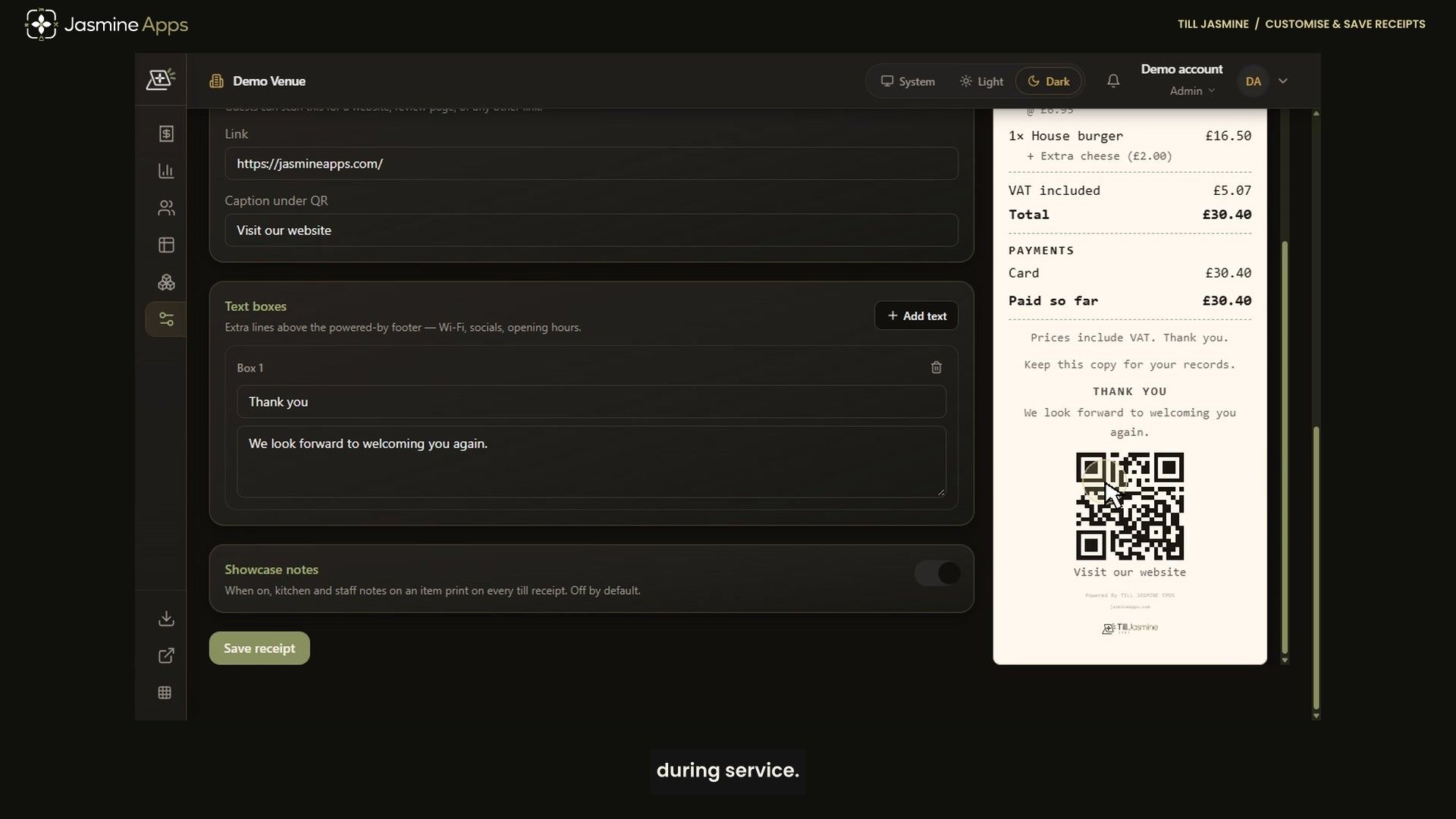
- Till Jasmine receipts: customise, save and verify the preview
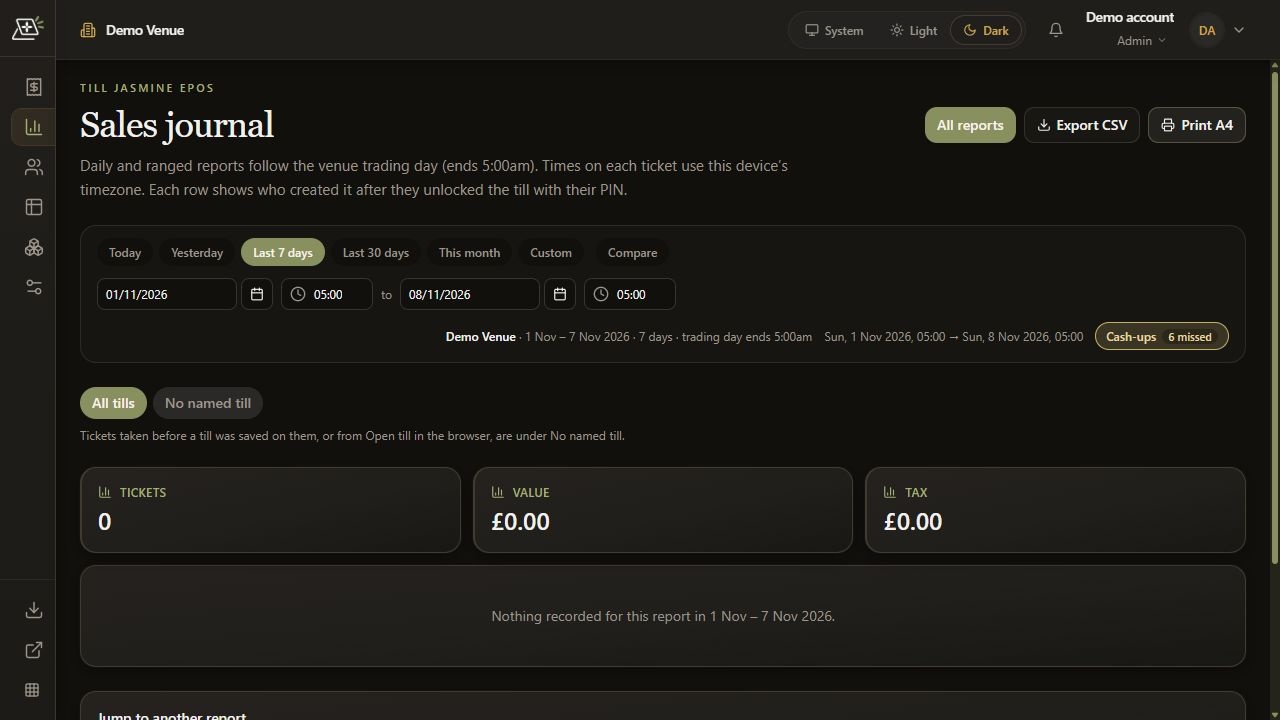
- Till Jasmine reporting: filter and export the Sales journal
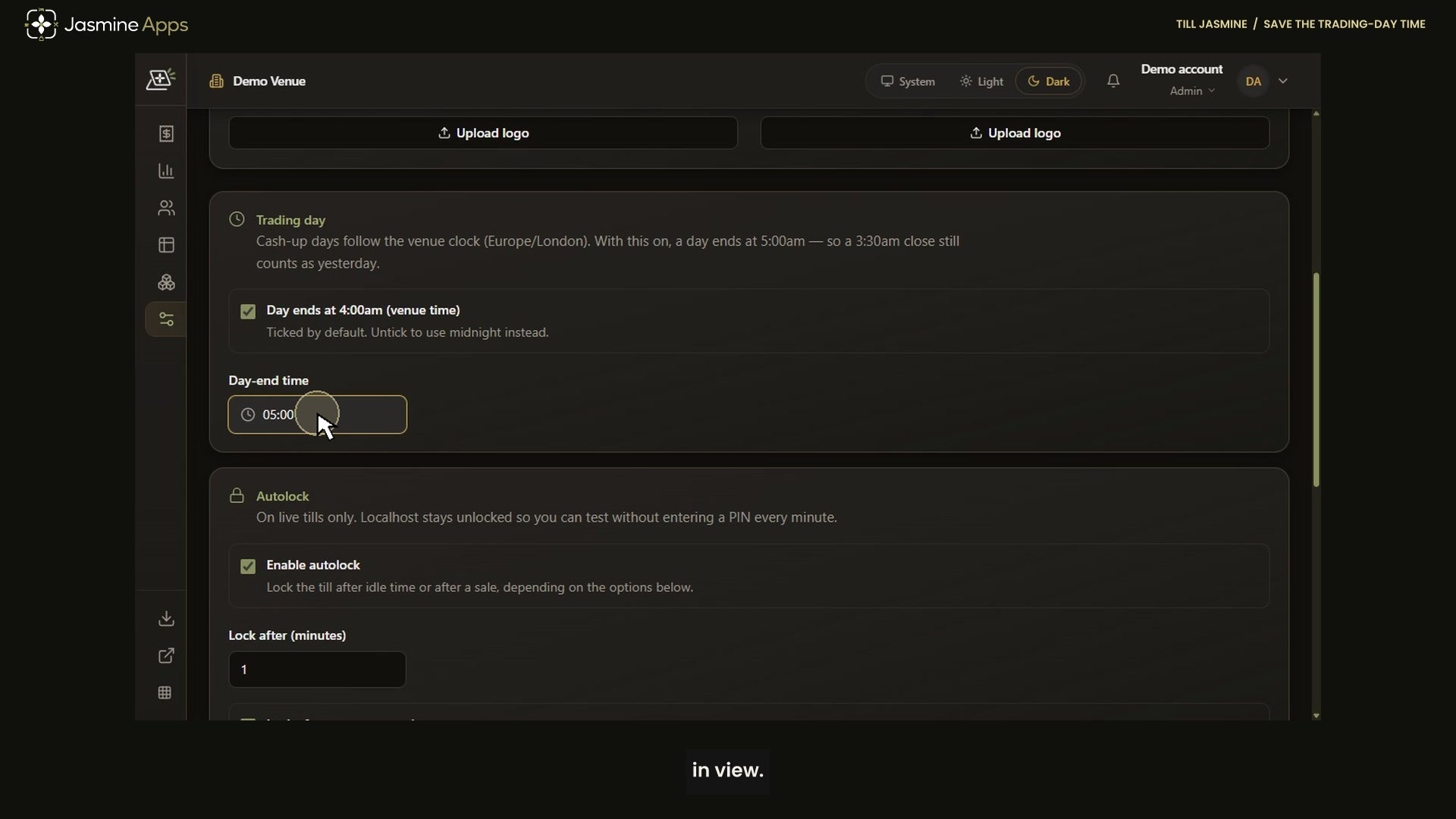
- Till Jasmine settings: save and verify the trading-day end time
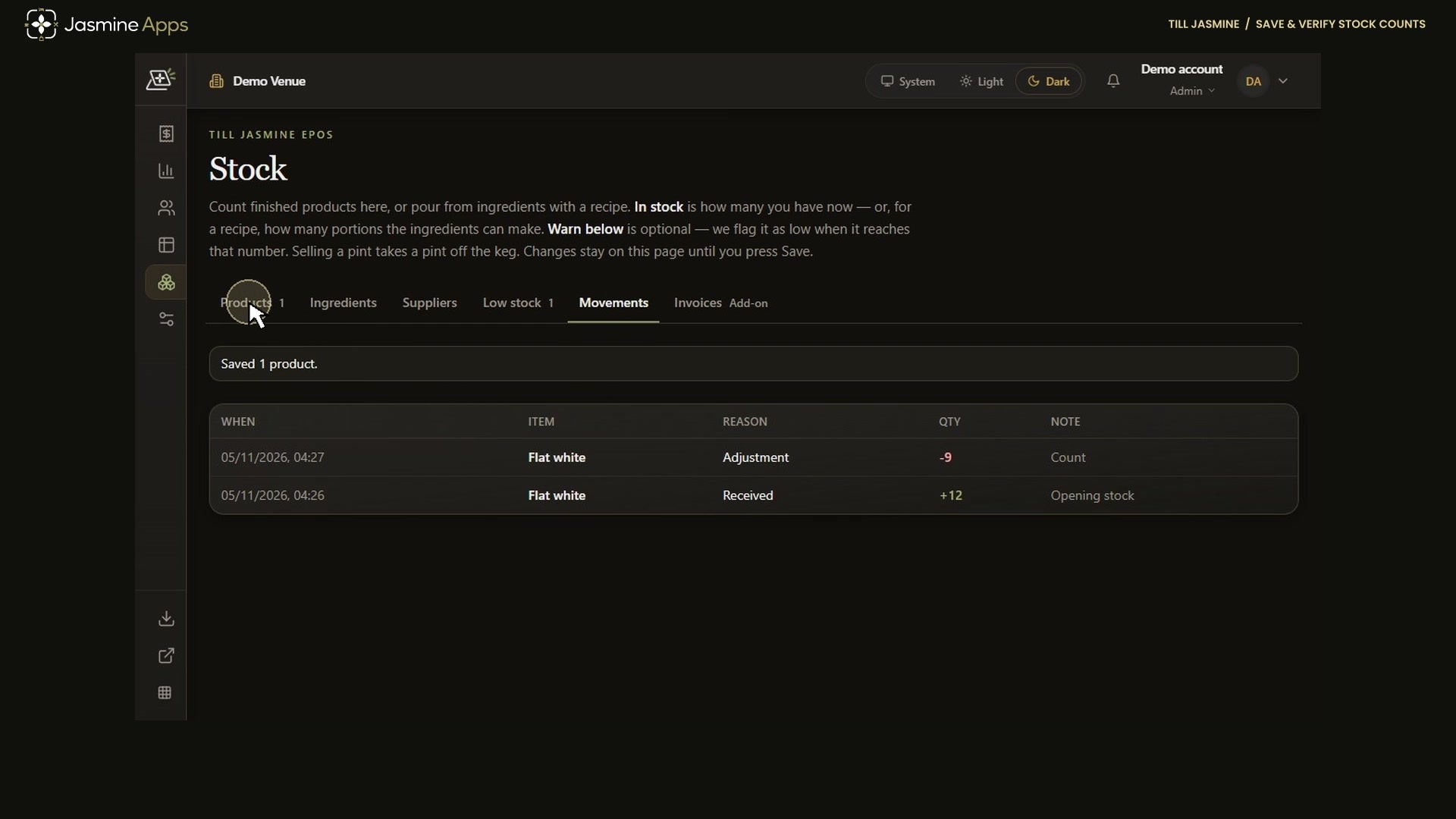
- Till Jasmine stock: save counts and verify low-stock changes
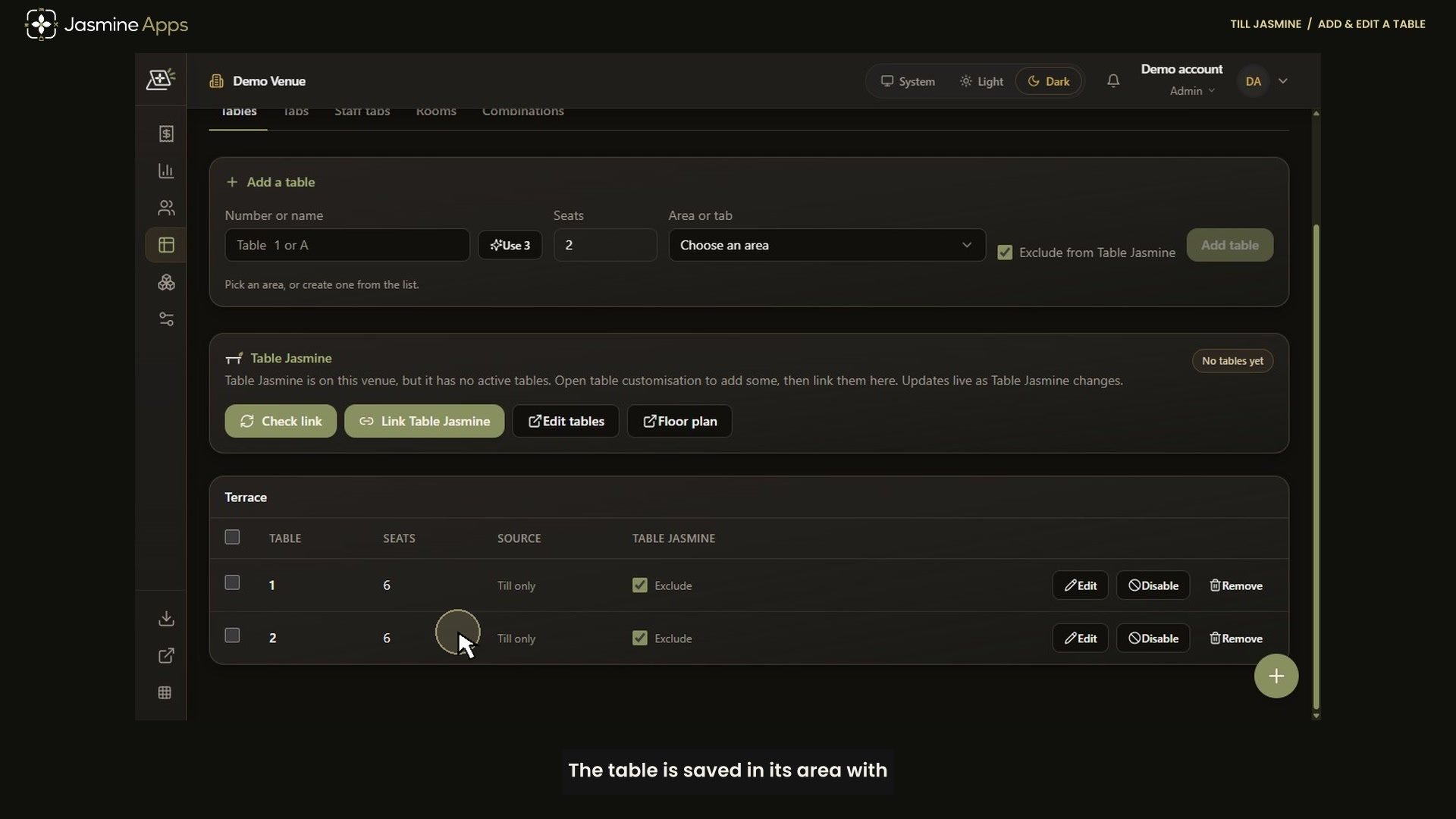
- Till Jasmine tables: add, save and edit a till-only table
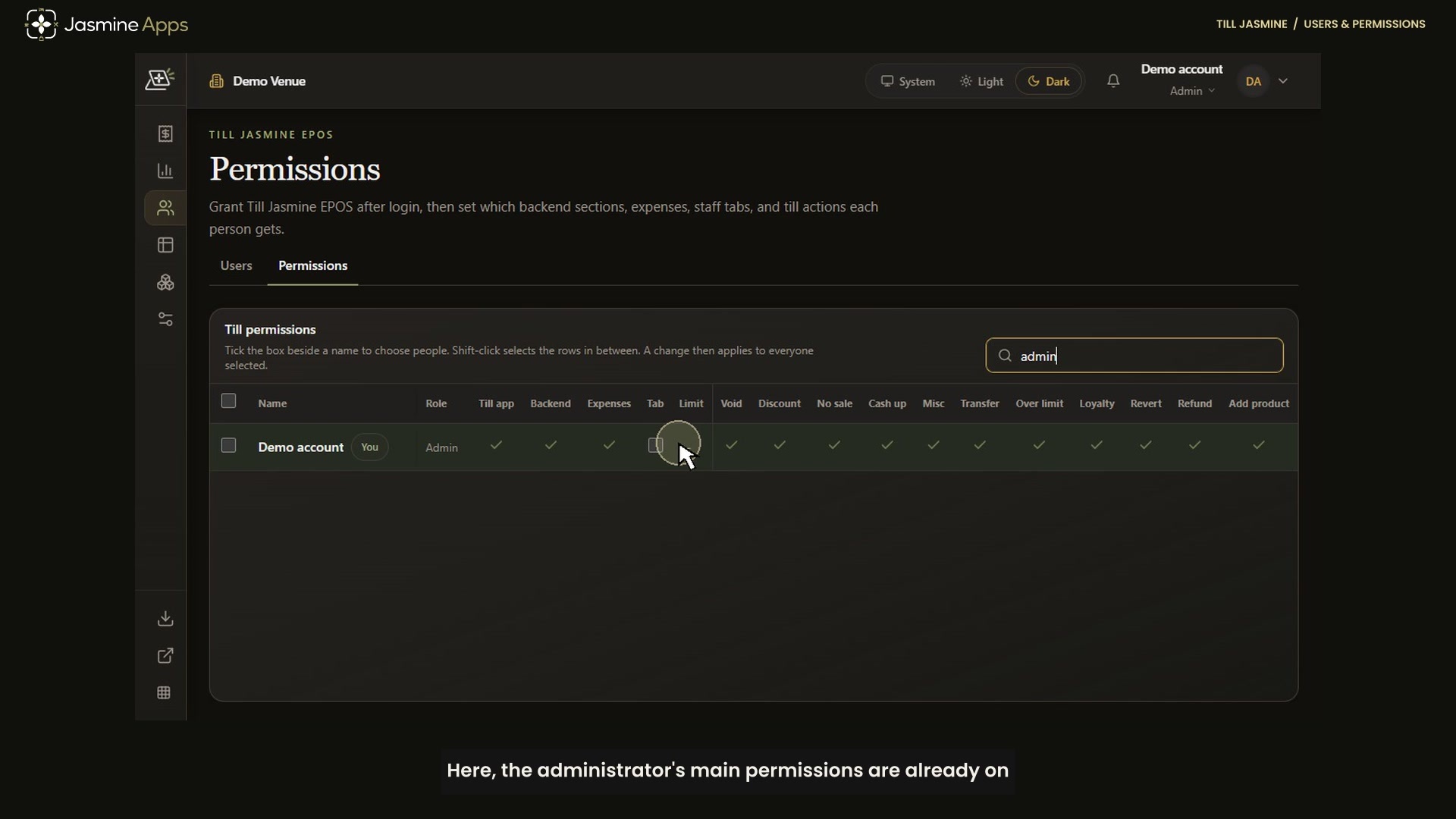
- Till Jasmine users and permissions: review an account
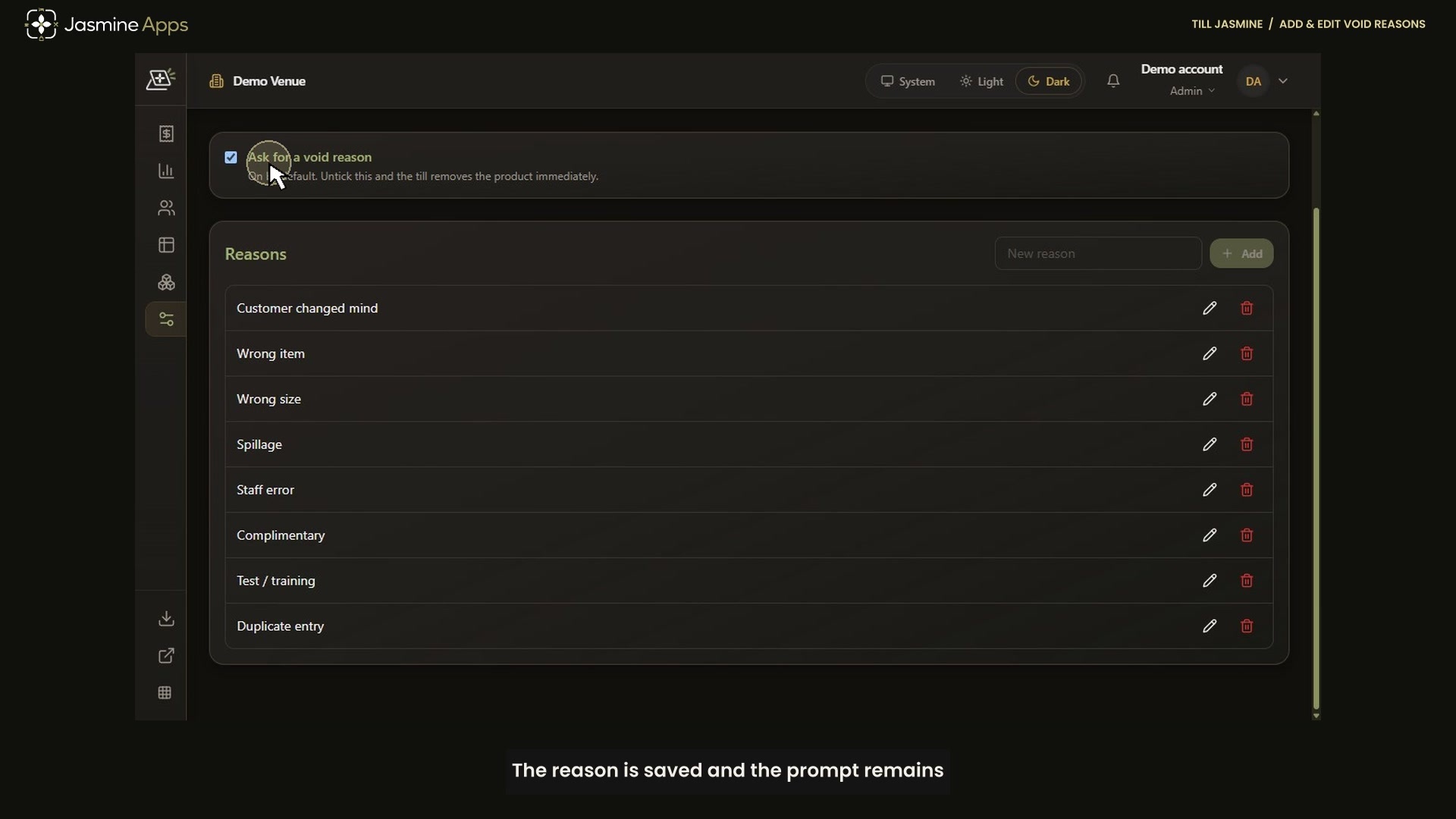
- Till Jasmine void reasons: add, edit and verify saved wording
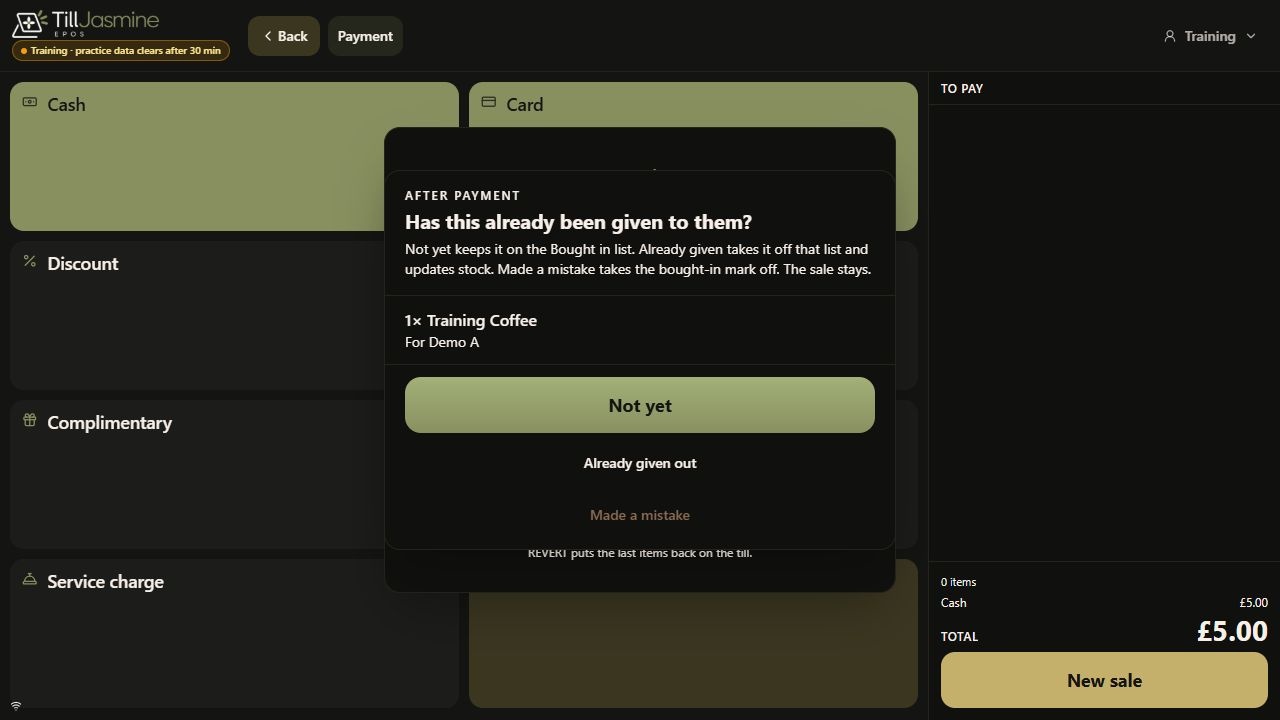
- Till Jasmine: bought-in recipients and immediate handover
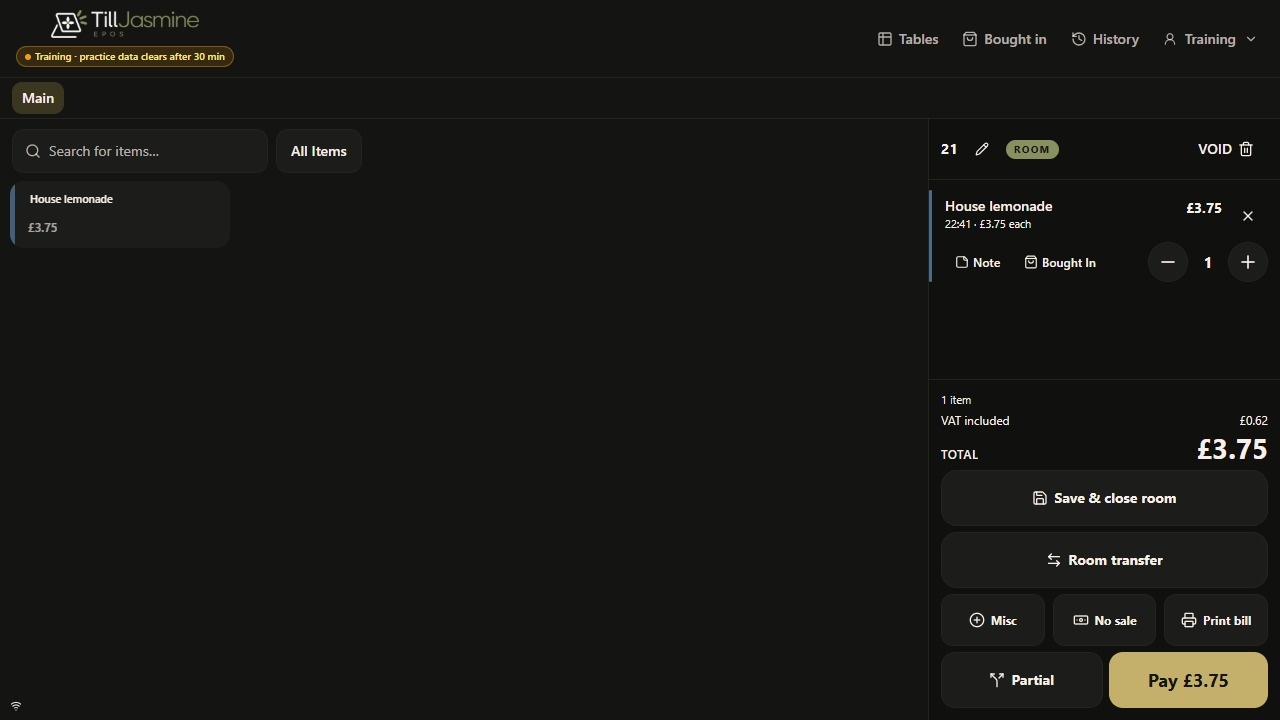
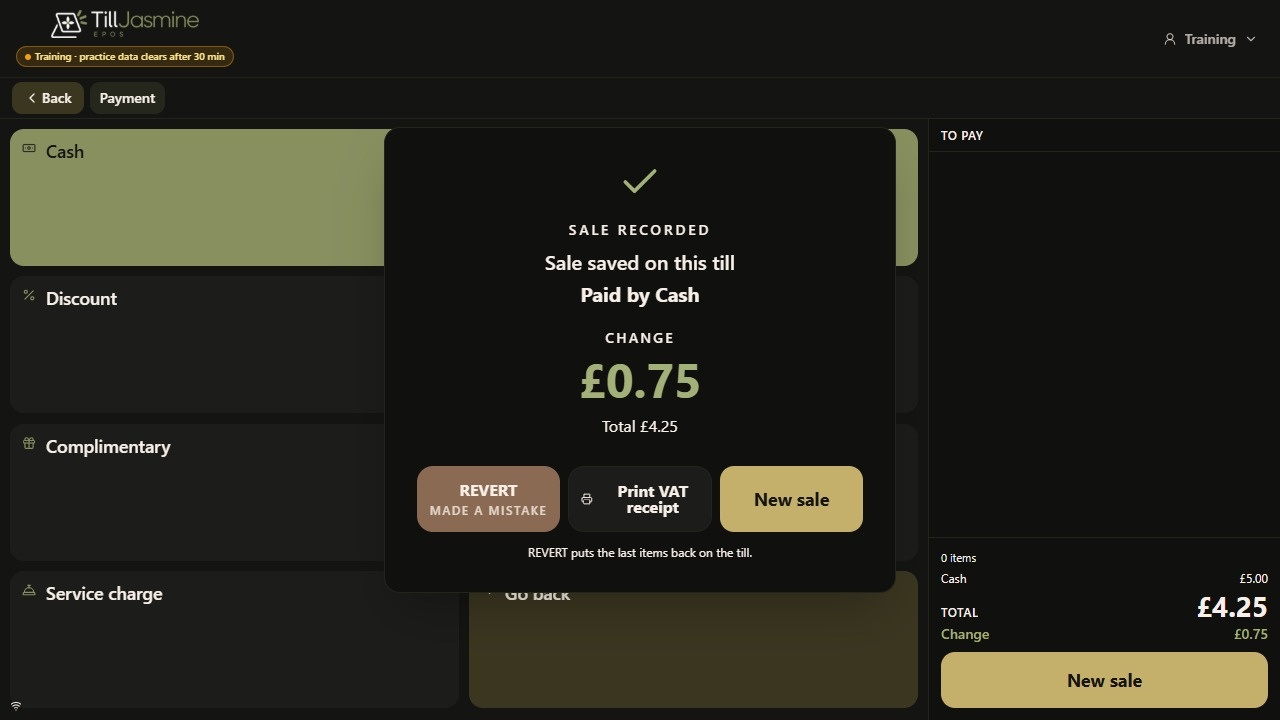
- Till Jasmine: complete and check a training sale
- Till Jasmine: count and close the till
- Till Jasmine: save and reopen table and room orders
- View all Till Jasmine EPOS




- Tutorial
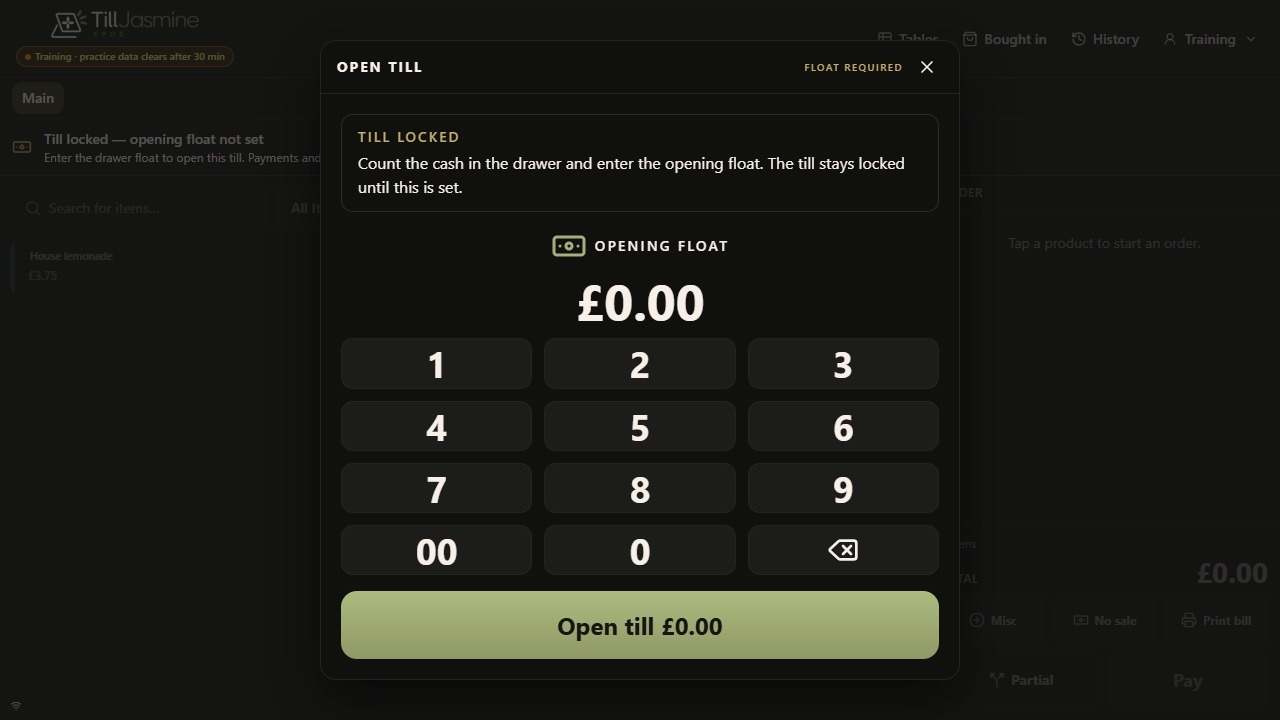
Till Jasmine: count and close the tillUse Till Jasmine cash-up to enter the money counted at the end of a shift, compare cash and card separately, save a handover note and close the till. This walkthrough completes those steps in the app's explicitly labelled training session.
- Tutorial
- Tutorial
- Tutorial
- Tutorial
- Tutorial
- Tutorial
- Tutorial
- Tutorial
- Tutorial
- Tutorial
- Tutorial
- Tutorial
- Tutorial