

TutorialIn-app guide
My Organisation: save your venue's employee handbook
· Jasmine Apps
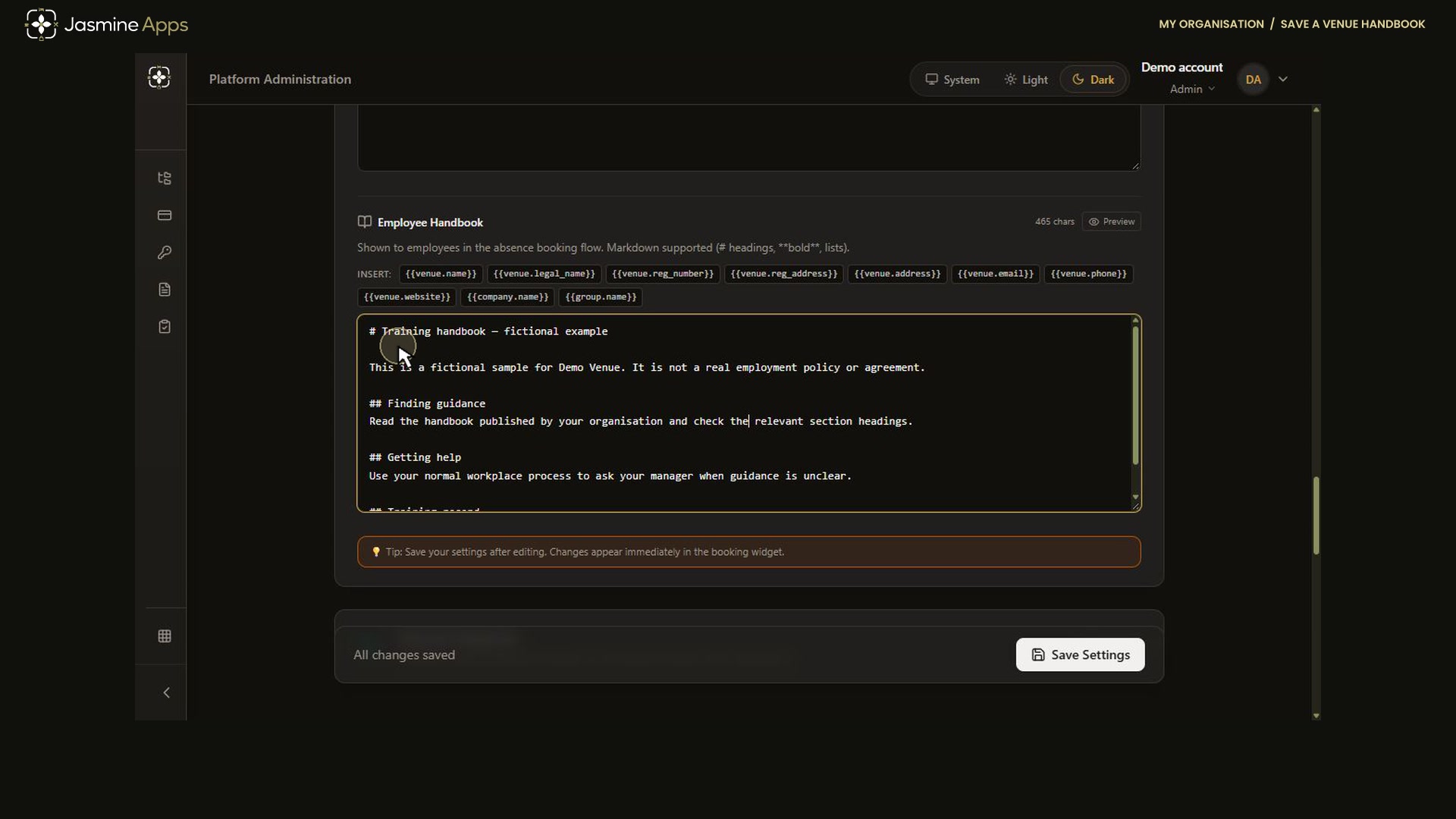
Keep the handbook text in your venue's Legal Documents settings. This walkthrough edits a clearly fictional training handbook, saves it and reopens the page to verify that the text was retained.
Watch the walkthrough
Find the handbook editor
Open your venue settings and expand Legal Documents. Scroll past the terms and privacy sections to Employee Handbook. Check that you are editing the intended venue before replacing any text.
Enter and organise the text
Enter the handbook approved by your organisation. The editor supports Markdown. Use a main heading and short, clearly named sections so the guidance is easy to navigate. The recorded text is a fictional sample, not an employment policy to adopt.
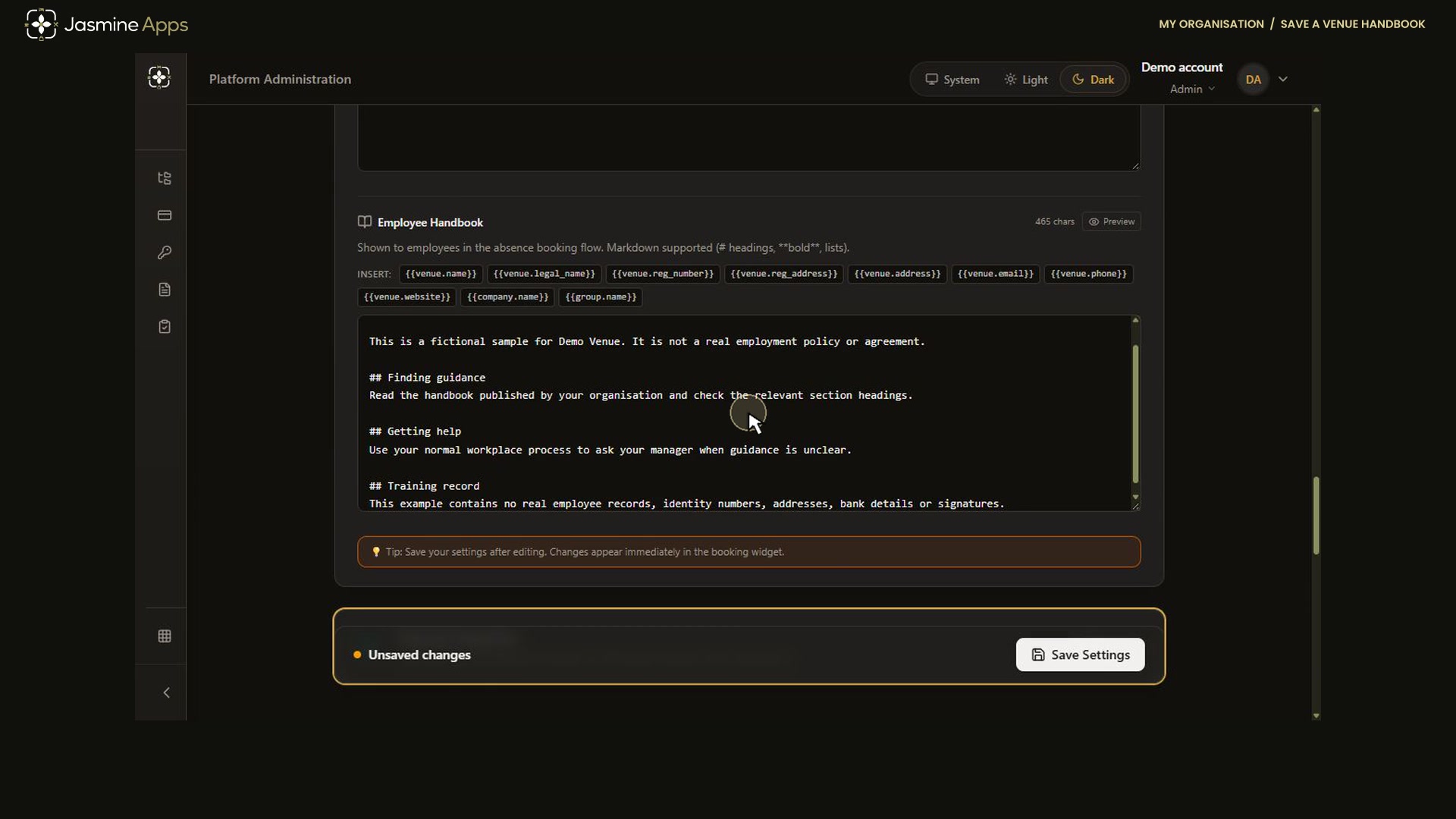
Save the settings
Choose Save Settings. Wait for saving to finish and check the saved confirmation before leaving the page.
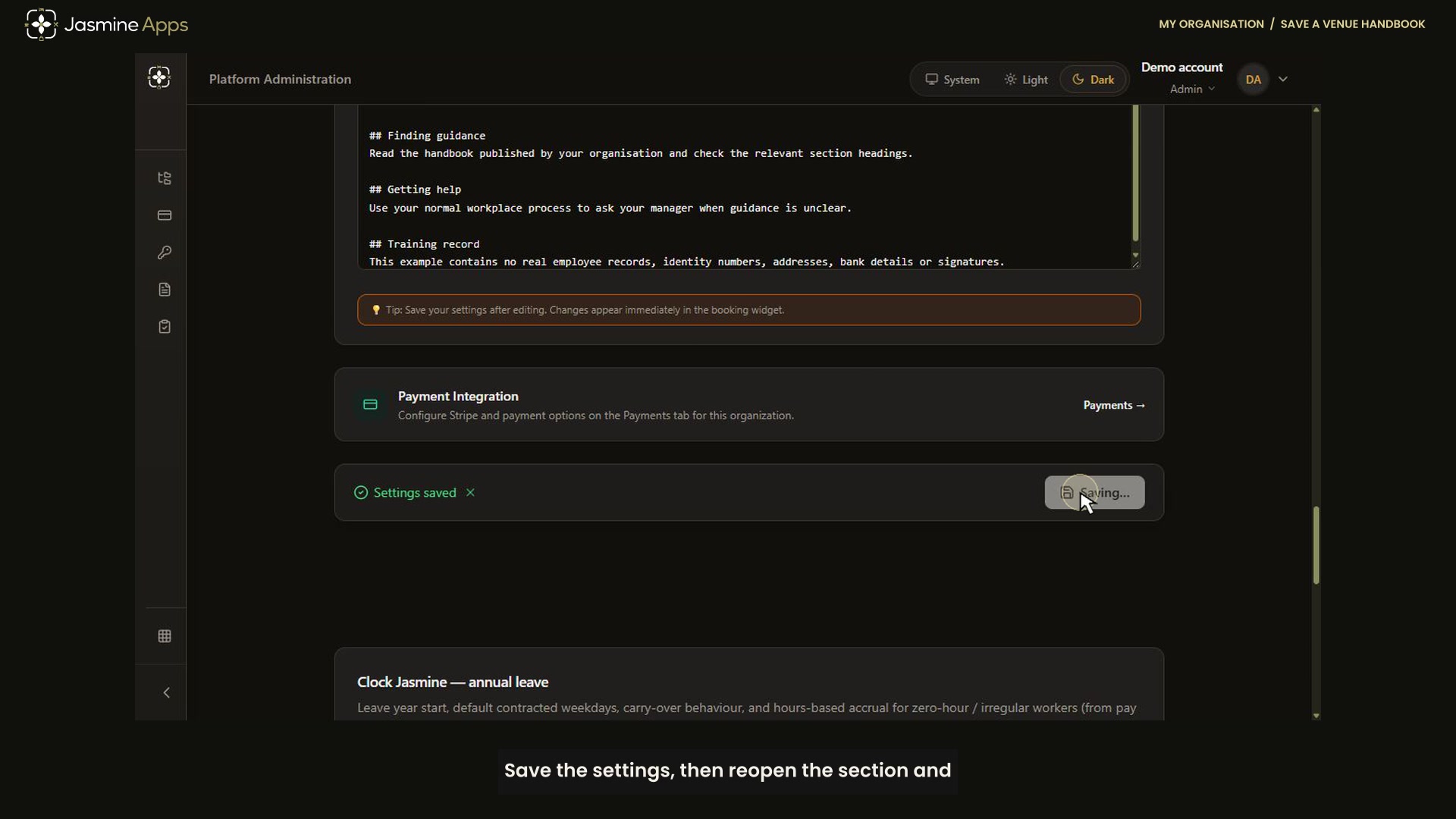
Reopen and check
Reload the venue settings, expand Legal Documents again and return to Employee Handbook. Check that the intended text and headings remain. The Demo example was checked against the exact edited text after reload twice.
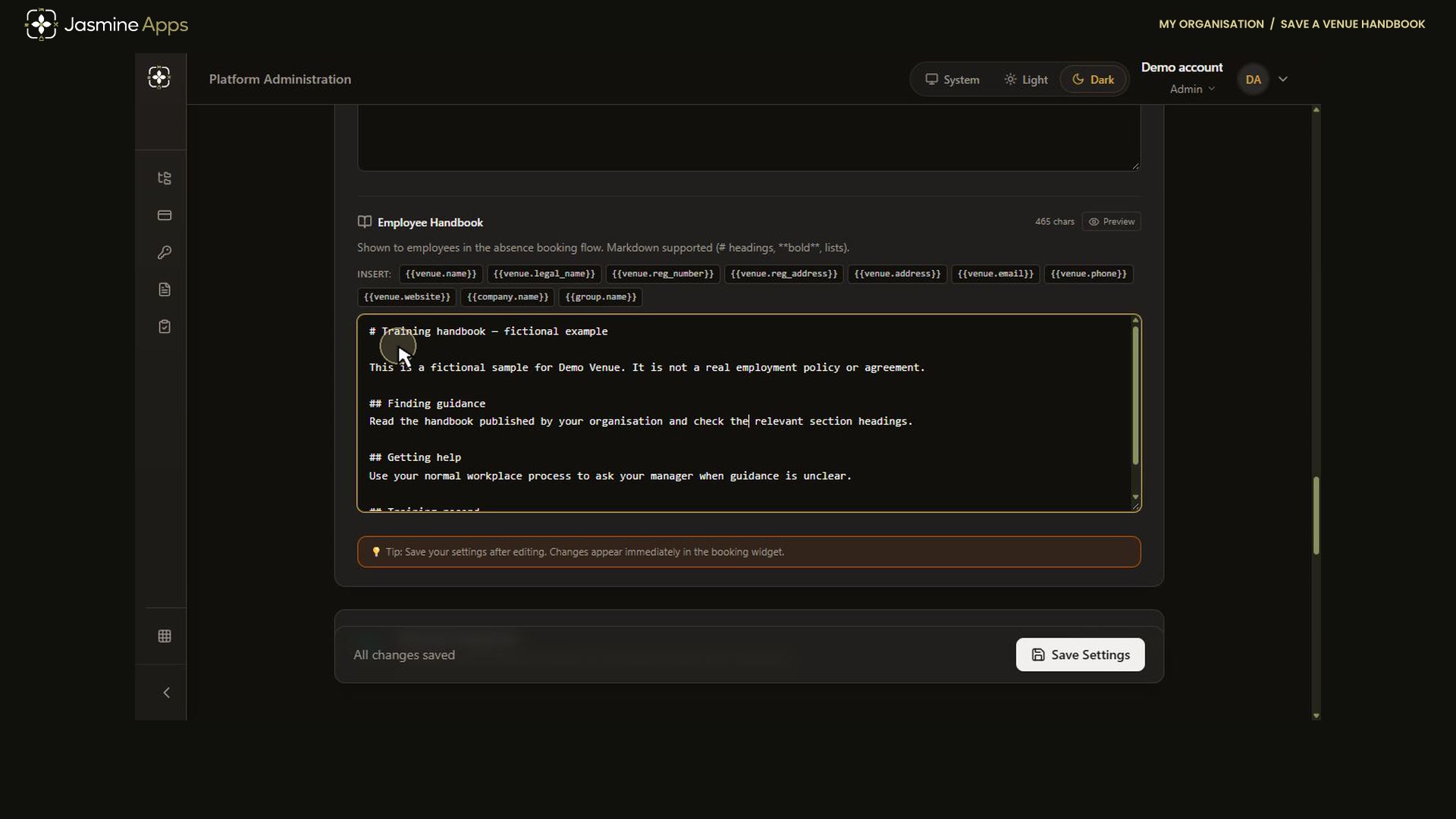
If the text was not retained, check for validation messages elsewhere in the venue settings, complete the required company fields and save again. Preserve your organisation's approved wording when making formatting changes.
The recording uses only Demo Venue and explicitly fictional content. It demonstrates the venue editor and saved-text check.