

TutorialIn-app guide
Table Jasmine booking closures and venue rules
· Jasmine Apps
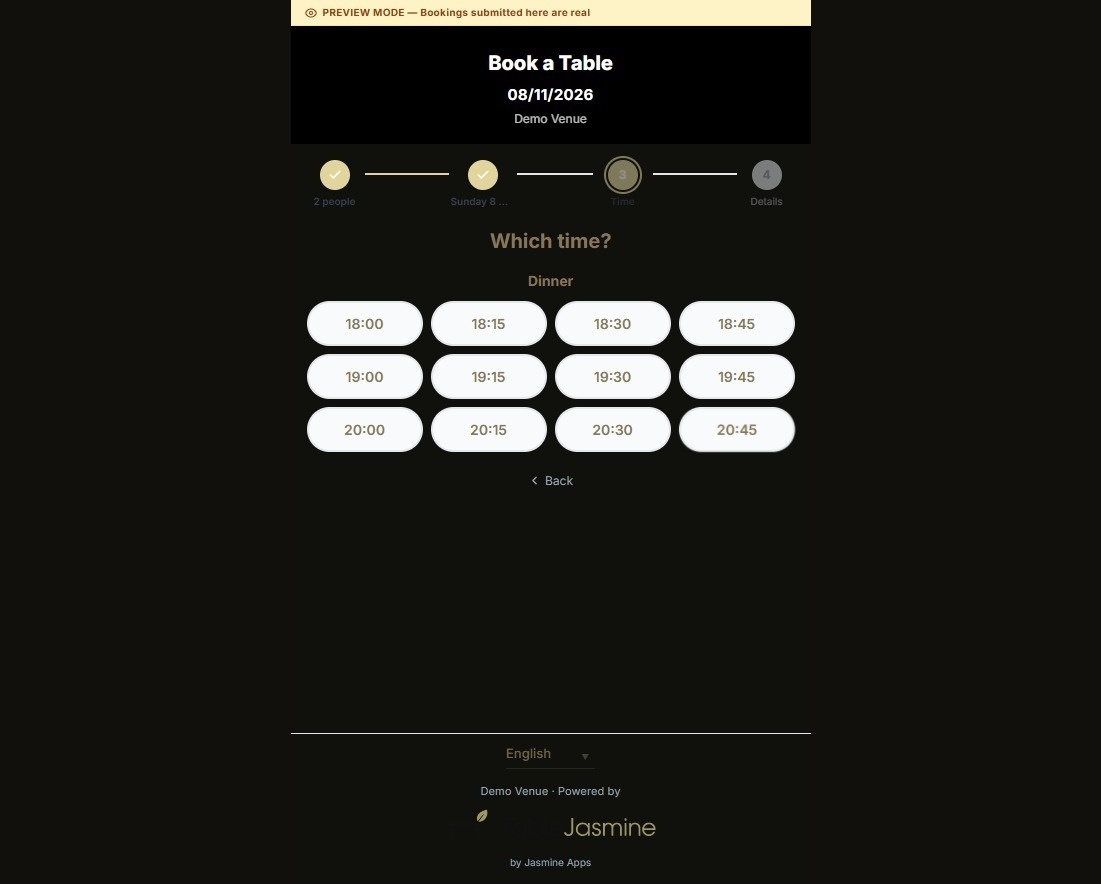
Table Jasmine booking closures and venue rules control when guests can book and how much your team takes on at once. This walkthrough applies a service closure, saves regular booking limits, reopens both settings and checks the result in the guest preview.
Watch the walkthrough
The recording uses fictional training records in Demo Venue. Demo names remain readable; real private details are excluded.
Before you start
Select the correct venue and use an account with permission to manage its booking settings. Agree service dates, affected areas and operational limits with your team. A closure changes availability, while venue rules apply to both the booking widget and the diary.
The recording uses a training venue. Its dates, capacities and durations are examples, so enter your own agreed values. The guest preview is checked without submitting a reservation. Preview bookings are real if you complete them.
1. Open the closure form
Open Settings → Booking Closures, then click Close Bookings. Choose Time interval for part of a day, set Date, and enter From time and To time. For a full-day closure, choose All day instead. Close for multiple days is available when you need a date range.
Check the date after changing the time fields. In the recorded example, the service closes from 12:00 to 15:00 on 8 November 2026. This leaves the separate evening service outside the closure.
2. Choose the affected area
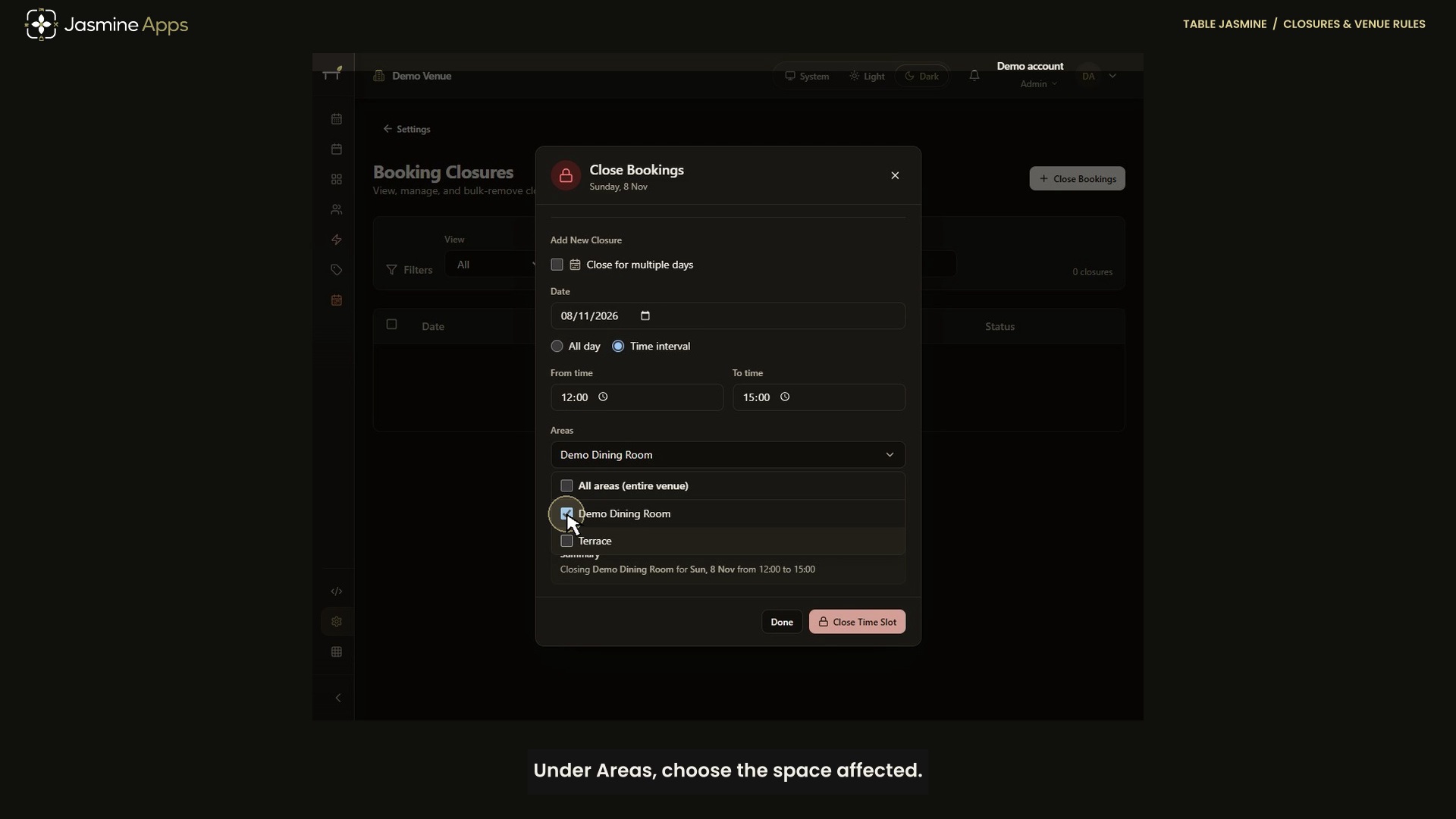
Open Areas and select the space that should close. All areas (entire venue) affects the whole venue. When selecting an individual area, check that the whole-venue option is no longer selected. The walkthrough selects the dining room and leaves the terrace unselected.
3. Apply and verify the closure
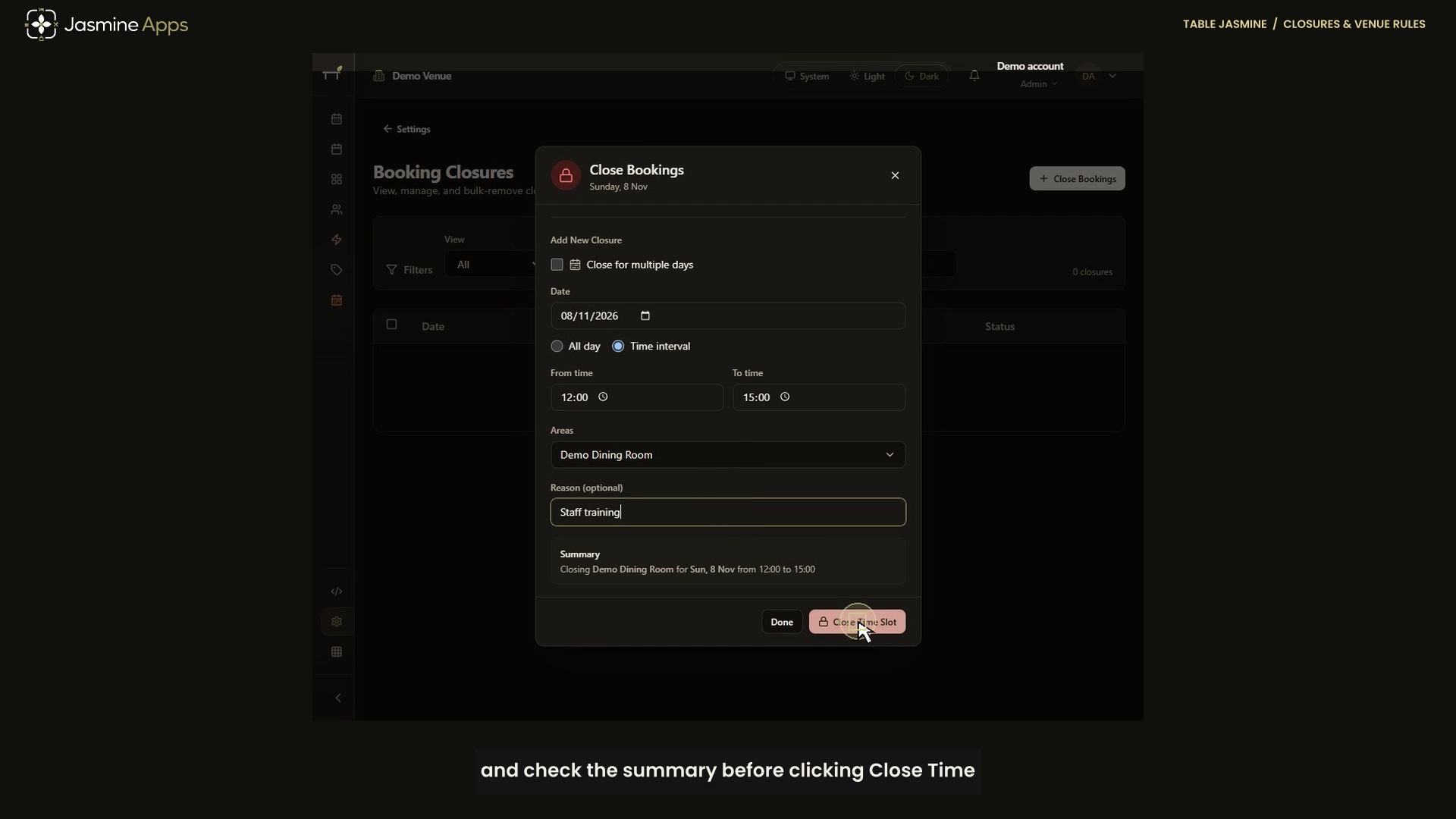
Enter a useful Reason, such as staff training, then read the Summary. Confirm the area, date and times before clicking Close Time Slot. For an all-day closure, the action is Close All Day.
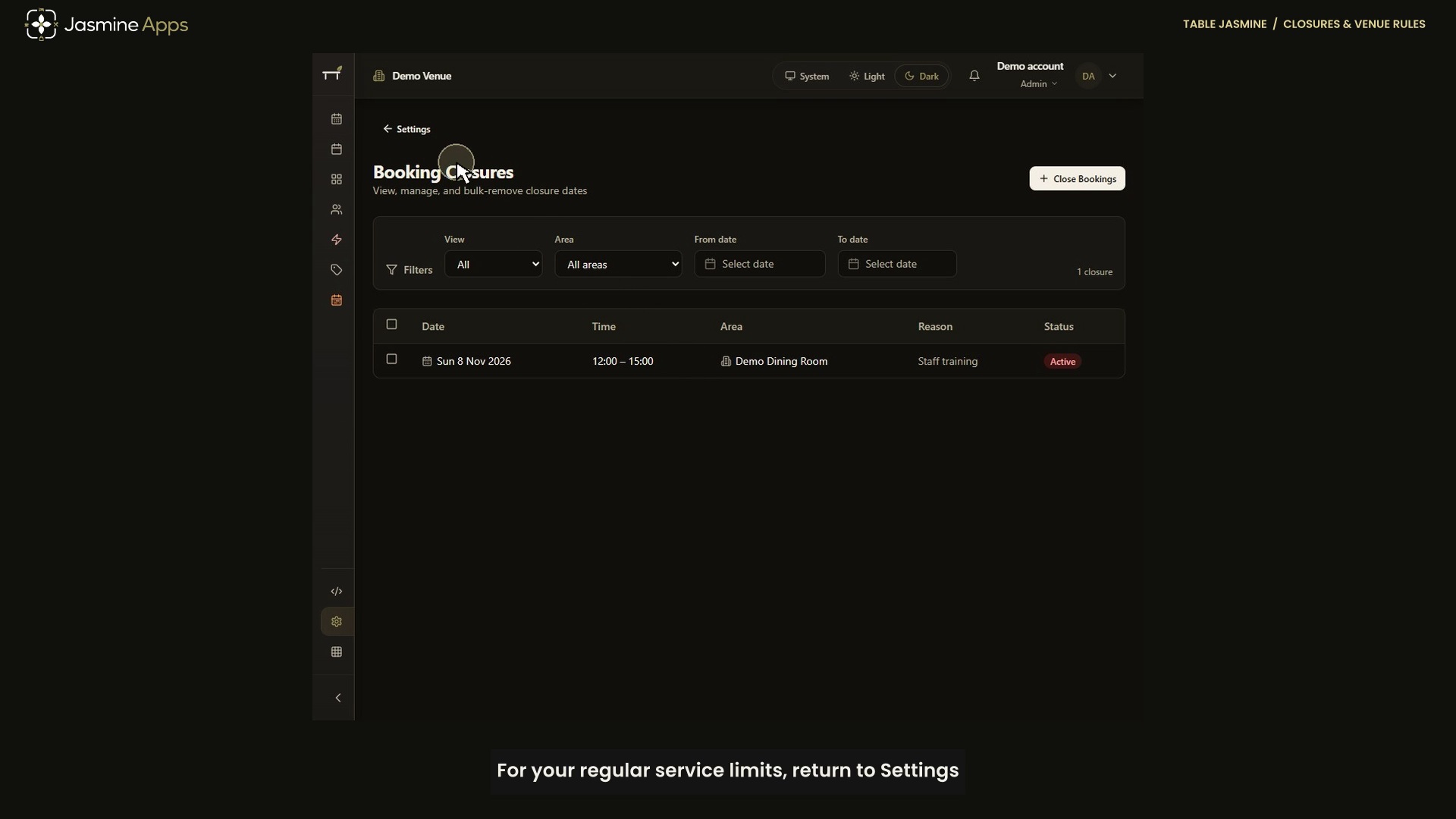
Wait for saving to finish, then click Done. Reload the closure list and check its Date, Time, Area, Reason and Active status. The demonstration creates and verifies a saved closure.
4. Set regular booking limits
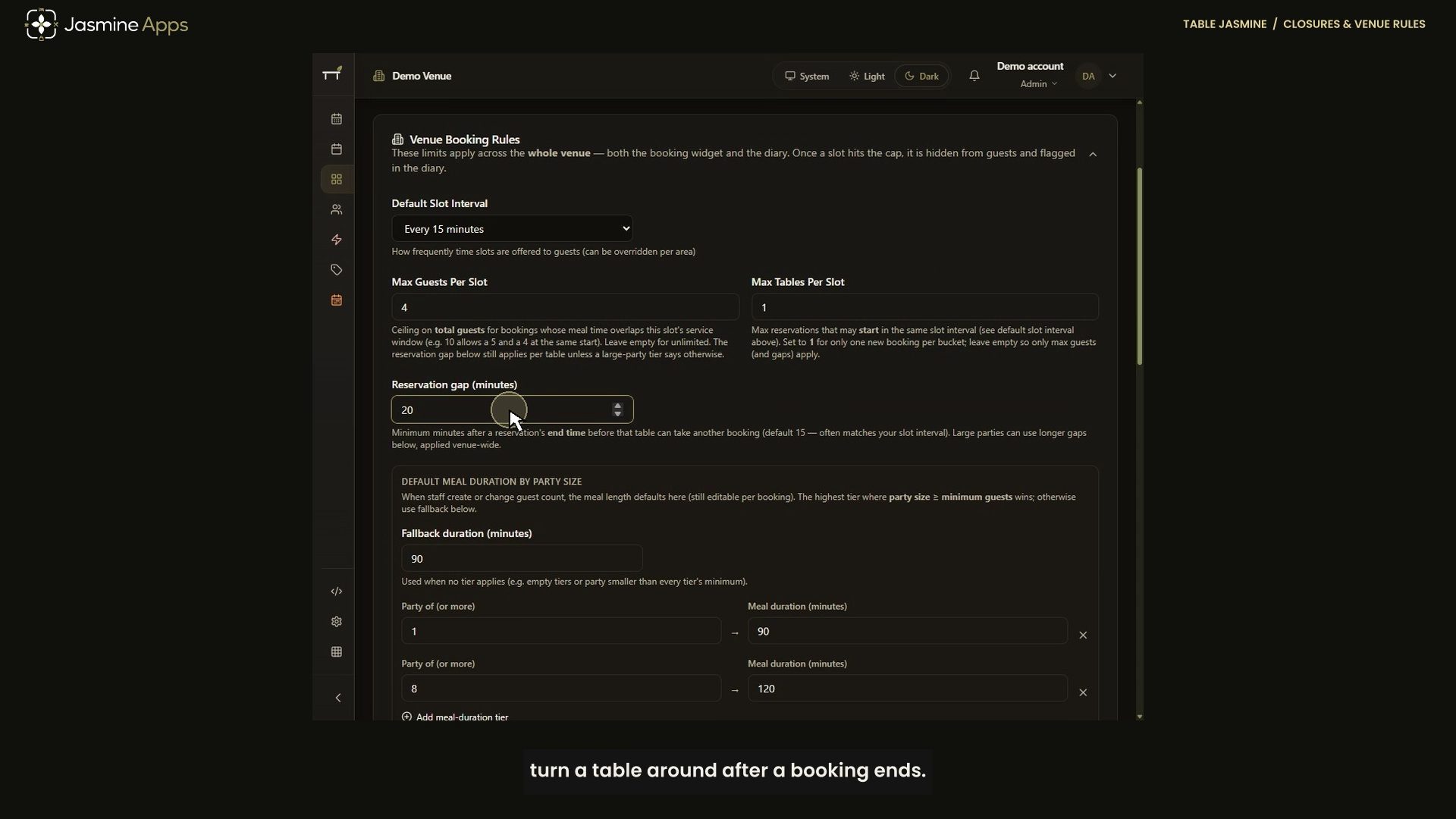
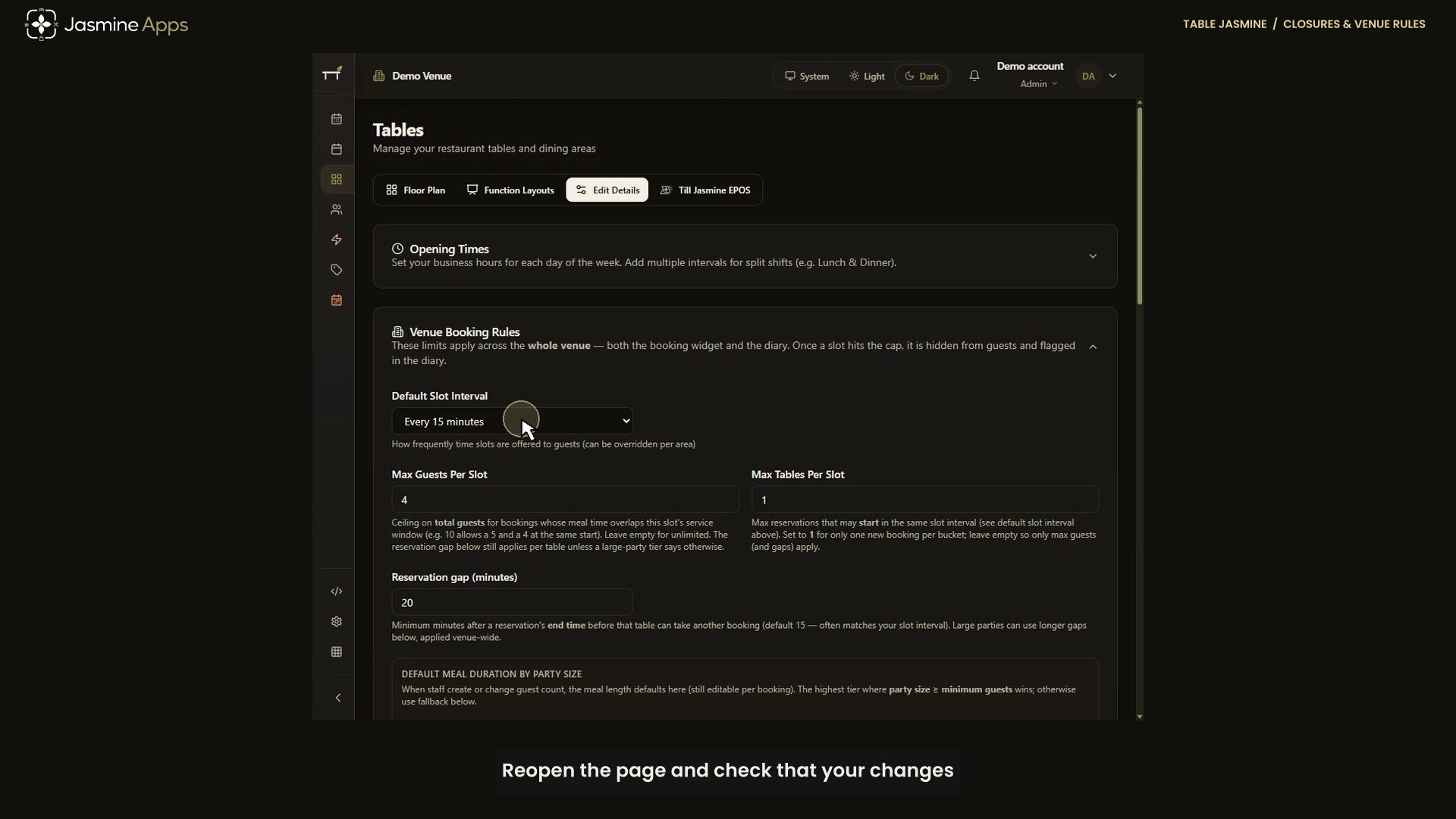
Return to Settings → Venue Booking Rules. The same panel is available under Tables → Edit Details.
- Default Slot Interval controls how frequently a booking can begin. An area can override it.
- Max Guests Per Slot caps the total guests across bookings whose meal windows overlap the slot's service window.
- Max Tables Per Slot caps reservations starting in the same interval. It does not count every table occupied throughout a meal.
- A blank cap removes that individual limit; other caps, availability and gaps still apply.
- Reservation gap (minutes) leaves time after a reservation ends before the same table can take another booking.
5. Review durations and buffers
Scroll to Default meal duration by party size. Check each minimum guest threshold beside its meal duration. The highest qualifying threshold supplies the default length; Fallback duration applies when no tier qualifies. Staff can still adjust an individual booking's duration.
The example changes the duration for parties of eight or more to 135 minutes. Choose values that reflect your service, rather than copying the training settings.
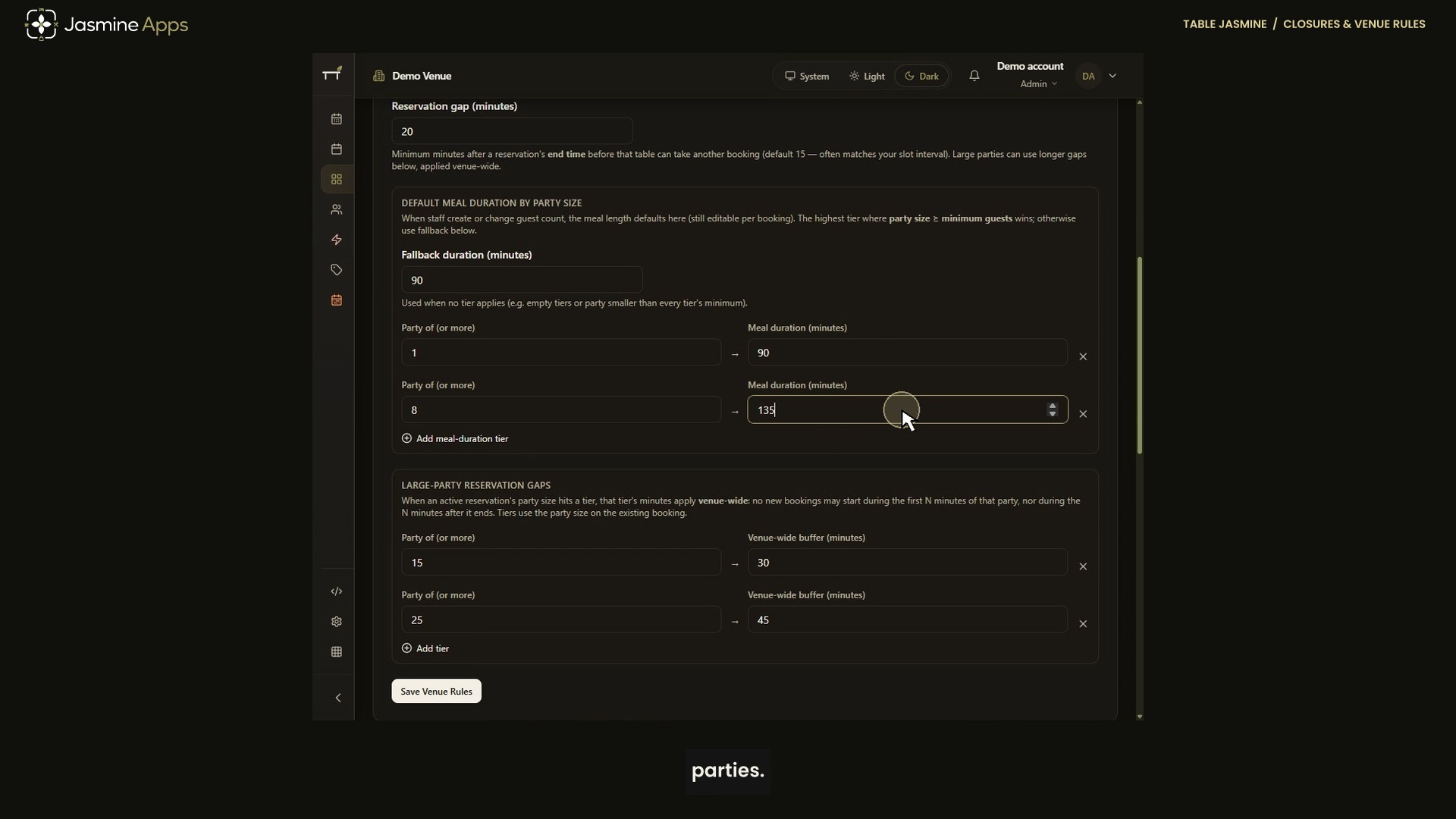
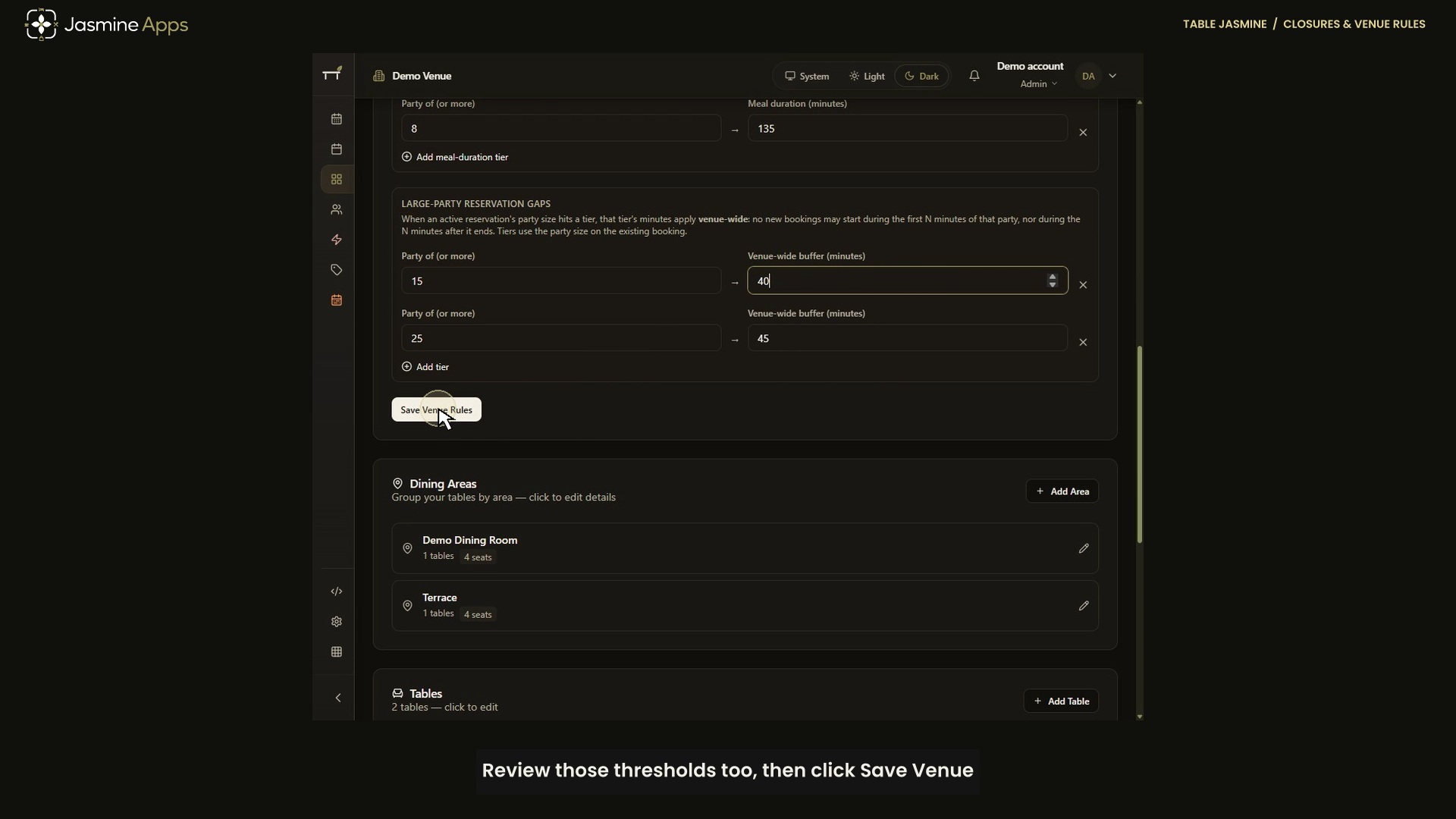
Large-party reservation gaps apply across the venue. A qualifying booking prevents new starts during its first buffer minutes and for the buffer minutes after it ends. Check the party-size threshold and buffer together. This is different from the per-table reservation gap above.
6. Save and check guest availability
Click Save Venue Rules and wait for saving to finish. Reload the page, reopen the rules if needed and check the saved interval, caps, gap and tier values. Opening times have a separate save control.
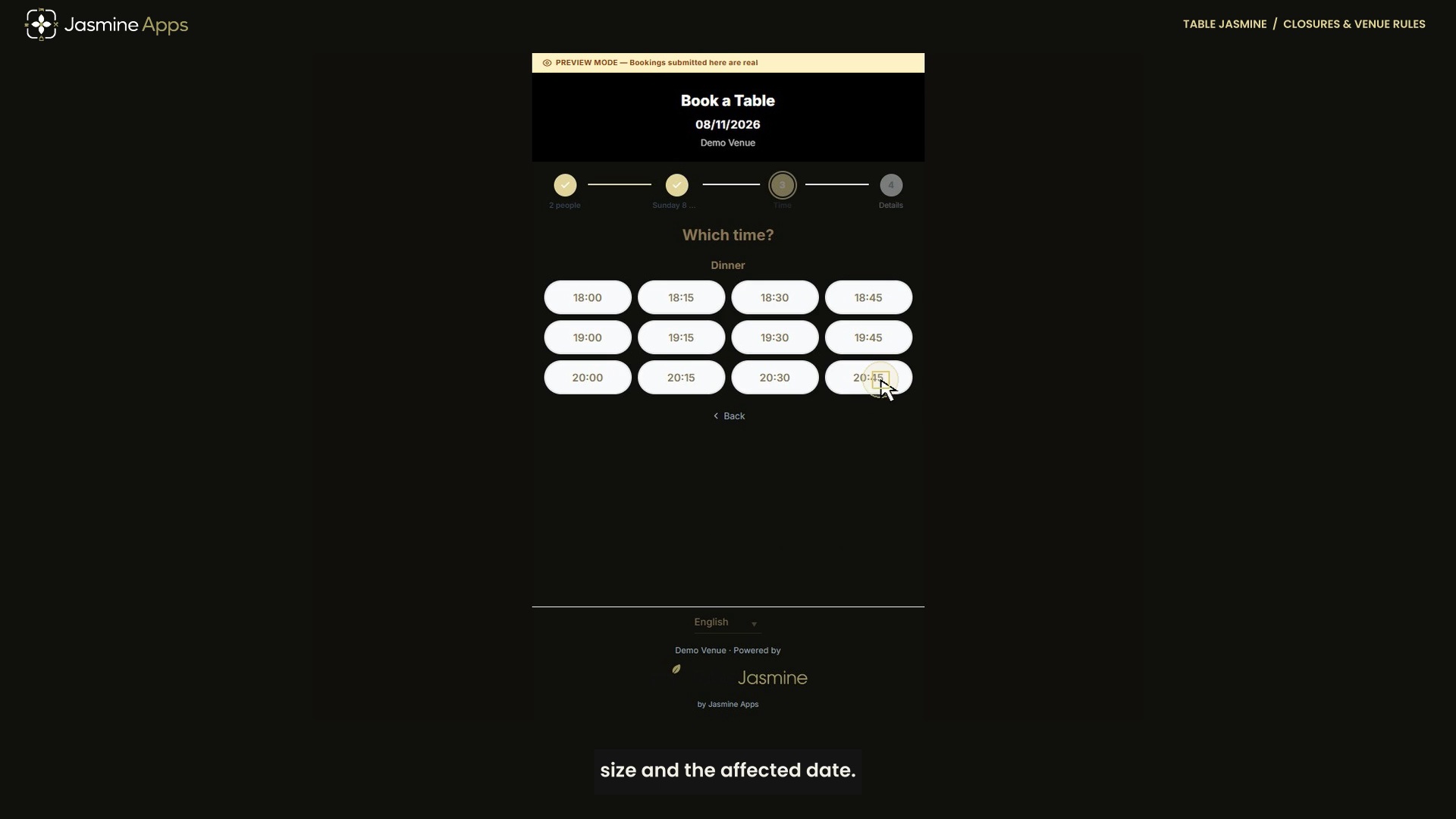
Open Booking Widget and its Live Preview. Choose a party size and the affected date. Check that the closed service is unavailable and that a service which should remain open is still offered. The recording shows dinner times after the dining-room lunch closure. The preview reflects the saved rules; it does not mean the public widget has been enabled.
Common checks
- A time is unexpectedly missing: check opening hours, closures, active tables, area availability, existing bookings, caps and buffers together.
- Only one area should close: check the individual selection and ensure All areas is unchecked.
- A blank cap still leaves restrictions: other limits and booking rules still apply.
- Changes disappear after reopening: check that saving finished and that you reopened the same venue.
- The preview differs from the public form: confirm the saved settings and widget status separately. Avoid submitting an unwanted test reservation.
Continue learning
Review Opening hours, Tables and dining areas, or Calendar and reservation statuses.