
TutorialIn-app guide
Table Jasmine tutorials
In-app guides for how to use Table Jasmine.
Tutorials57
All tutorials
Clock Jasmine16
- Clock Jasmine absence approvals: review and verify a decision
- Clock Jasmine absence: book and verify a saved request
- Clock Jasmine approvals: review and verify a time correction
- Clock Jasmine contract templates: create, save and preview
- Clock Jasmine courses: create, save and preview a quiz
- Clock Jasmine history: save manual punches and breaks
- Clock Jasmine holiday pay: save an employee profile
- Clock Jasmine locations: create and verify an inactive zone
- Clock Jasmine rota grace periods: save and verify the policy
- Clock Jasmine rotas: create and verify a draft shift
- Clock Jasmine shift swaps: offer a shift and cancel a request
- Clock Jasmine teams: create a team and manage its roster
- Clock Jasmine: clock in, take a break and clock out
- Clock Jasmine: download and check clock-punch exports
- Getting started with Clock Jasmine: staff onboarding
- My Organisation: save your venue's employee handbook
- View all Clock Jasmine
Clock Jasmine Kiosk3
Jasmine Loyalty7

- Jasmine Loyalty achievements: save and verify bonus points
- Jasmine Loyalty members: enrol, find and verify a member
- Jasmine Loyalty packages: create, save and verify a reward
- Jasmine Loyalty scheme: save and verify rates and terms
- Jasmine Loyalty welcome email: edit, save and verify
- Jasmine Loyalty: getting started with video guides
- Jasmine Loyalty: save venue profiles and prepare events
- View all Jasmine Loyalty
Table Jasmine17

- Change or cancel a reservation in Table Jasmine
- Create a reservation in Table Jasmine
- Set Table Jasmine opening hours
- Set up tables and dining areas in Table Jasmine
- Table Jasmine activity logs: find and review booking events
- Table Jasmine booking closures and venue rules
- Table Jasmine booking widget
- Table Jasmine calendar and reservation statuses
- Table Jasmine confirmation emails: save a preset and subject
- Table Jasmine deposits: record, save and verify a payment
- Table Jasmine events: create and verify a draft
- Table Jasmine floor plan
- Table Jasmine functions and pre-orders
- Table Jasmine guests and messaging
- Table Jasmine menus and offers: create and preview
- Table Jasmine: invite a team member and check their access
- Table Jasmine: update stale reservation statuses
- View all Table Jasmine
Till Jasmine EPOS14

- Till Jasmine add-ons: create a group and verify its items
- Till Jasmine layout: customise, save and verify a button
- Till Jasmine products: save an item and publish a price edit
- Till Jasmine receipts: customise, save and verify the preview
- Till Jasmine reporting: filter and export the Sales journal
- Till Jasmine settings: save and verify the trading-day end time
- Till Jasmine stock: save counts and verify low-stock changes
- Till Jasmine tables: add, save and edit a till-only table
- Till Jasmine users and permissions: review an account
- Till Jasmine void reasons: add, edit and verify saved wording
- Till Jasmine: bought-in recipients and immediate handover
- Till Jasmine: complete and check a training sale
- Till Jasmine: count and close the till
- Till Jasmine: save and reopen table and room orders
- View all Till Jasmine EPOS

- Tutorial
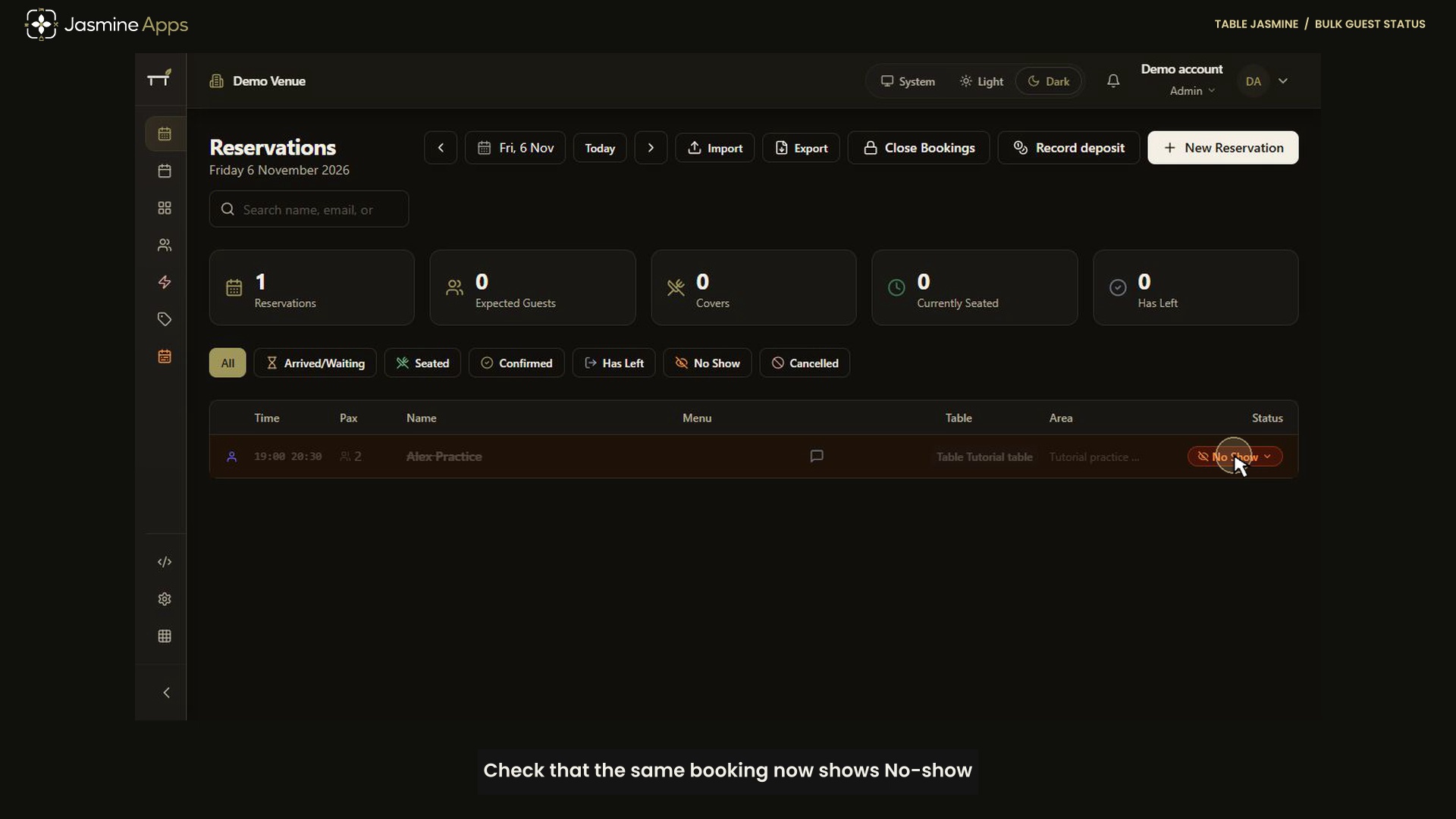
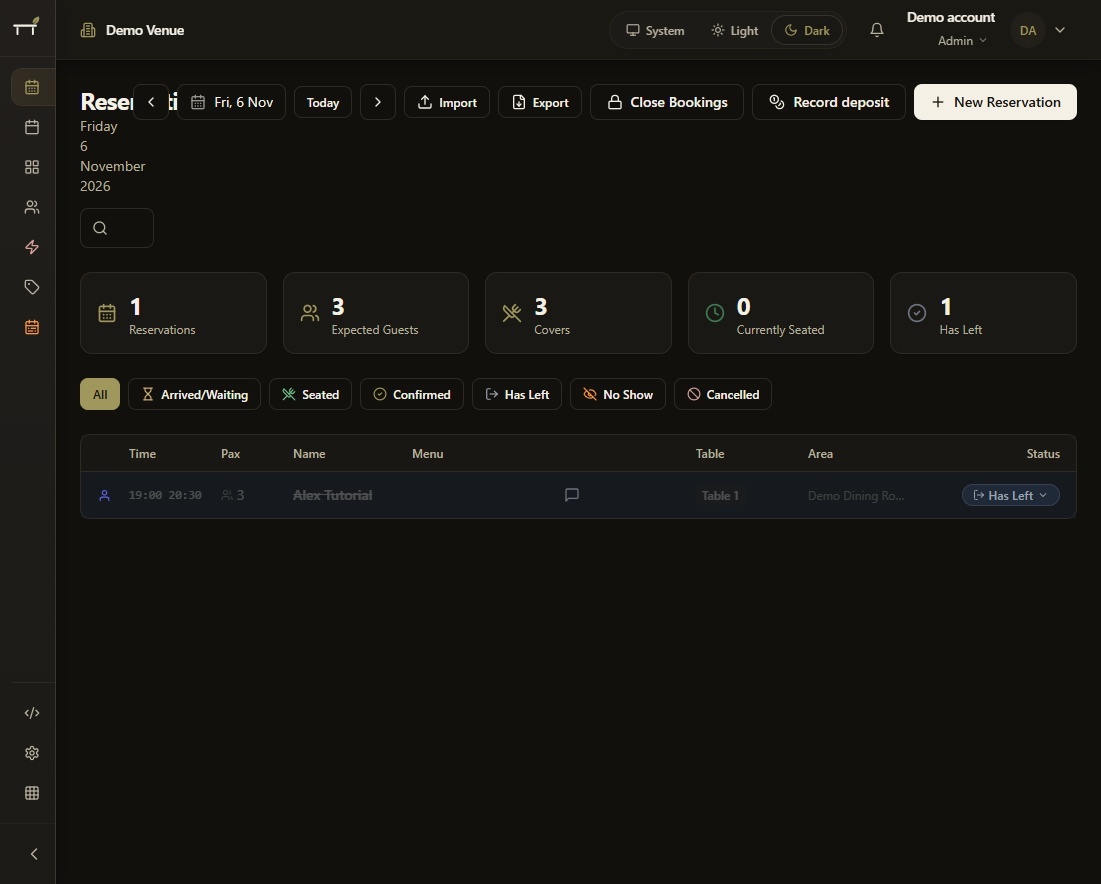
Table Jasmine: update stale reservation statusesUse Bulk Guest Status to resolve past reservations that still show Confirmed or Seated. Review the records first, update only the selected bookings and verify the saved result in the diary. This walkthrough uses one fictional past-date reservation in Demo Venue, on a staff-only practice table.
- Tutorial
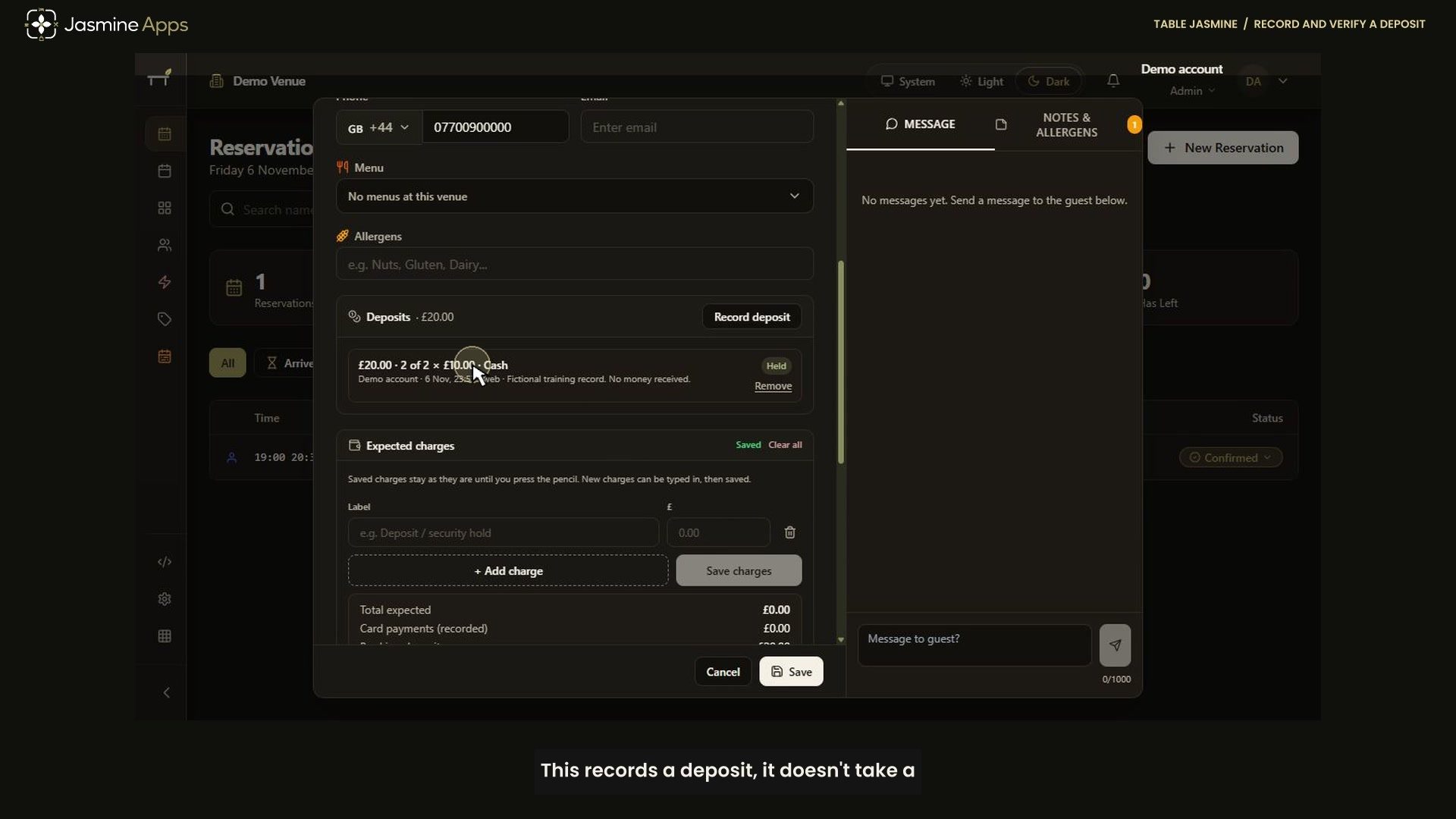
Table Jasmine deposits: record, save and verify a paymentRecord a Table Jasmine deposit against the correct booking, then reload and verify the saved amount and payment method. The walkthrough records a fictional cash deposit in Demo Venue. It does not collect money, charge a card, send a guest message or demonstrate a refund.
- Tutorial

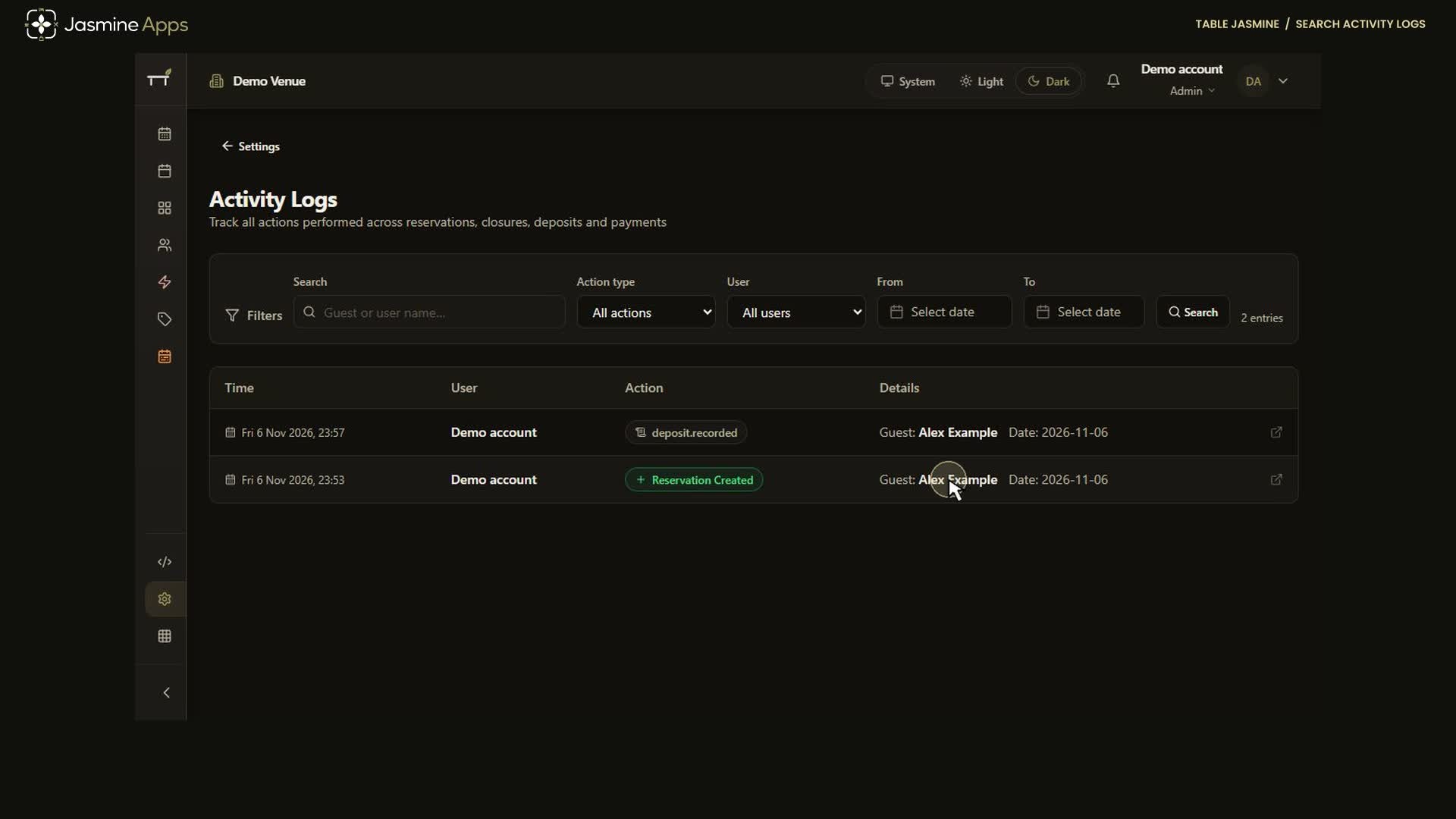
Table Jasmine activity logs: find and review booking eventsUse Table Jasmine activity logs to review recorded booking actions, narrow a reservation search and restore the wider history. This walkthrough reads existing fictional training events in Demo Venue. It creates no bookings, payments or staff records.
- Tutorial

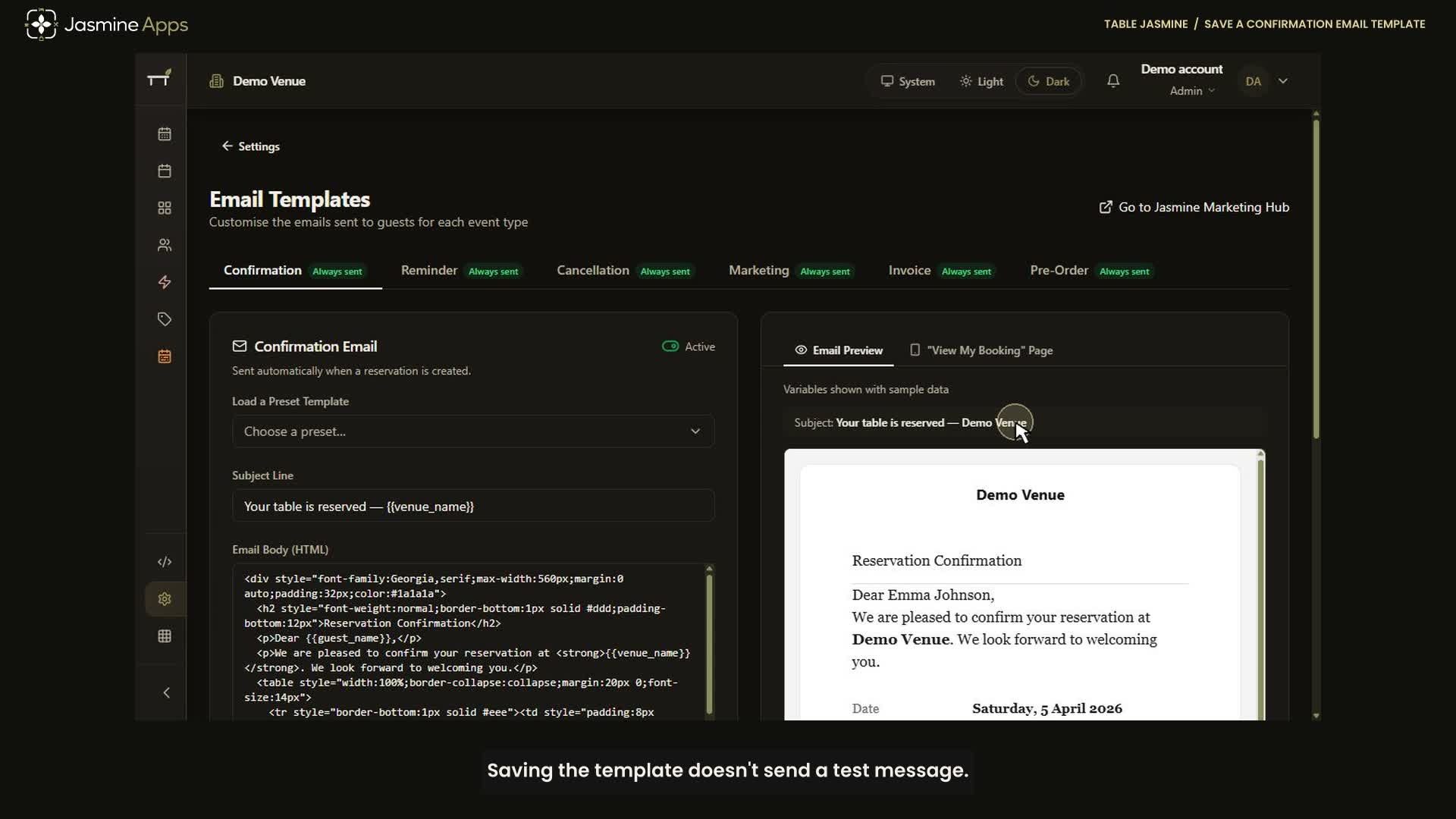
Table Jasmine confirmation emails: save a preset and subjectSet up a Table Jasmine confirmation email with a built-in preset, edit its subject, review the sample preview, save and verify it after reloading. This walkthrough uses Demo Venue and sends no test email.
- Tutorial
Table Jasmine: invite a team member and check their accessWritten steps for inviting a Table Jasmine colleague and checking intended access. The end-to-end video demonstration is still awaiting verification.
- Tutorial

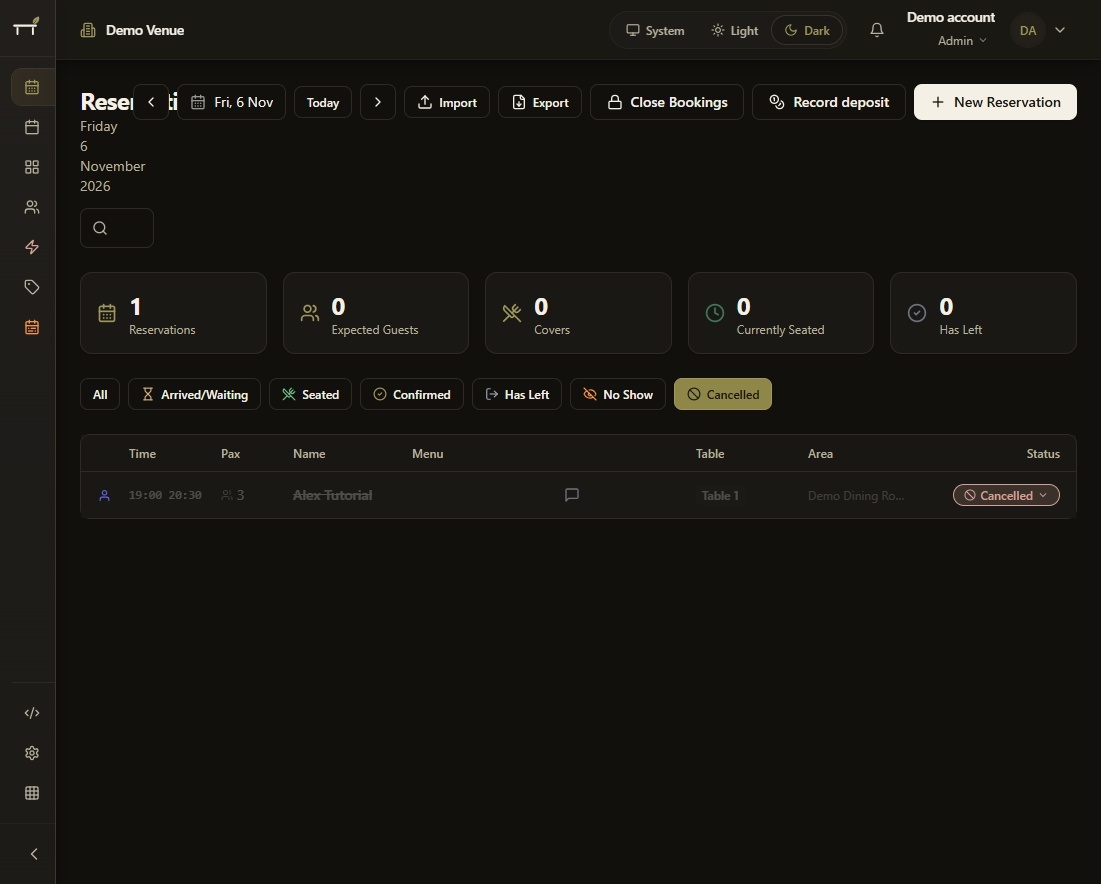
Table Jasmine calendar and reservation statusesUse the Table Jasmine calendar and reservation statuses to find a service day and follow a booking from confirmation through departure. This genuine dark-mode walkthrough uses a fictional booking in Demo Venue, with natural British female narration, synchronized captions, a steady view and a moving highlighted cursor. The dates and guest are training examples.
- Tutorial

Table Jasmine booking closures and venue rulesTable Jasmine booking closures and venue rules control when guests can book and how much your team takes on at once. This walkthrough applies a service closure, saves regular booking limits, reopens both settings and checks the result in the guest preview.
- Tutorial

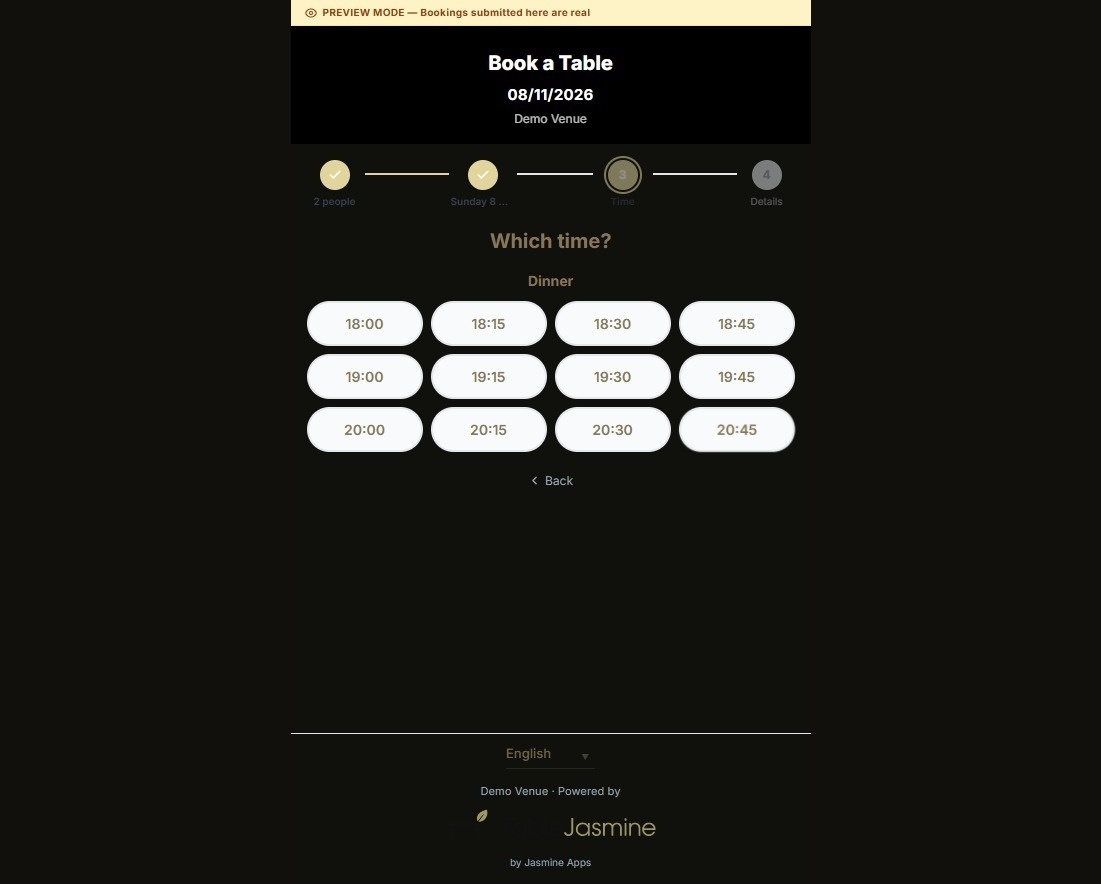
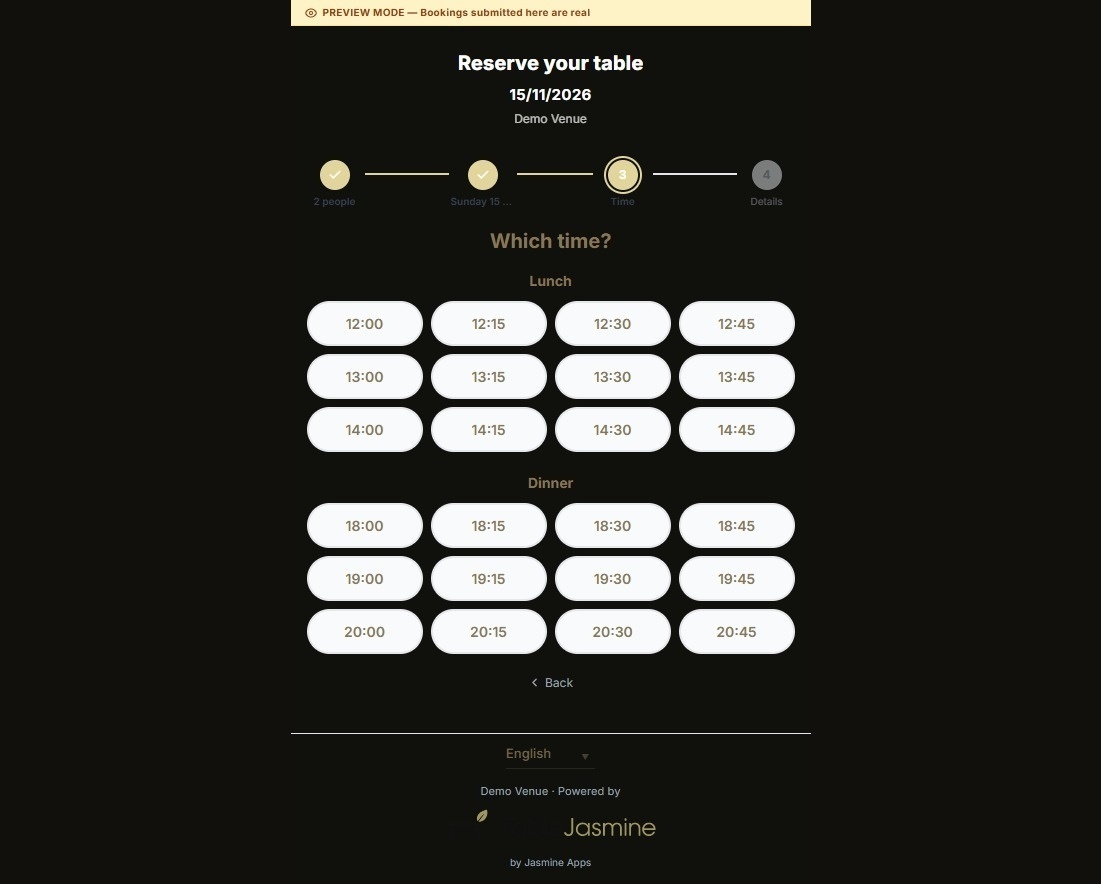
Table Jasmine booking widgetThe Table Jasmine booking widget lets guests reserve a table from your website. This walkthrough enables the widget, updates its appearance and content, saves and reopens the settings, copies the complete website embed and checks the guest journey.
- Tutorial

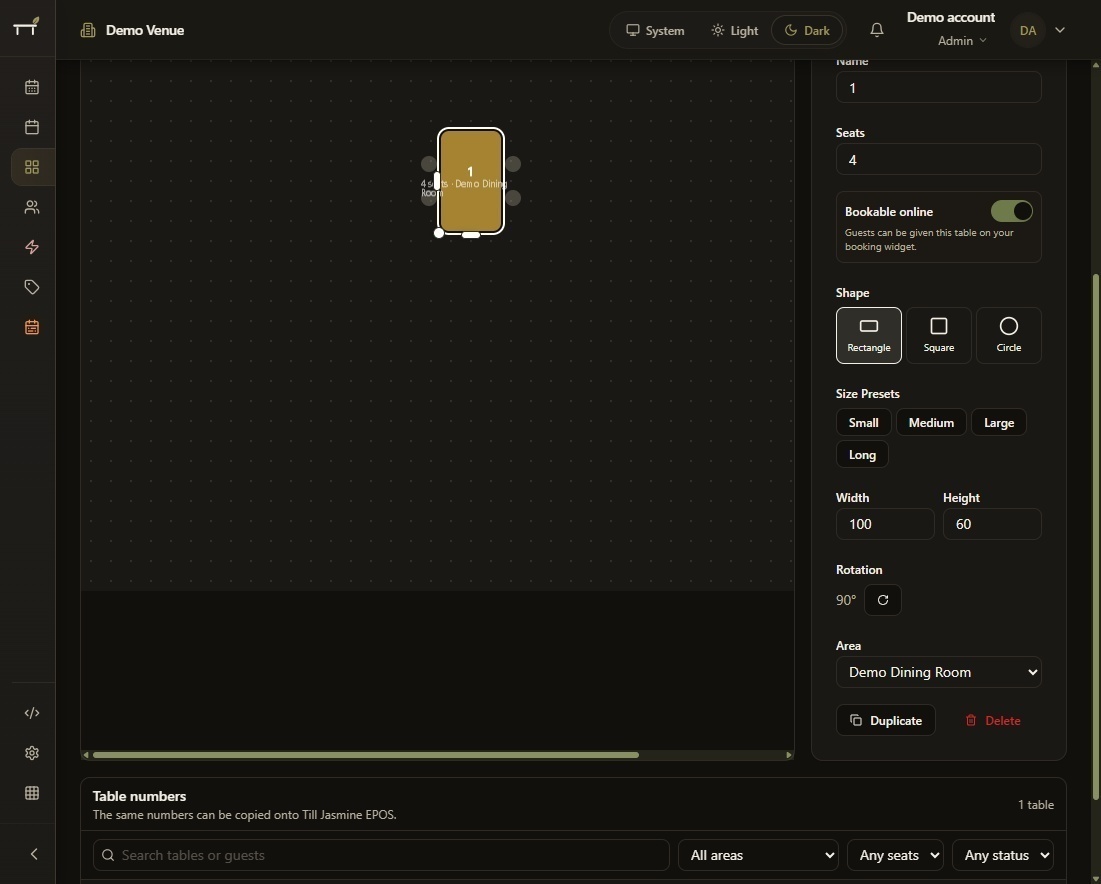
Table Jasmine floor planThe Table Jasmine floor plan lets your team see tables where they sit in the room. This walkthrough shows how to move a table, choose its shape and size, rotate it and check that the layout has saved.
- Tutorial

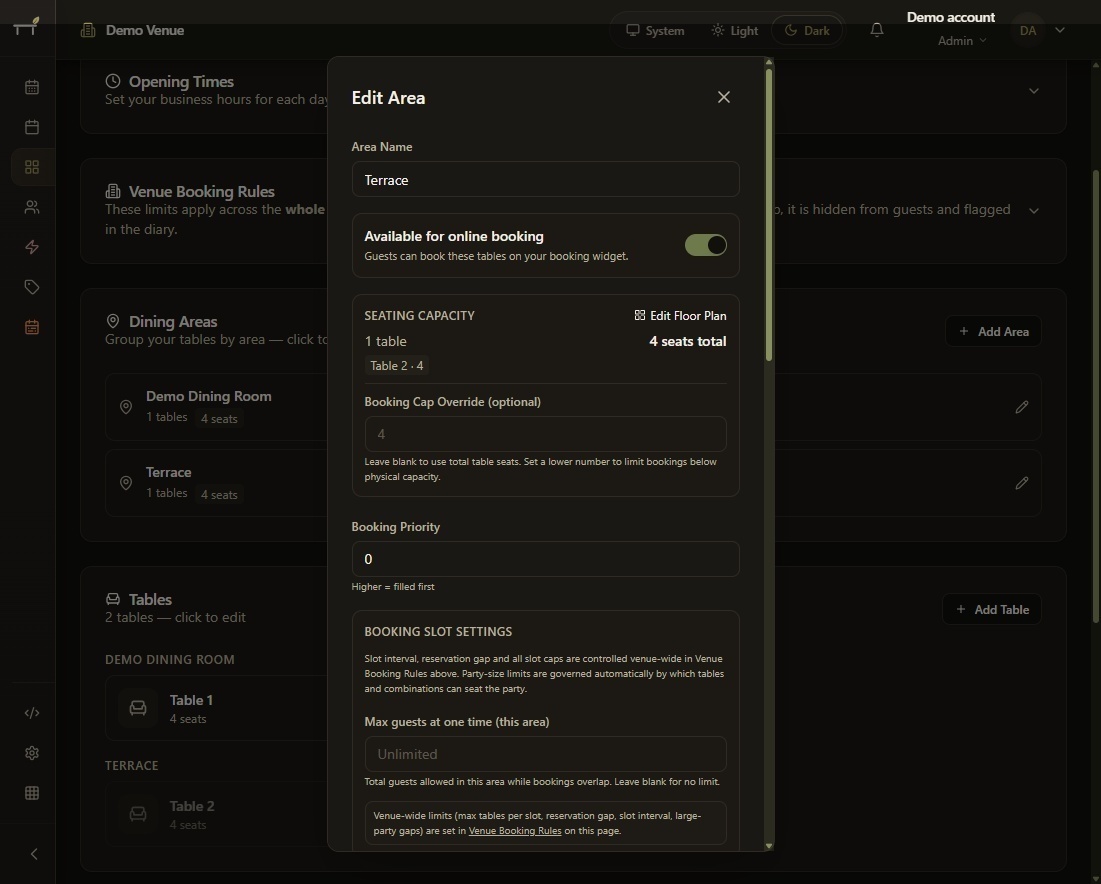
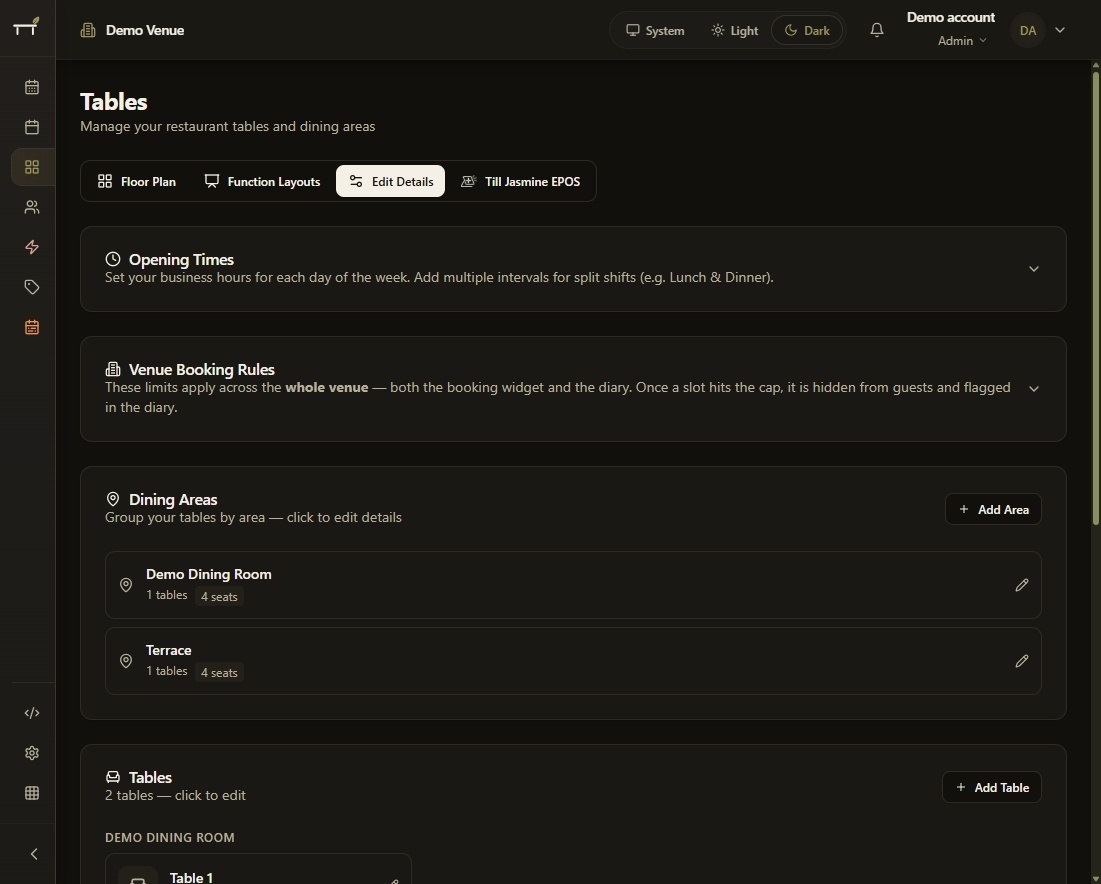
Set up tables and dining areas in Table JasmineSet up Table Jasmine tables and dining areas so each table has a clear name, the right number of seats and the correct area. Follow the complete setup in dark mode, from creating an area to checking the saved table. The recording uses a training venue and leaves the new table inactive.
- Tutorial

Change or cancel a reservation in Table JasmineChange or cancel a Table Jasmine reservation and verify the saved result. This guide continues from Create a reservation, using the fictional training booking in Demo Venue. The dark-mode recording shows the actual workflow, with natural British female narration, timed captions, a steady view and a moving highlighted cursor.
- Tutorial

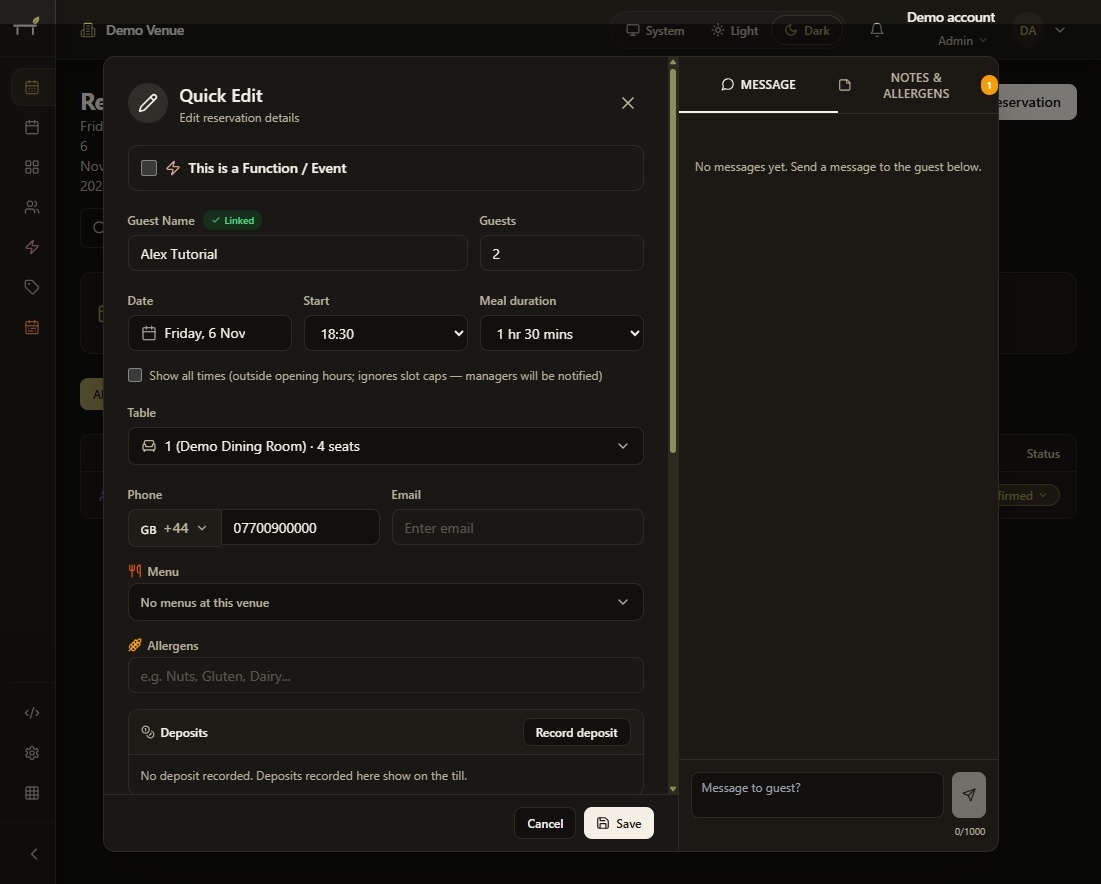
Create a reservation in Table JasmineCreate Table Jasmine reservations, assign a suitable table, then reopen the booking to check the saved details. The video and screenshots show real app interactions in Demo Venue, using dark mode and fictional tutorial details. Dates shown are examples; select the date needed for your booking.
- Tutorial

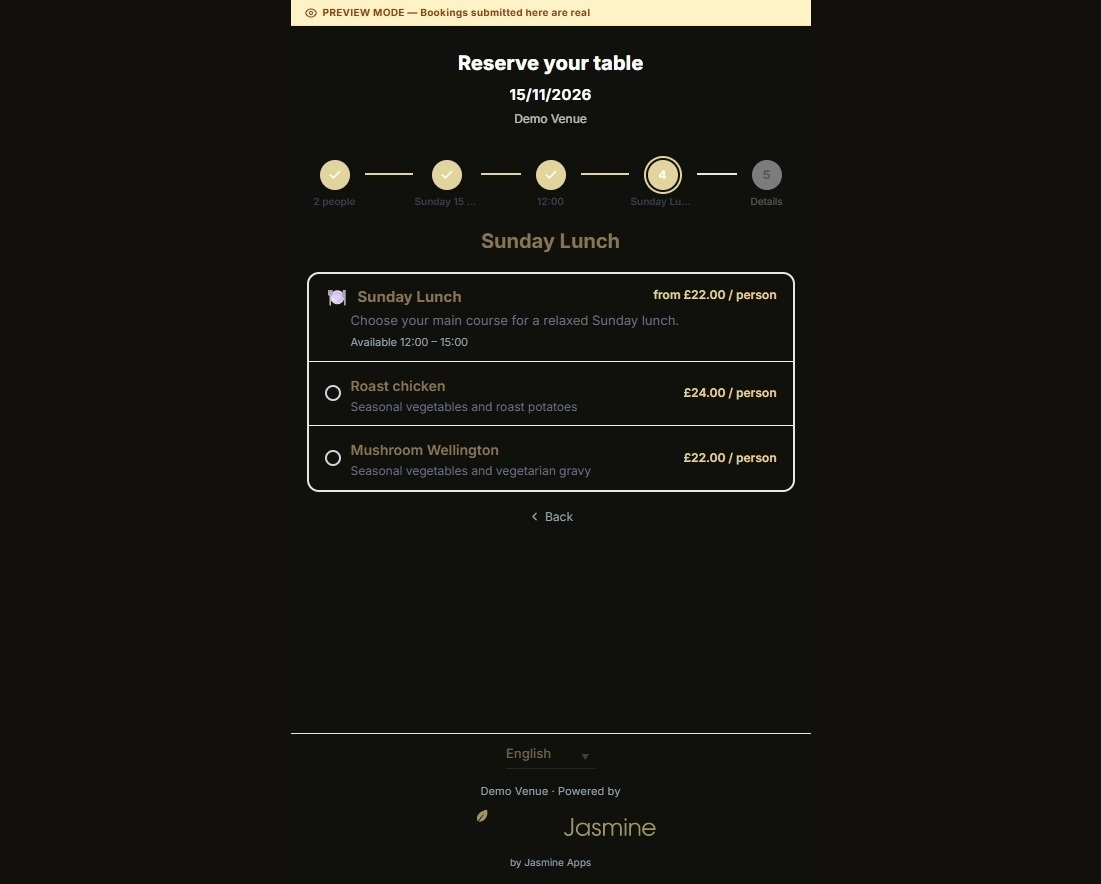
Table Jasmine menus and offers: create and previewUse Table Jasmine menus and offers to show guests the right choices for their booking date, service and dining area. This walkthrough creates and saves a lunch menu and an evening offer, checks them after reloading, and verifies their separate results in the guest booking form.
- Tutorial

Set Table Jasmine opening hoursSet Table Jasmine opening hours for each day, split lunch and dinner into separate services, and mark days when you are closed. Finish by saving and reopening the weekly schedule to check it.
- Tutorial

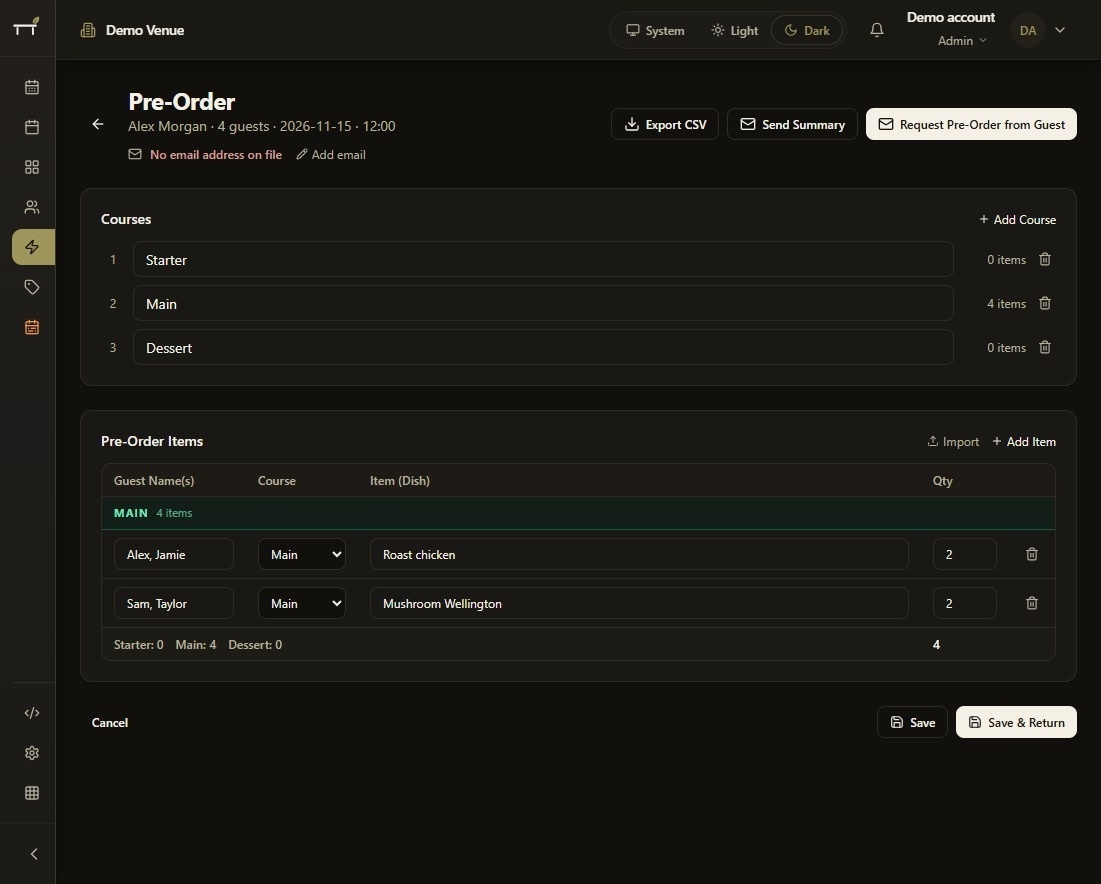
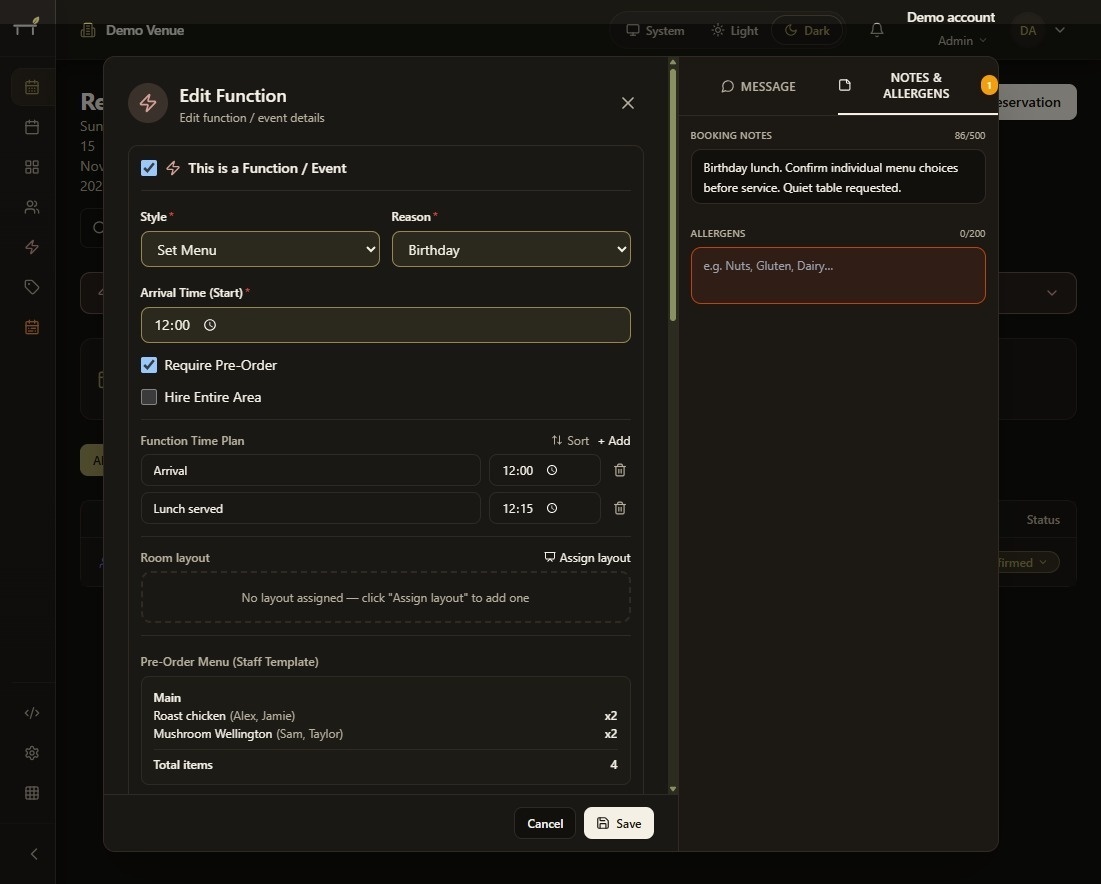
Table Jasmine functions and pre-ordersTable Jasmine functions and pre-orders bring a private-dining booking and its food choices together. This walkthrough creates a function, saves its service plan, enters guest selections and checks that the booking and pre-order remain after reopening.
- Tutorial

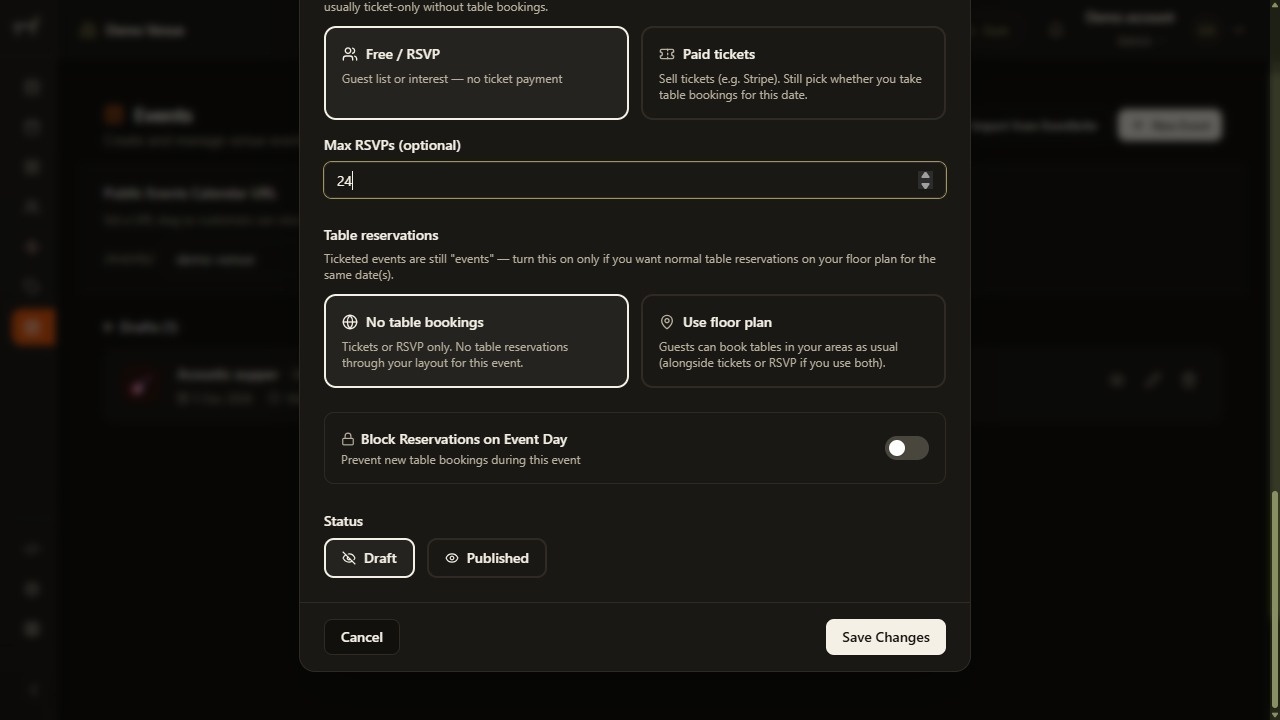
Table Jasmine events: create and verify a draftCreate and check a draft with Table Jasmine events. This walkthrough follows a real Demo Venue workflow: entering the details, saving, correcting a date that did not persist, and reopening the event to verify the stored settings.
- Tutorial

Table Jasmine guests and messagingTable Jasmine guests and messaging keeps guest preferences, booking notes and conversations in their proper places. This walkthrough saves a profile preference, prepares and clears an unsent message, then saves a booking-specific note and checks both records after reloading.