
TutorialIn-app guide
Clock Jasmine tutorials
In-app guides for how to use Clock Jasmine.
Tutorials57
All tutorials
Clock Jasmine16
- Clock Jasmine absence approvals: review and verify a decision
- Clock Jasmine absence: book and verify a saved request
- Clock Jasmine approvals: review and verify a time correction
- Clock Jasmine contract templates: create, save and preview
- Clock Jasmine courses: create, save and preview a quiz
- Clock Jasmine history: save manual punches and breaks
- Clock Jasmine holiday pay: save an employee profile
- Clock Jasmine locations: create and verify an inactive zone
- Clock Jasmine rota grace periods: save and verify the policy
- Clock Jasmine rotas: create and verify a draft shift
- Clock Jasmine shift swaps: offer a shift and cancel a request
- Clock Jasmine teams: create a team and manage its roster
- Clock Jasmine: clock in, take a break and clock out
- Clock Jasmine: download and check clock-punch exports
- Getting started with Clock Jasmine: staff onboarding
- My Organisation: save your venue's employee handbook
- View all Clock Jasmine
Clock Jasmine Kiosk3
Jasmine Loyalty7

- Jasmine Loyalty achievements: save and verify bonus points
- Jasmine Loyalty members: enrol, find and verify a member
- Jasmine Loyalty packages: create, save and verify a reward
- Jasmine Loyalty scheme: save and verify rates and terms
- Jasmine Loyalty welcome email: edit, save and verify
- Jasmine Loyalty: getting started with video guides
- Jasmine Loyalty: save venue profiles and prepare events
- View all Jasmine Loyalty
Table Jasmine17

- Change or cancel a reservation in Table Jasmine
- Create a reservation in Table Jasmine
- Set Table Jasmine opening hours
- Set up tables and dining areas in Table Jasmine
- Table Jasmine activity logs: find and review booking events
- Table Jasmine booking closures and venue rules
- Table Jasmine booking widget
- Table Jasmine calendar and reservation statuses
- Table Jasmine confirmation emails: save a preset and subject
- Table Jasmine deposits: record, save and verify a payment
- Table Jasmine events: create and verify a draft
- Table Jasmine floor plan
- Table Jasmine functions and pre-orders
- Table Jasmine guests and messaging
- Table Jasmine menus and offers: create and preview
- Table Jasmine: invite a team member and check their access
- Table Jasmine: update stale reservation statuses
- View all Table Jasmine
Till Jasmine EPOS14

- Till Jasmine add-ons: create a group and verify its items
- Till Jasmine layout: customise, save and verify a button
- Till Jasmine products: save an item and publish a price edit
- Till Jasmine receipts: customise, save and verify the preview
- Till Jasmine reporting: filter and export the Sales journal
- Till Jasmine settings: save and verify the trading-day end time
- Till Jasmine stock: save counts and verify low-stock changes
- Till Jasmine tables: add, save and edit a till-only table
- Till Jasmine users and permissions: review an account
- Till Jasmine void reasons: add, edit and verify saved wording
- Till Jasmine: bought-in recipients and immediate handover
- Till Jasmine: complete and check a training sale
- Till Jasmine: count and close the till
- Till Jasmine: save and reopen table and room orders
- View all Till Jasmine EPOS

- Tutorial
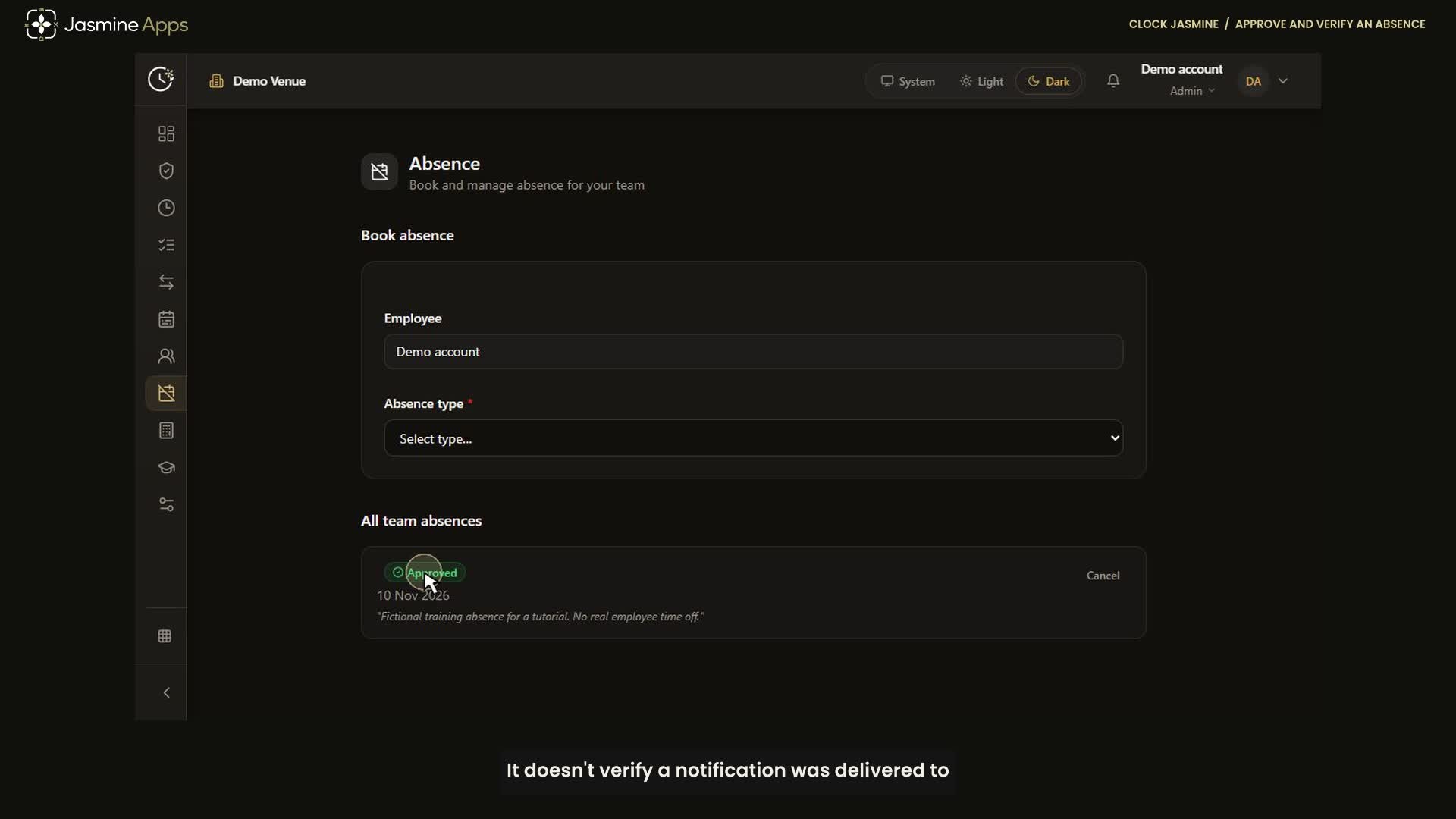
Clock Jasmine absence approvals: review and verify a decisionReview a Clock Jasmine absence request, approve the intended fictional booking and verify its saved status after reloading. The video uses the Demo account in Demo Venue and does not make a decision about a real employee's time off.
- Tutorial
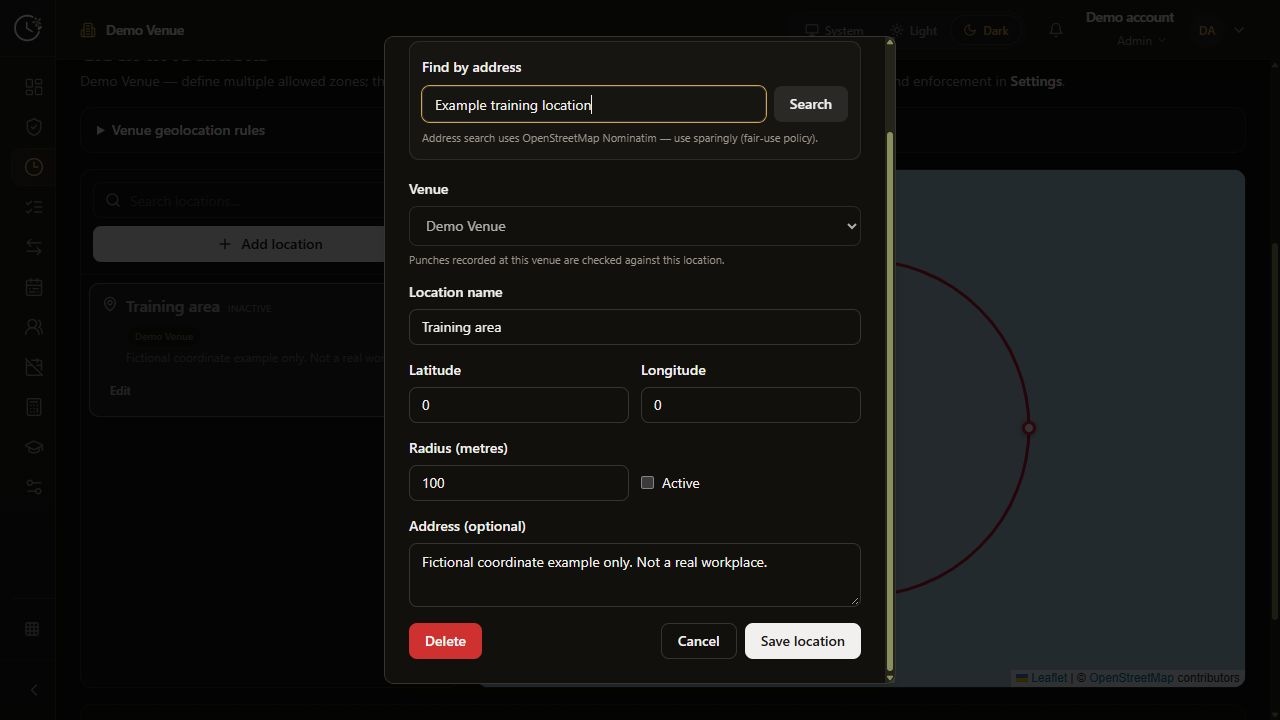
Clock Jasmine locations: create and verify an inactive zoneCreate a Clock Jasmine location zone, keep the training example inactive, save it and verify it after reloading. The walkthrough uses fictional coordinates and a labelled training description. It does not expose a workplace's real location or demonstrate a GPS-verified punch.
- Tutorial

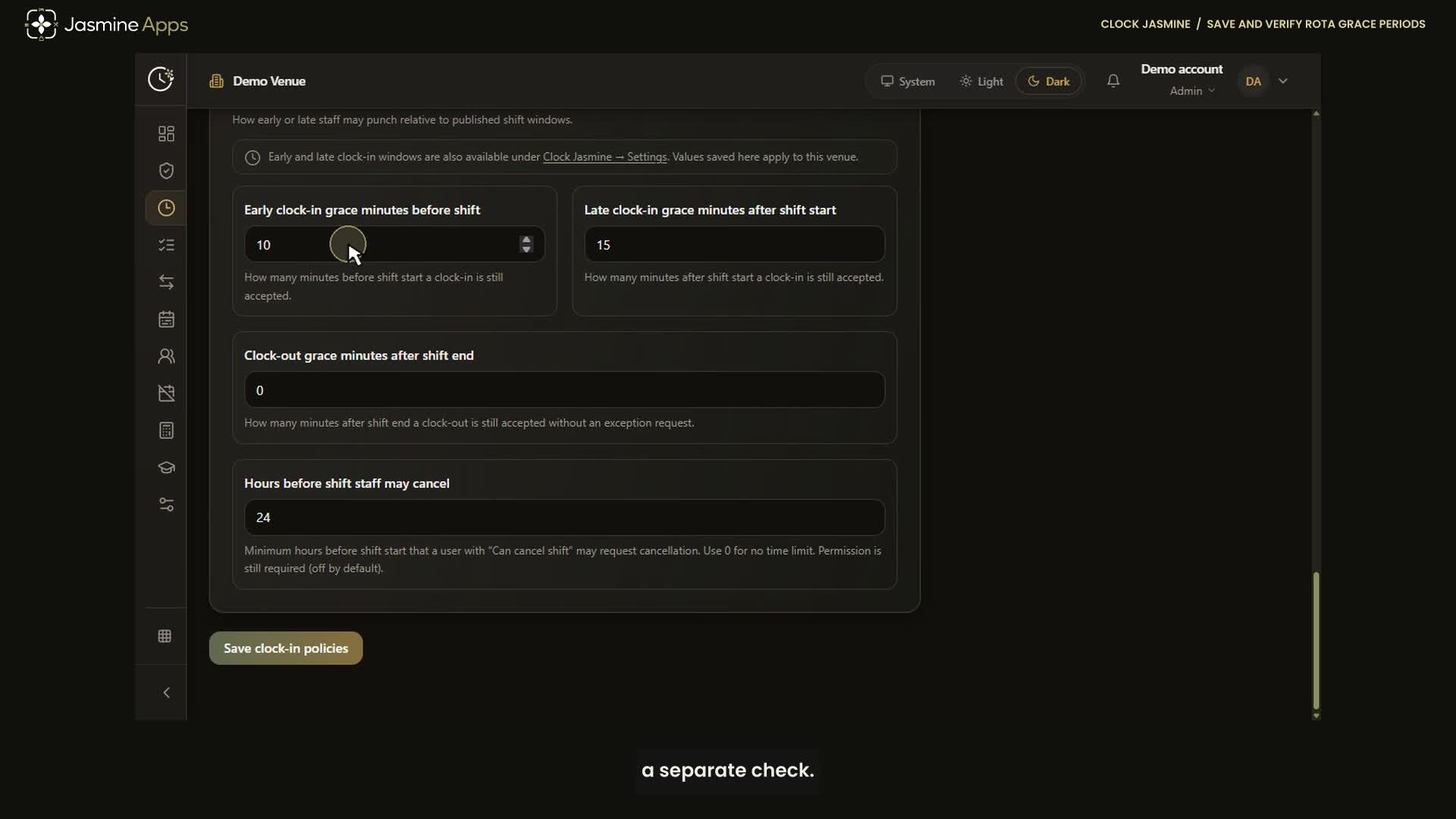
Clock Jasmine rota grace periods: save and verify the policySet the venue's rota grace periods in Clock In Settings, save the policy and check the retained values after reloading. The walkthrough changes only the early clock-in window in Demo Venue; it does not change real staff attendance or enable a new enforcement rule.
- Tutorial

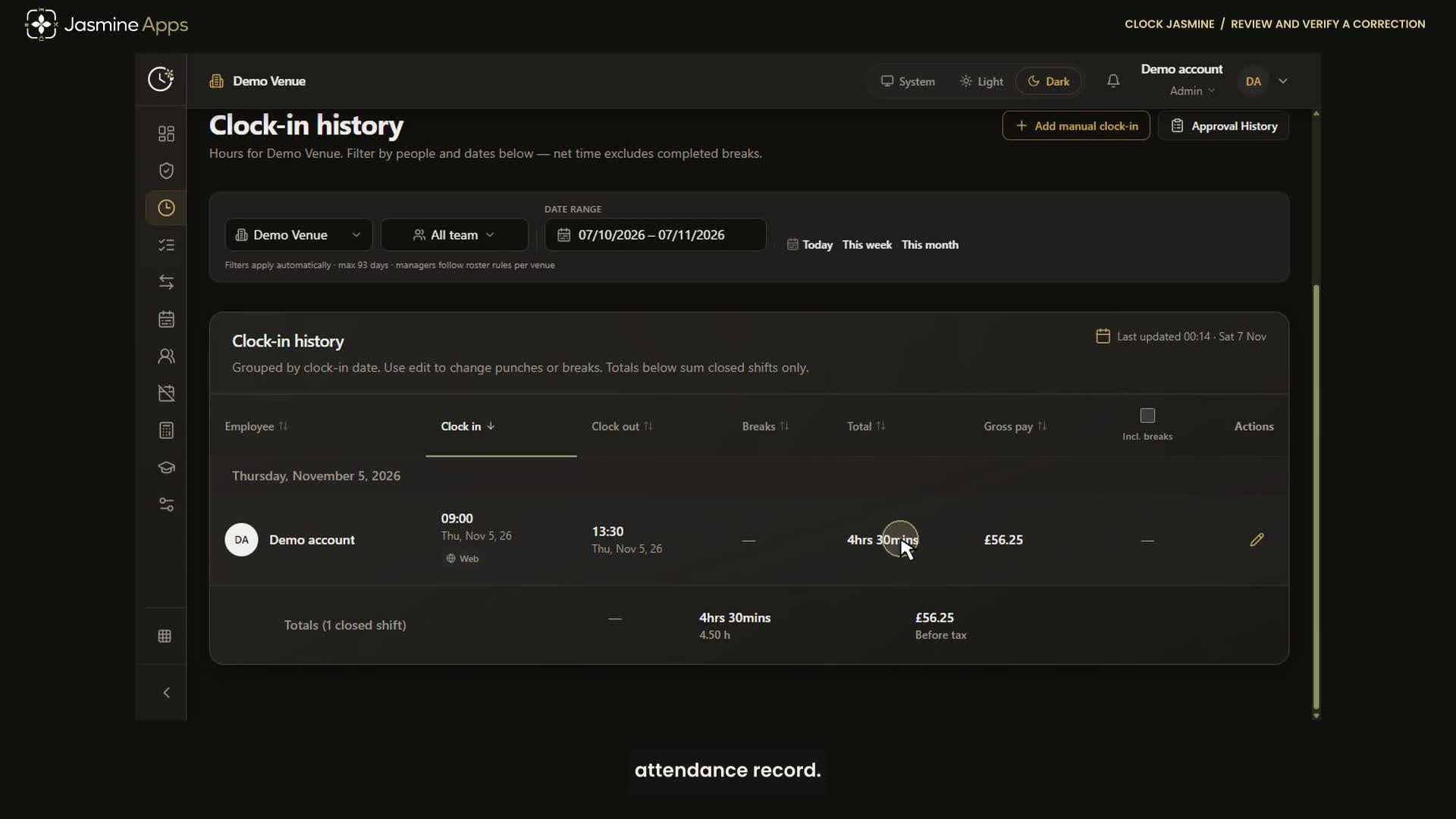
Clock Jasmine approvals: review and verify a time correctionReview a Clock Jasmine time-correction request, save the decision and check that the approved values reached Clock-in history. This walkthrough uses only the fictional Demo account in Demo Venue.
- Tutorial

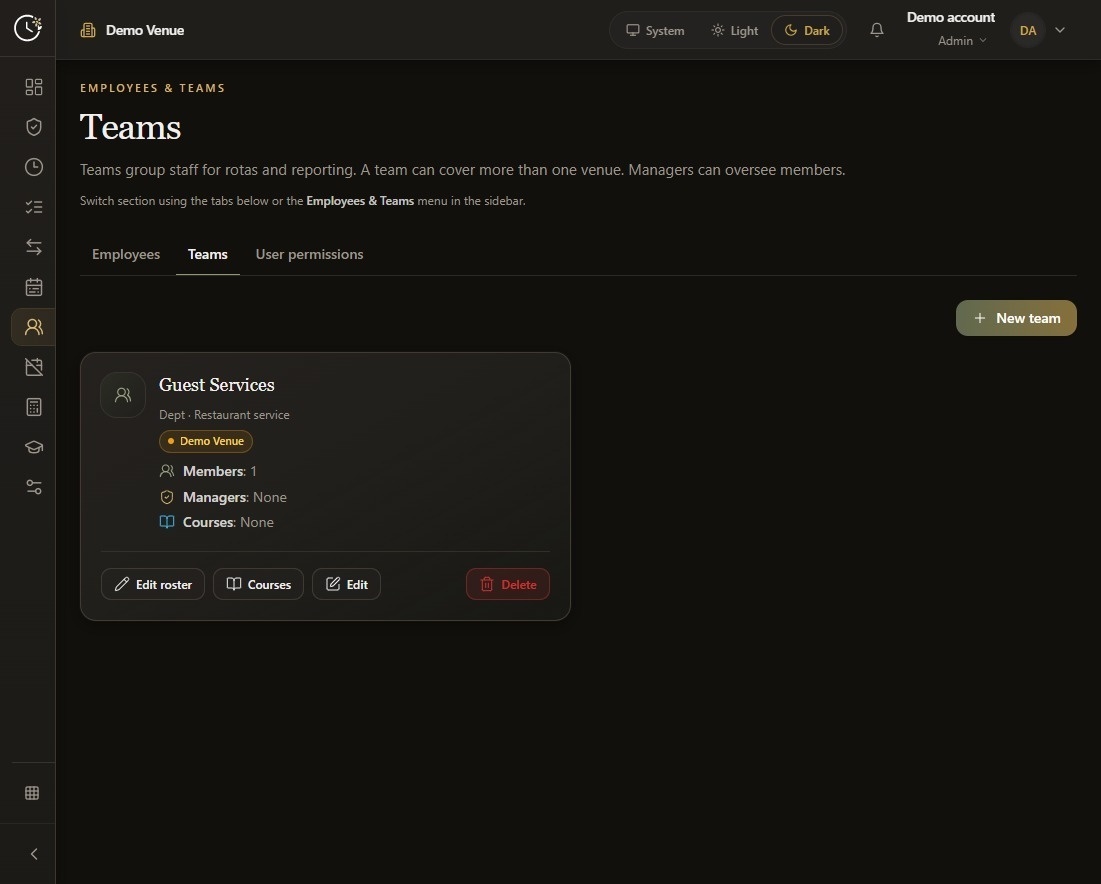
Clock Jasmine teams: create a team and manage its rosterClock Jasmine teams group staff for rotas and reporting. This walkthrough creates a team with an existing venue member, checks its saved roster, updates the department and verifies the final result after reloading.
- Tutorial

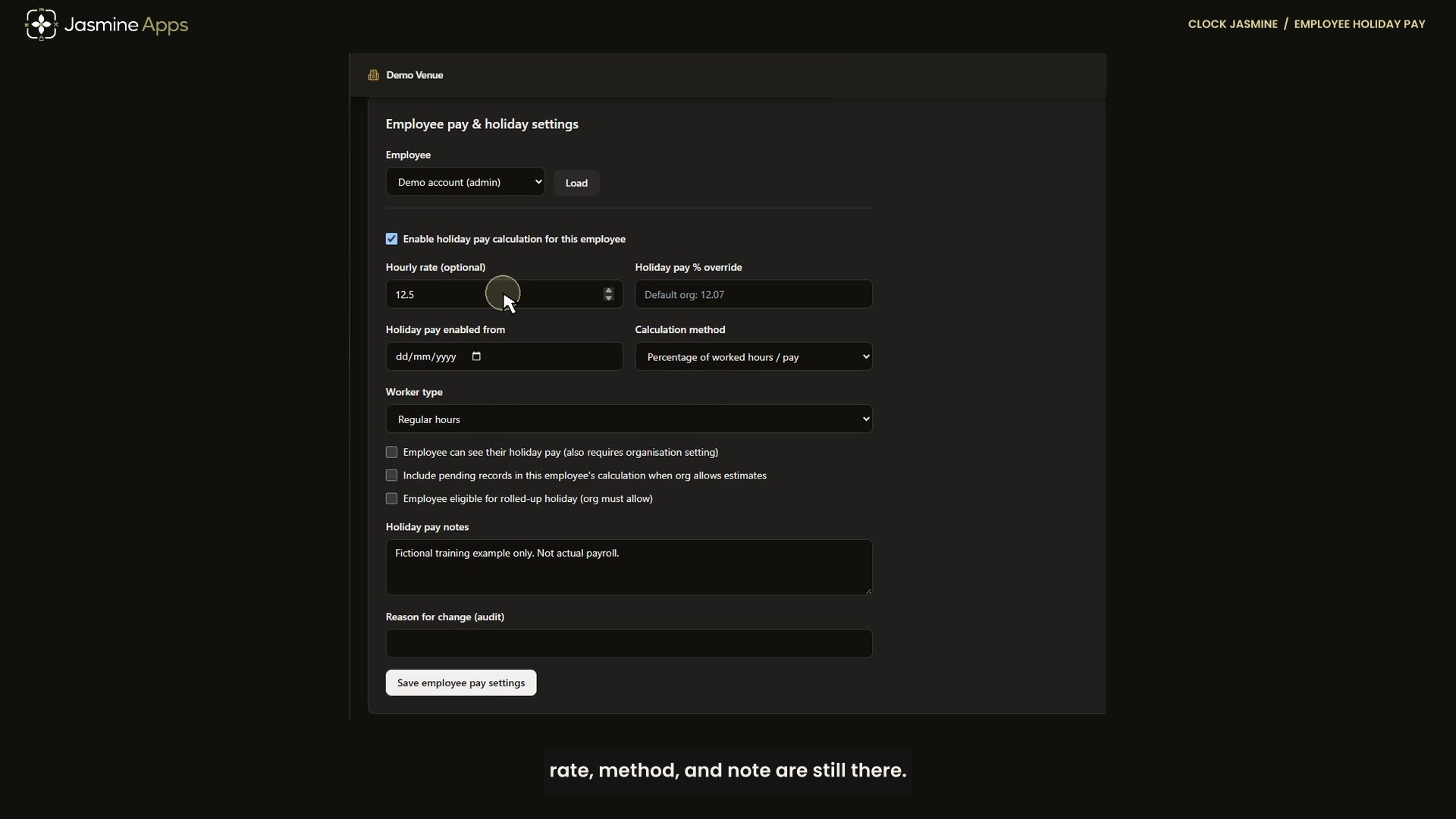
Clock Jasmine holiday pay: save an employee profileSet up an employee's holiday-pay profile in Clock Jasmine, save it and check the retained settings after reloading. This walkthrough demonstrates the profile configuration in Demo Venue. It does not calculate a pay period, mark a record paid or transfer money.
- Tutorial

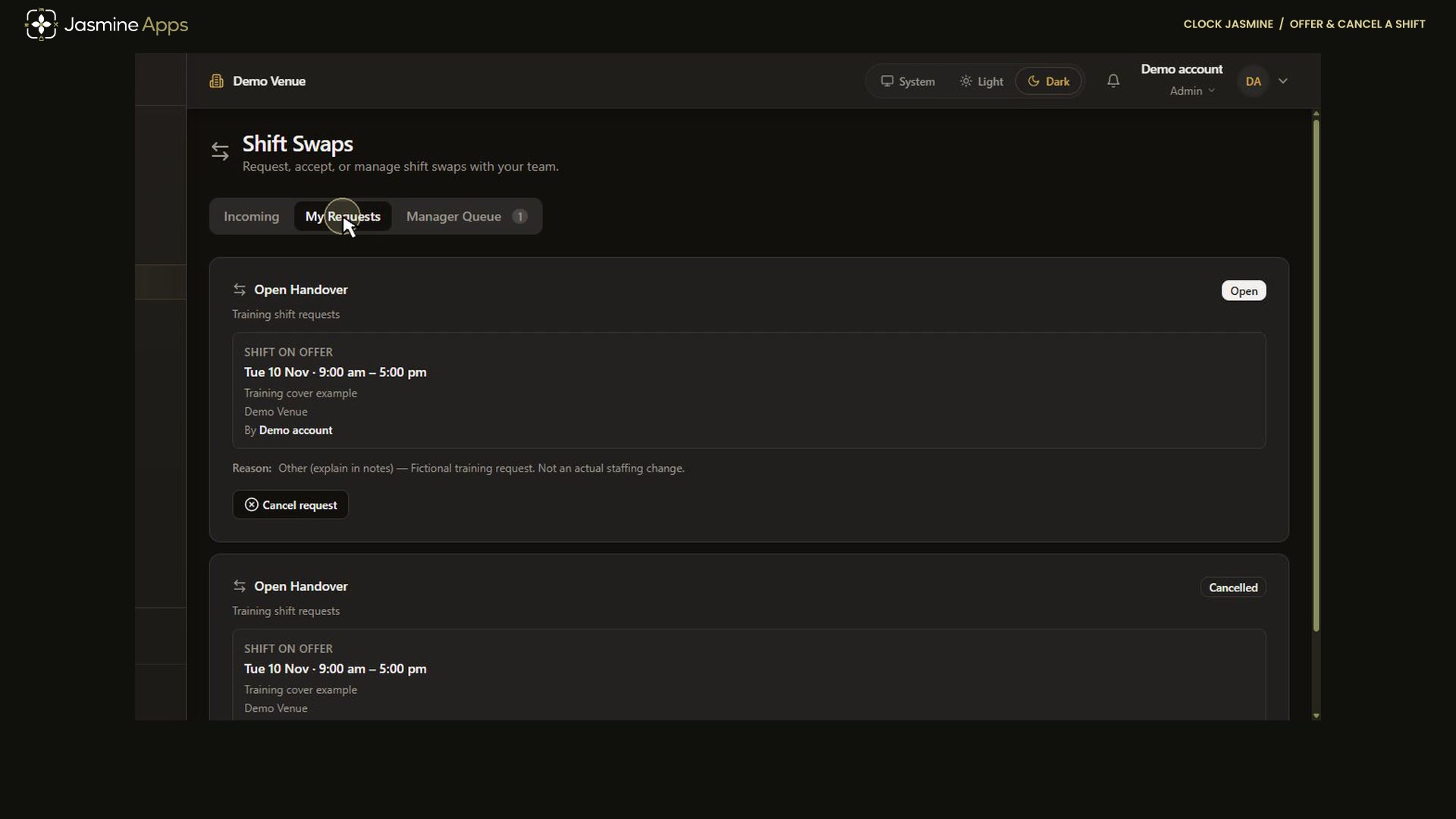
Clock Jasmine shift swaps: offer a shift and cancel a requestUse an open shift-swap request when you want to offer one of your published rota shifts to a colleague. This walkthrough submits an open offer, checks its saved status and cancels it.
- Tutorial

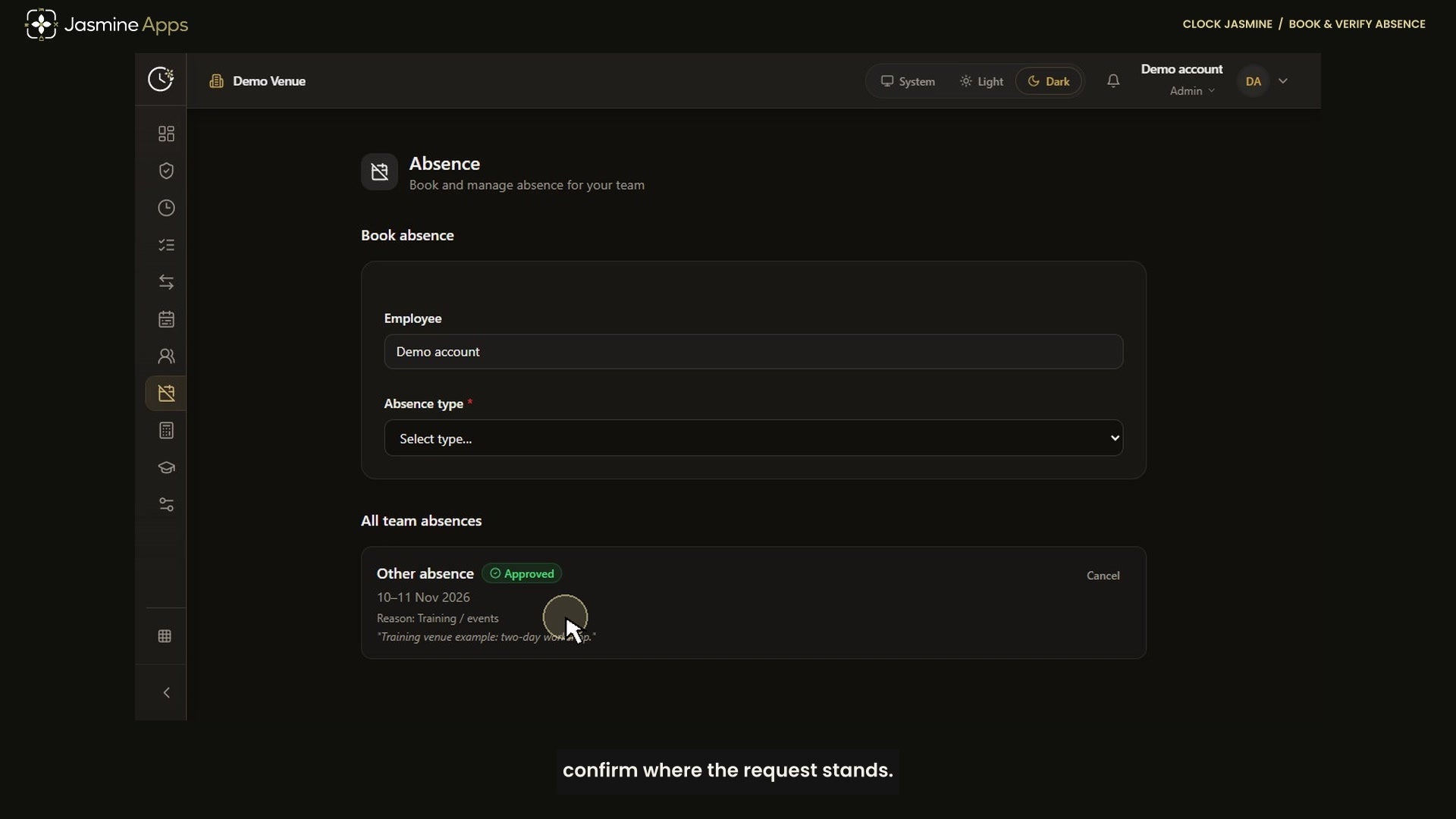
Clock Jasmine absence: book and verify a saved requestBook an absence in Clock Jasmine by checking the employee, choosing the appropriate type and reason, setting the dates and reviewing the summary. This walkthrough completes a training booking, checks the saved result and reloads the page to verify that it was retained.
- Tutorial

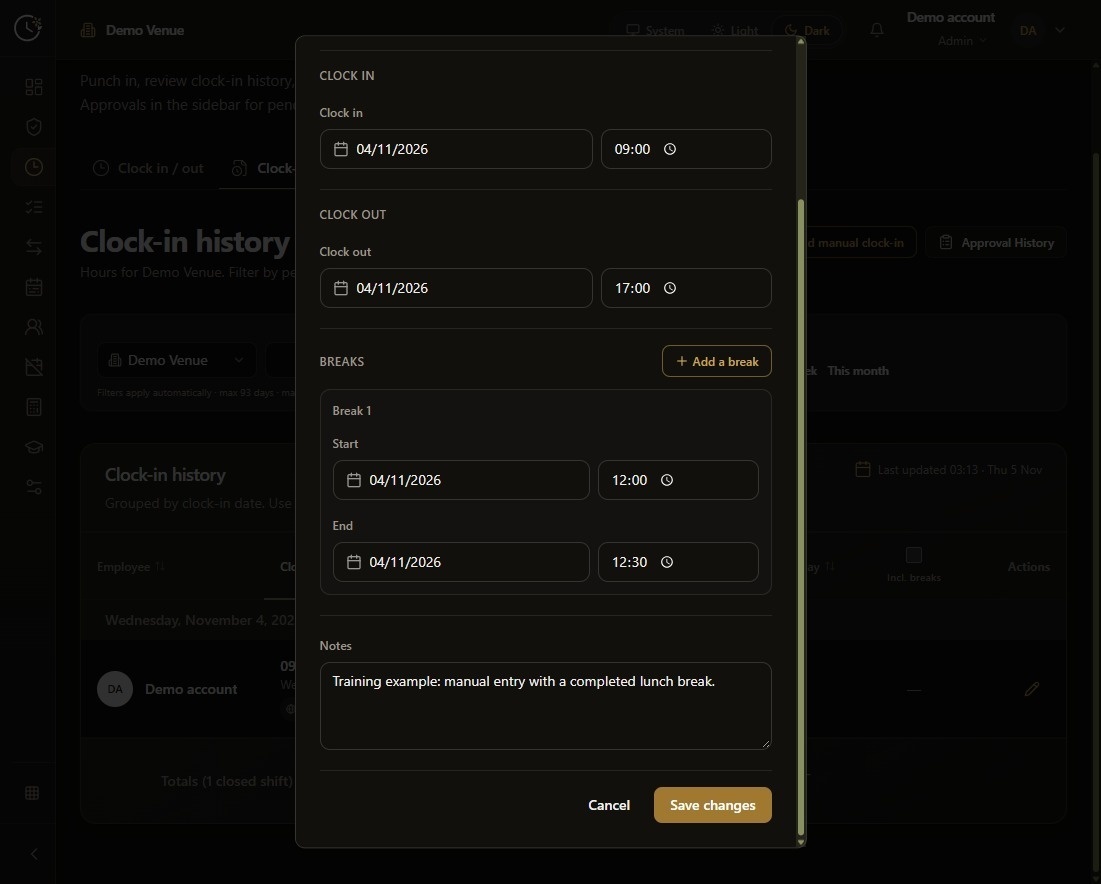
Clock Jasmine history: save manual punches and breaksClock Jasmine clock-in history lets you review saved attendance, add a verified missing pair of punches and correct a completed break. This walkthrough saves both changes in a training venue, reloads the records and compares net time with the full shift span.
- Tutorial

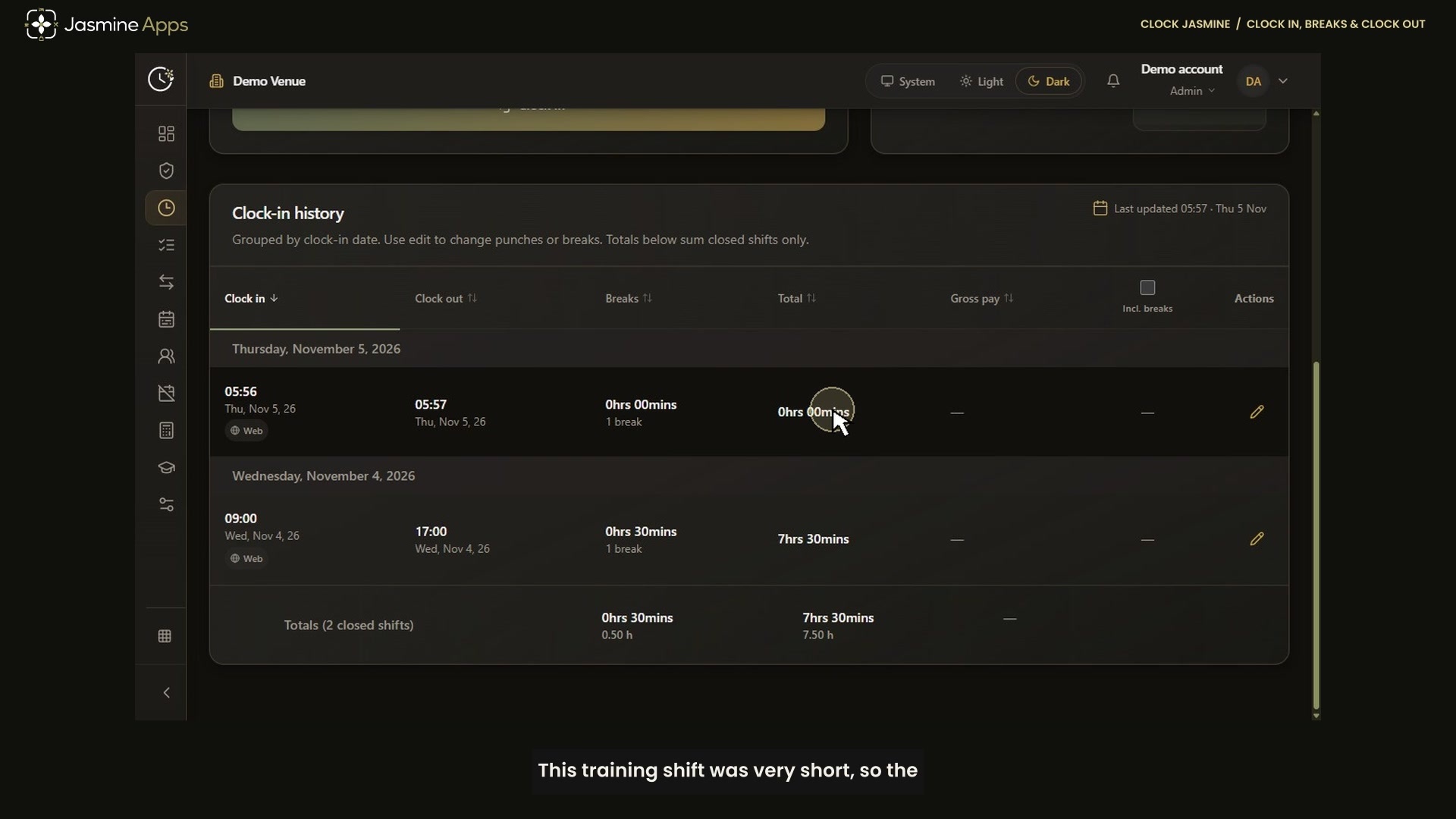
Clock Jasmine: clock in, take a break and clock outUse Clock Jasmine to record the start of a shift, take and finish a break, clock out and verify the completed entry. This walkthrough performs the full sequence with the training account in Demo Venue, then reloads the page to check the saved history.
- Tutorial

Getting started with Clock Jasmine: staff onboardingWalk through all six starter-onboarding screens in Jasmine’s no-save preview, finish the demo and review hidden-PIN guidance. Includes the manager setup order.
- Tutorial

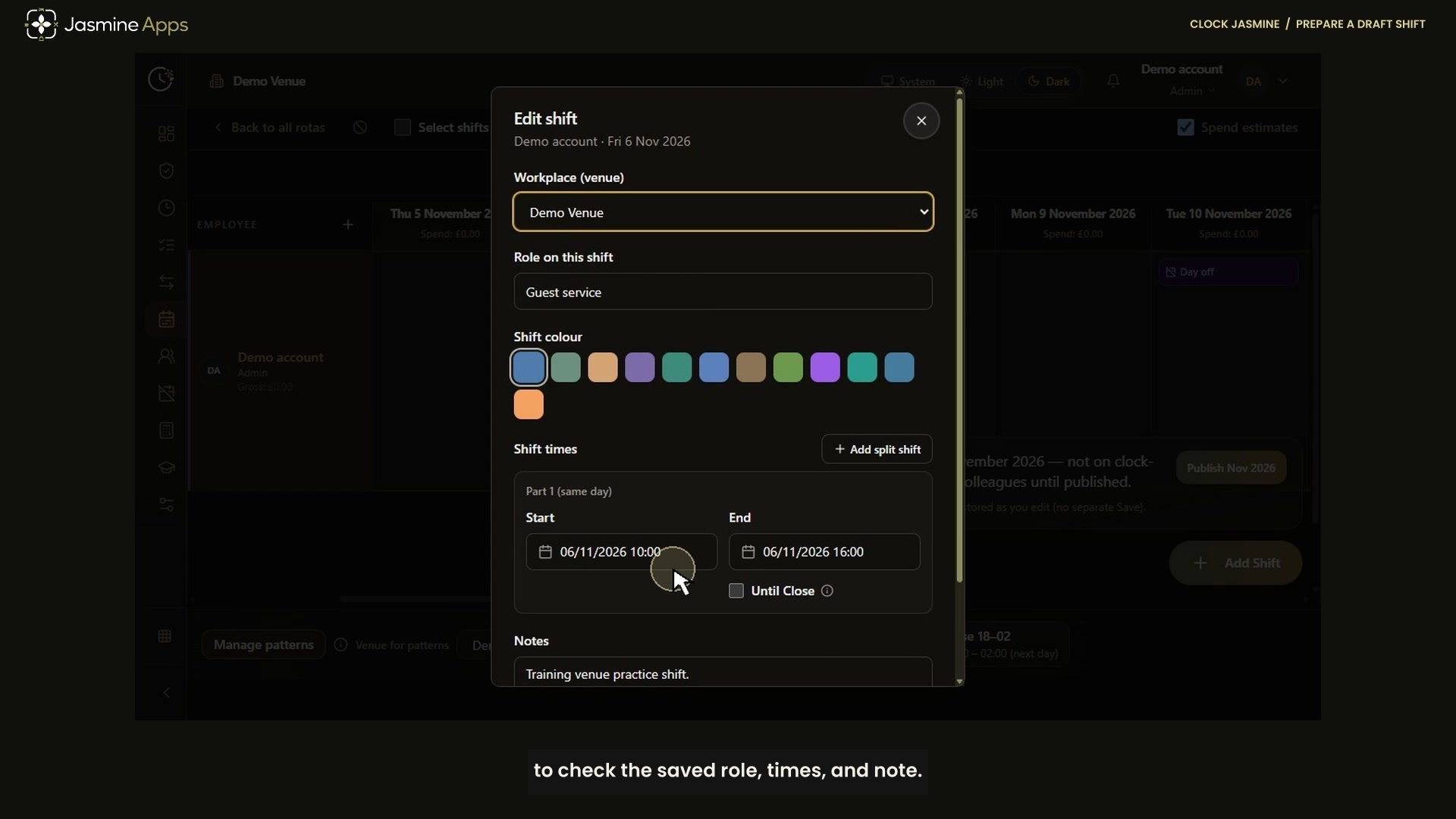
Clock Jasmine rotas: create and verify a draft shiftPrepare a draft shift with Clock Jasmine rotas. Follow a real Demo Venue workflow: choose a day, enter the role and note, set the times, save the draft, then reload and reopen it to check the retained details.
- Tutorial

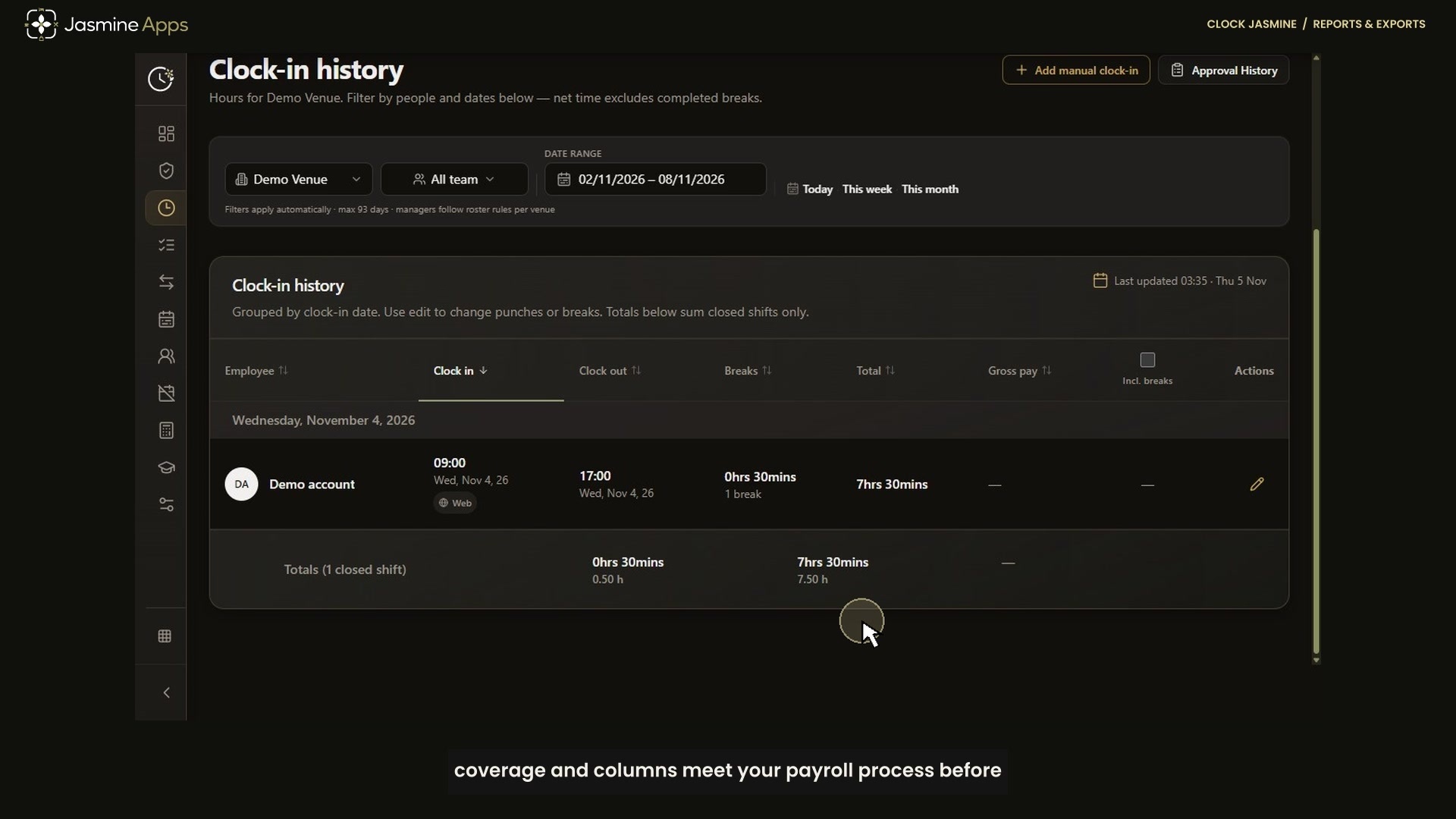
Clock Jasmine: download and check clock-punch exportsClock Jasmine Reports & exports downloads recent clock punches as a CSV. This walkthrough follows the complete process: download the file, open and inspect its actual contents, then return to history to compare the corresponding shift and break totals.
- Tutorial

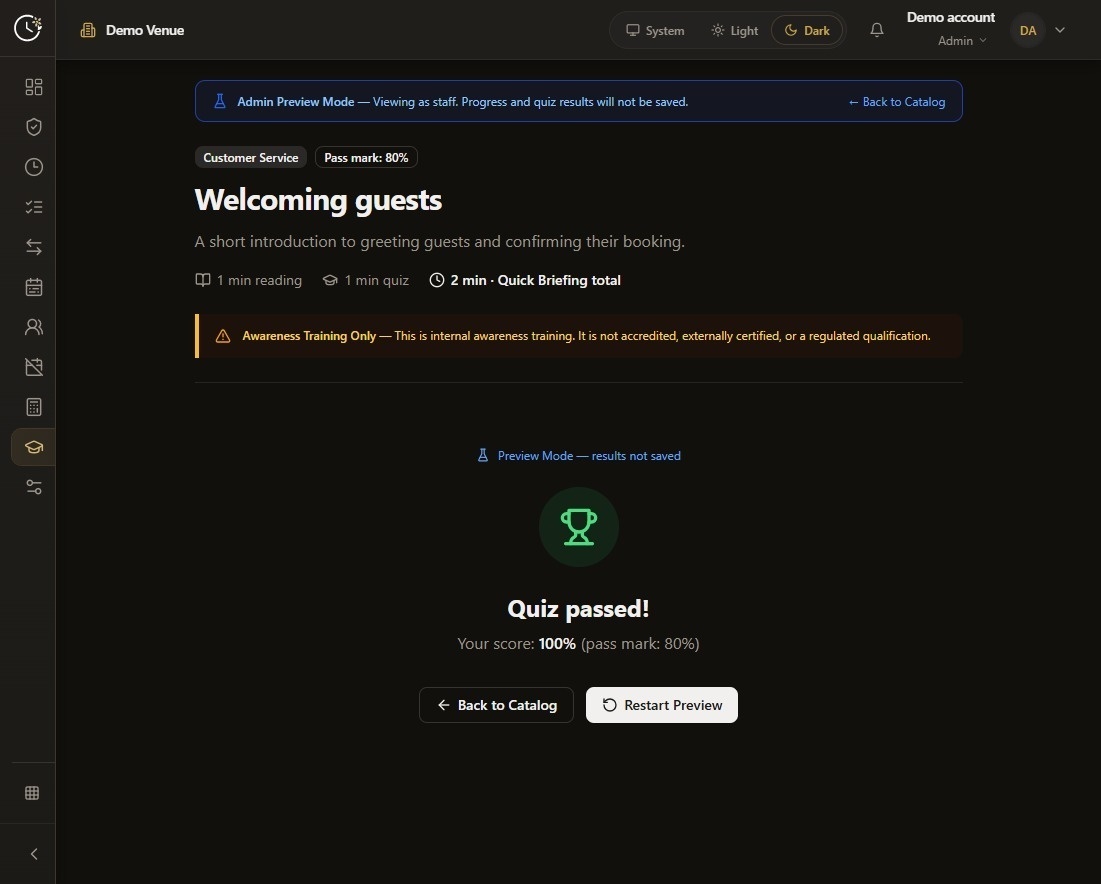
Clock Jasmine courses: create, save and preview a quizClock Jasmine courses let you prepare learning material and check it with a quiz. This walkthrough creates a course, saves it as a draft, reopens the saved content and tests the learner experience in Preview.
- Tutorial

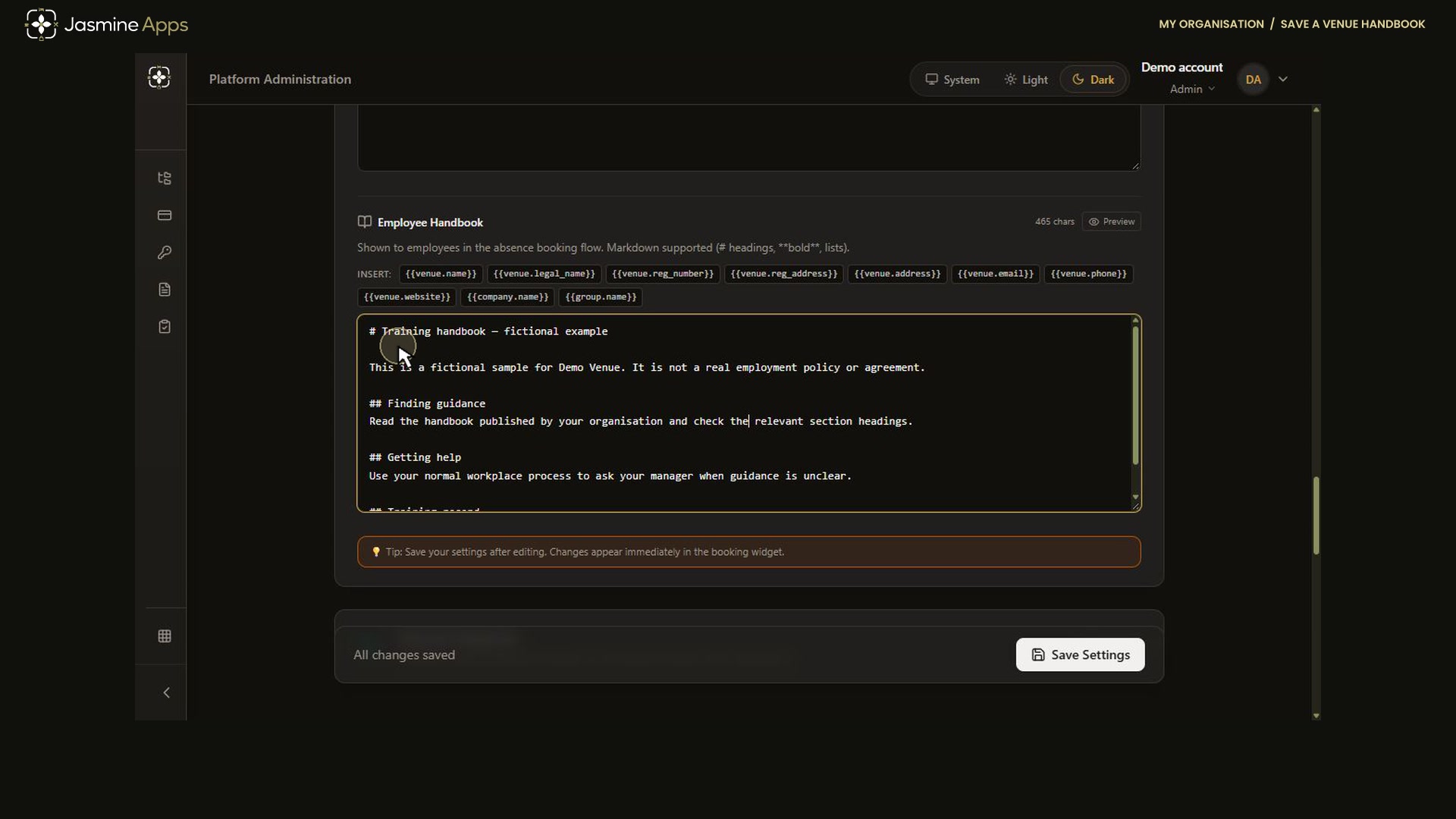
My Organisation: save your venue's employee handbookKeep the handbook text in your venue's Legal Documents settings. This walkthrough edits a clearly fictional training handbook, saves it and reopens the page to verify that the text was retained.
- Tutorial

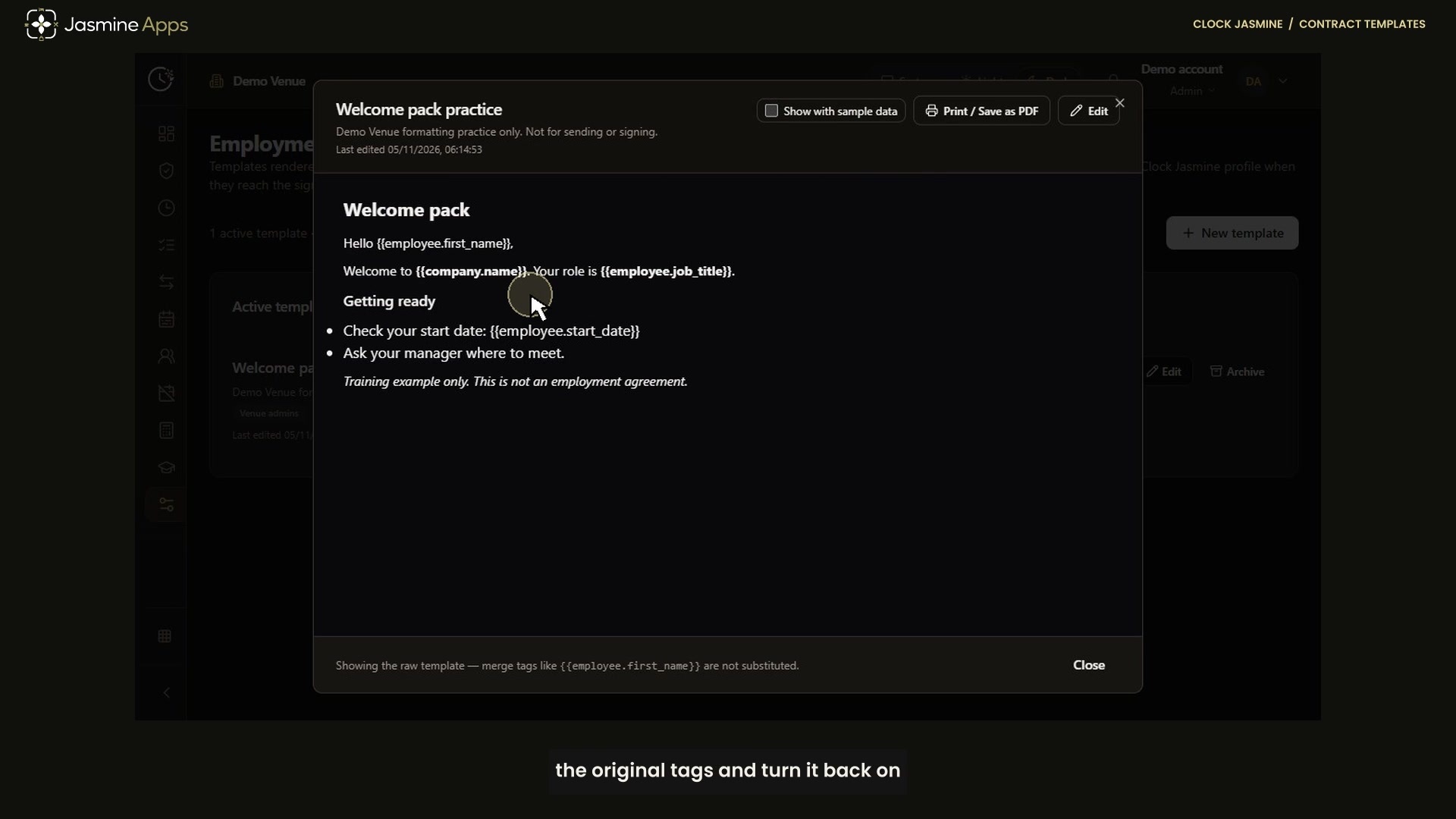
Clock Jasmine contract templates: create, save and previewCreate a reusable Clock Jasmine contract template, insert merge tags, check its sample preview and reopen the saved result. This walkthrough uses a labelled formatting example in Demo Venue.